


NOTE: The Finance Intelligence Agent is AI and should be checked for accuracy or inconsistencies. Information provided by this agent is for information purposes only and is not professional advice.
The Finance Intelligence Agent is an AI-powered service built into Sage Intacct to help find answers about your financial data and drive better decision-making. Using Sage Copilot, you can ask questions, get insights, and explore your information all by using natural language.
- Analyze and visualize financial data to show trends and insights
- Summarize and answer questions with clear answers
- Answer your how-to questions with in-product guidance from Search help
Finance Intelligence Agent works through Sage Copilot and prompts you can provide to the system. Example prompts for each module can be found here.
To use Sage Copilot with the Finance Intelligence Agent:
1. Select the icon
On any page in Intacct, select the Copilot icon in the title bar.

2. Enter a prompt
Enter a prompt using natural language in the Aks Copilot a question field located at the bottom of the panel.
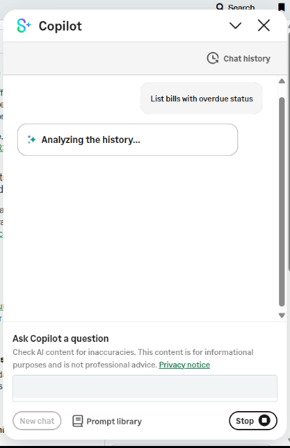 3. View the response in the chat and navigate any links presented.
You can also click on View analysis on the chat bubble presented to do a deeper dive into how Copilot came to gather that information.
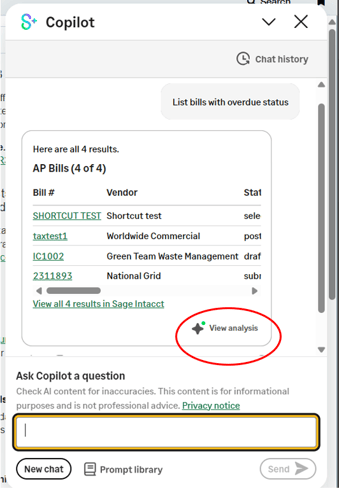
The analysis provided by Copilot can be exported for sharing with other teams or further analysis.
Prompt tips: You can ask Sage Copilot to analyze data, spot trends, and answer questions without building reports or writing queries. Start with a clear goal – what do you want to get from Sage Copilot. Be specific! Make sure to use Sage Intacct terminology, using AP bills for bills rather than the word invoices, as they may be commonly referenced in the corporate setting. Follow-up questions can be used to refine results.
Writing an effective prompt:
1. Start with an action.
Begin by telling Copilot what you want it to do. Use words such as:
- Show
- List
- Find
- How many
- What's the total
This tells Copilot the type of response you expect.
2. Identify the data point.
Next, name the financial data you want to work with. Be as specific as possible so Copilot knows exactly which records to return.
You can include descriptors, like "unpaid" or "largest" here. Also, try using Intacct terminology when possible, like "recurring journal entries" or "missing account categories". For example,
- Selected AP bills
- Draft sales invoices
- AR Customer payments
- Bank accounts
- GL accounts
- Items
3. Specify the scope.
Finally, narrow the results by adding conditions such as timeframes, amounts, or specific record names. These "filters" help Copilot focus on the most relevant data. For example:
- due in the next 30 days
- over 5,000.00
- for last month
- for the Acme vendor
Examples of putting it all together
[action] + [data point] + [scope]
- List AP bills over 3,000.00 for this month.
- What were the top 5 customers by AR invoice amount for 2025?
- Show all GL accounts created last month.
How to configure:
- Go to Company > Admin > Subscriptions.
- Locate the Finance Intelligence Agent in the list and select the toggle. A dialog appears that describes the Finance Intelligence Agent. You will not be charged for subscribing to this service.
- Select Subscribe. The Configure Finance Intelligence Agent page appears.
- Select the Terms of the EA Agreement link. The terms page opens in a separate browser tab.
- Review the agreement.
- Select the browser tab containing your open Intacct session and do one of the following:
- If you agree to the terms, select the Agree to terms and enable the Finance Intelligence Agent checkbox and select Save.
- If you do not agree to the terms, select Cancel.
- For each user or role, assign the Finance Intelligence Agent—Run permission.
The application can be turned off by Navigating to Company – Admin – Subscriptions and toggling the bar next to Finance Intelligence Agent and clicking Cancel subscription and then Yes.
Looking for More on Sage Intacct?
For more helpful tips and tricks about Sage Intacct, subscribe to our blog and stay up-to-date with our latest tutorials. We're dedicated to providing valuable resources for businesses looking to optimize their financial management with Sage Intacct.
 Check out these blogs to help get you started!
Sage Intacct R2 2026: What You Need to Know about the Latest Release
No Plaid? No Problem: Automating Bank Feeds in Sage Intacct
Create Expanded Columns and a Summary for Reports in Sage Intacct