


This guide outlines the steps for creating a new bank account in Sage X3. The process includes setting up the related general ledger account, creating the appropriate journal code, and entering the bank account details so the account is ready for use in the system.
1. Go to Common data > General accounting tables > General > Accounts.
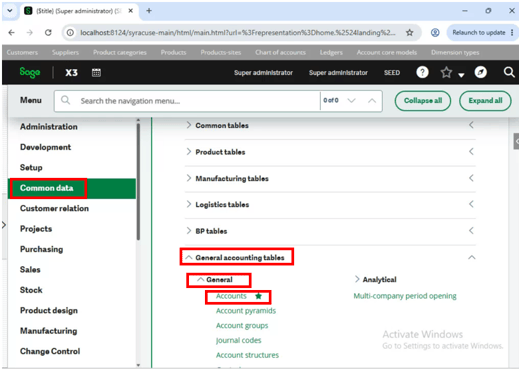
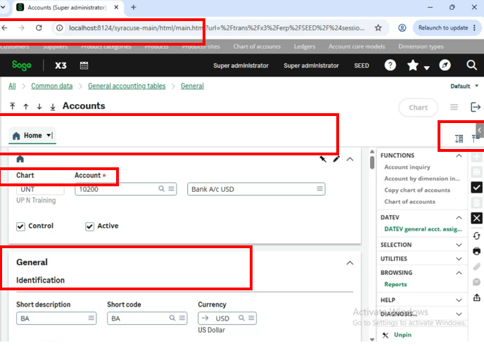
2. Find a similar bank account to copy.
To copy:
- Enter the new account number in the Account field
- Change the description, short title, & currency accordingly and tab off
- Make sure the Active tick box is ticked
- The Create button should enable, press it and the account for the new bank is created
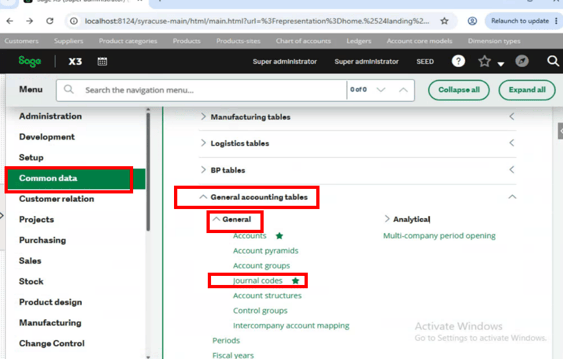
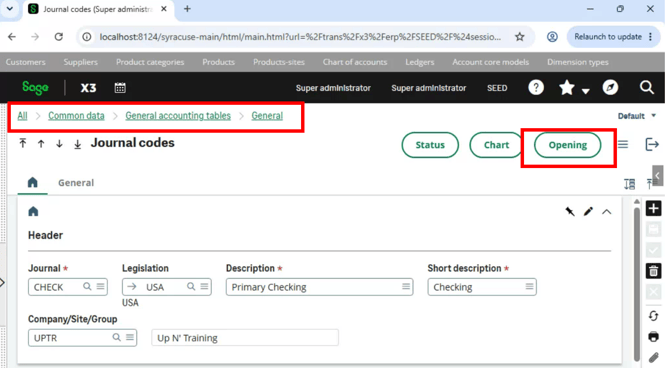
3. Create the New Journal Code in Common Data > General accounting tables > General > Journal codes.
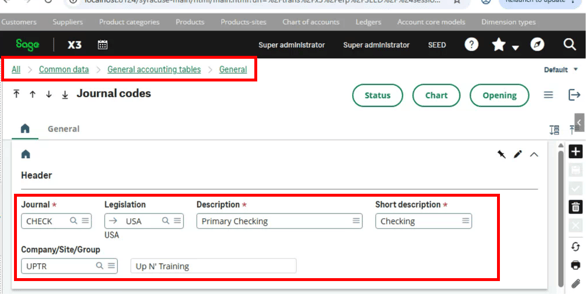
4. Enter the journal code name, description, short description, etc.
 5. Expand the Management table by clicking the Maximize icon.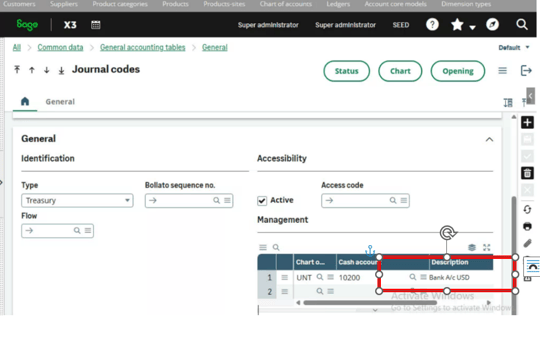
6. Enter the Chart of accounts, cash account, and description and then minimize the table.
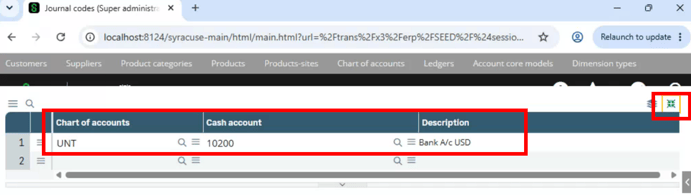
7. Once the Journal Code is created, you need to click the “Opening” button on this screen to open the code for the company.
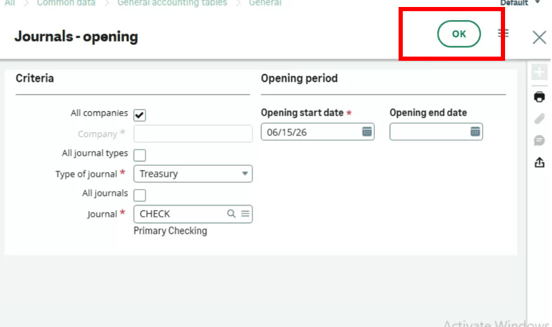
8. Press OK.
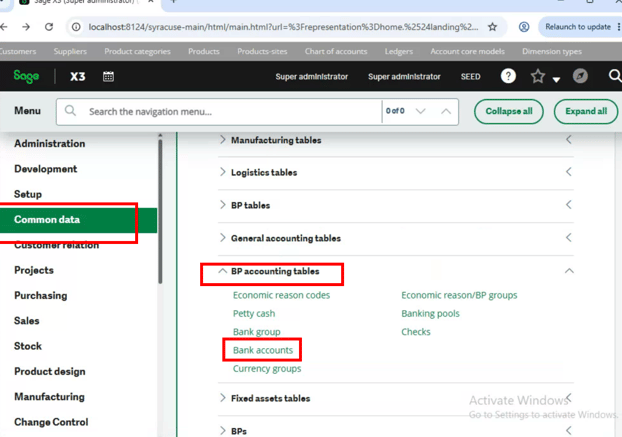
9. Create the new Bank Account in Common data > BP accounting tables > Bank accounts.
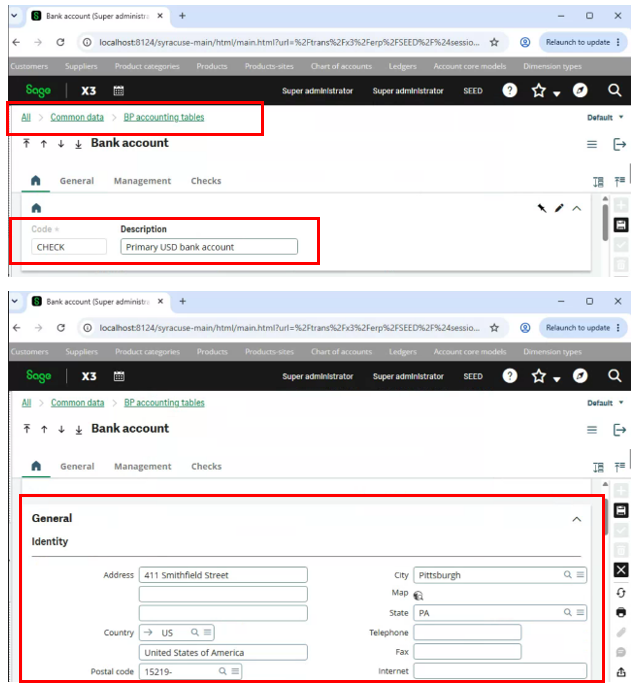
10. Enter the General Details.
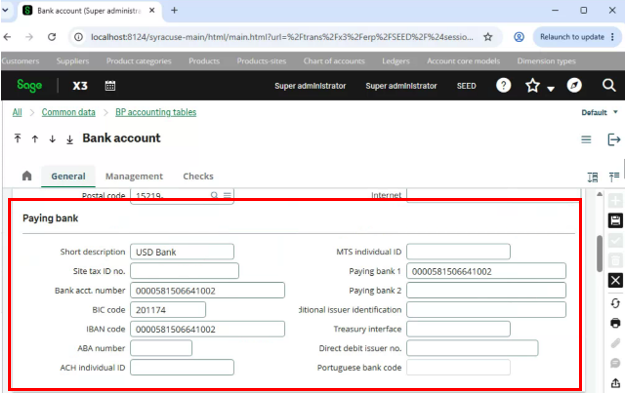
11. Finally, the last step is to add the Journal Code and currency details onto the bank account and control tab. Then the bank account should be available for use.