

Manual matching in Sage X3 helps users connect related debit and credit transactions, such as an invoice and an unapplied payment or credit memo. It is helpful when transactions have open balances and need to be applied together. Matching clears completed entries from the list of outstanding items, making account balances easier to review and reconcile.
How to manually match entries, interpret matching letters, and correct errors by unmatching transactions
Step 1:
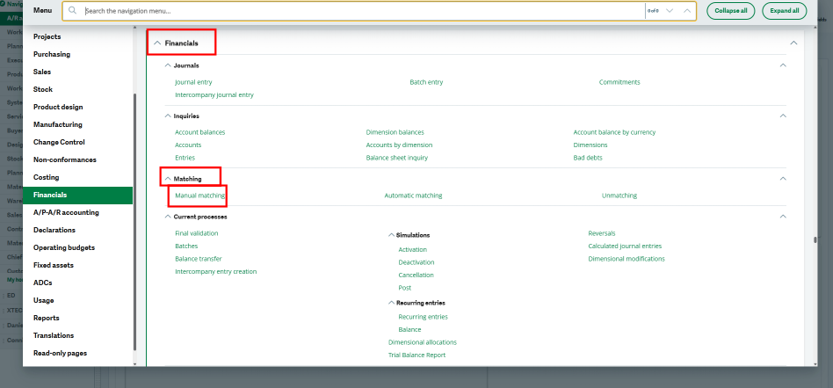
Use Manual Matching in Financials > Matching > Manual matching or Search the X3 navigation menu for ‘LETTRAGE’
Step 2:
Enter the Site, Account, BP, and date range if needed. Click Search.

Step 3:
Select the entries you want to match together by clicking the check box under the ‘Select’ column. You can jump further into any journal by selecting the action icon (3 lines) and selecting ‘Journal’
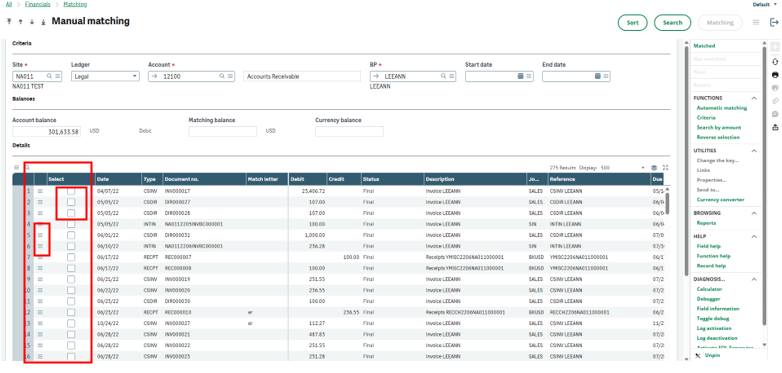
They will turn red when not fully applied to each other and there is a remaining balance.
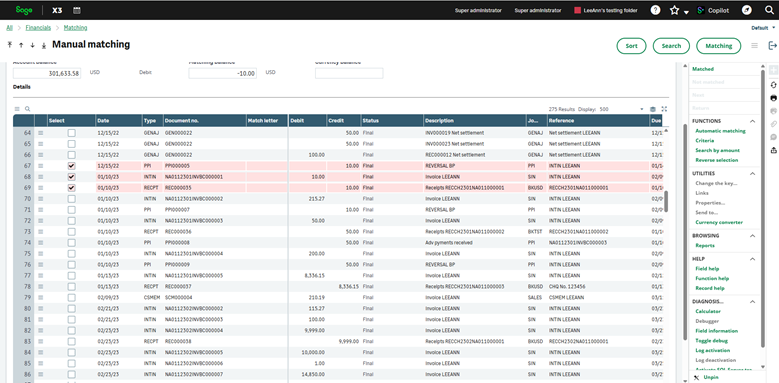
They will turn green when fully applied to each other and the remaining balance for the selected items is 0.00.
Step 4:
Click on the ‘Matching’ button on the right column when finished.
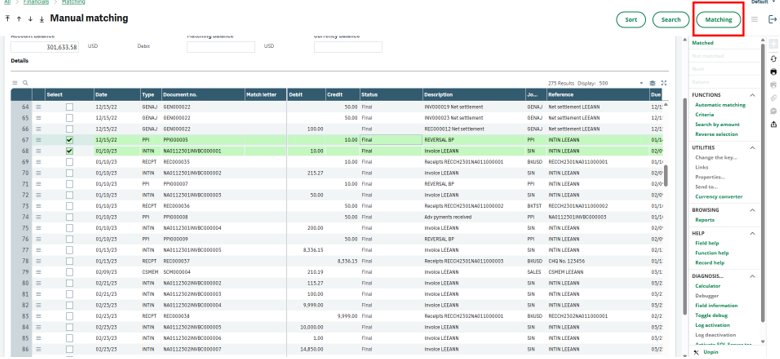

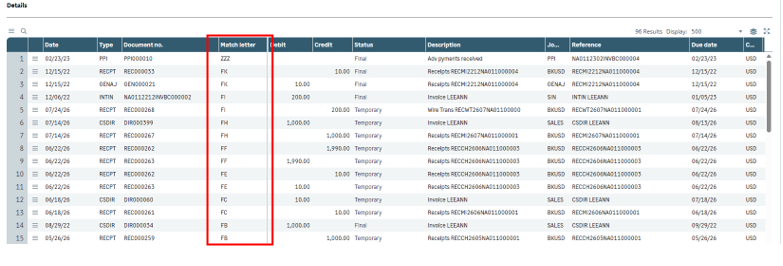
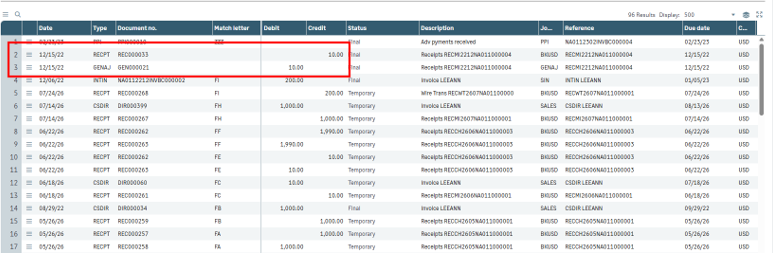
When X3 matches accounting entries, it assigned the same matching letter code to every entry in the group. The letters identify which debits and credits were matched together.
Uppercase indicates a complete match. The entries offset one another, leaving the matching group with no remaining balance.
Lowercase letters indicate a partial match. The entries are related, but they do not fully offset one another in their grouping.
A blank under the ‘Match letter’ column means the entry has not been matched.
If entries were matched using manual matching, you can also un-match entries in a group.
**You should never un-match transactions in manual matching that were already automatically matched during the initial entry. For example, if a payment was created and applied to an invoice in Payment/Receipt entry then that document should be reversed which will in return un-match the documents. If you un-match this type of entry in manual matching it can cause data inconsistencies in Sage X3, and a data fix will be required to correct the matching**
Step 5:
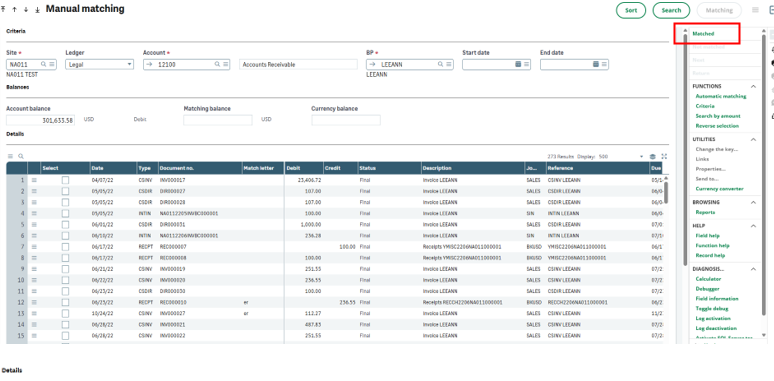
Click ‘Matched’ to display entries that already have an uppercase matching code. You must hit ‘Search’ with the criteria entered for that button to be displayed. If not, it will be grayed out. All the entries displayed are those with uppercase matching.
Step 6:
Open the line’s Action card menu and select ‘Unmatching’. This prompt will show up.
Click OK.
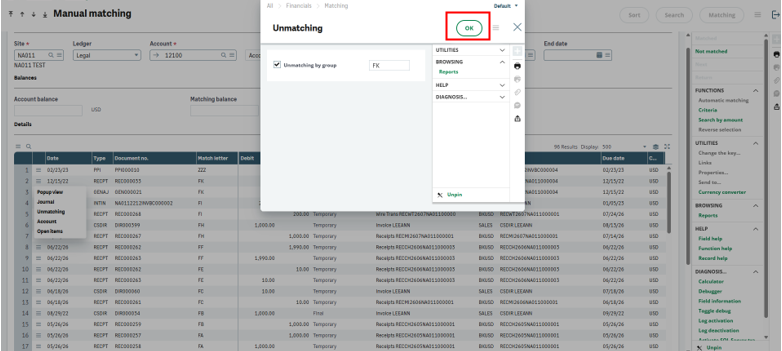
The uppercase match letters disappear. Those entries are officially unmatched.
Best Practices
- Match transactions regularly rather than waiting until month/period end
- Use narrow date ranges for high-volume accounts
- Review source documents before matching unclear entries
- Investigate old unmatched balances instead of automatically clearing them
- Confirm that partial matches are intentional
- Review matched results before completing the reconciliation
Want More Sage X3 Features & Functions?
For videos on Sage X3, visit our YouTube page and subscribe to stay up-to-date with the latest insights and tutorials. Our channel is dedicated to providing valuable resources for businesses looking to optimize their financial management with Sage X3.
 Check out these blogs to help get you started!
4 Functions to Use in the Preventive Maintenance Solution
How to Process a Purchase Return
How to Create a Complementary Invoice
How to Record a Write-off and an Overpayment