In accounting and finance, managing invoices and payments is a routine yet crucial task. Occasionally, businesses encounter situations where they need to write off certain amounts due to various reasons, such as bad debts or overpayments. Understanding how to properly record a write-off during payment entry is essential to maintaining accurate financial records. Below are five steps and best practices for handling write-offs effectively in Sage X3.
5 Simple Steps for Recording Incorrect Payments
First, we will need to create a Payment attribute, which will control how the amount gets posted to the general ledger:
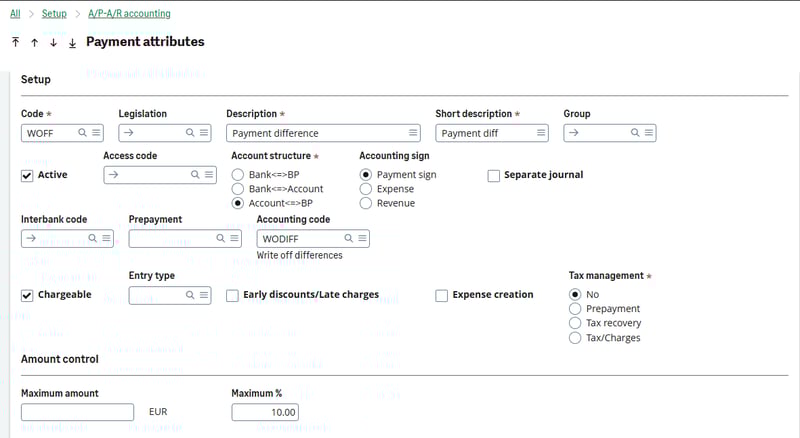
- Navigate to Setup > A/P-A/R Accounting > Payment Attributes
- Then, create a new Payment attribute with the Code as “WOFF,” which stands for "Write off" small balances and the account structure as Account ⇿ BP. This will allow us to define a GL Account in the Accounting code for the Attribute instead of posting to the bank account.
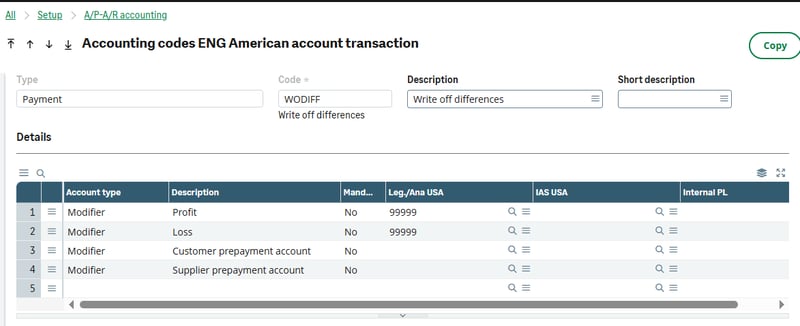
- From the Accounting code field, you can tunnel to the payment attribute accounting code setup. Create a new accounting code called WODIFF and select the GL account to track the overpayments and underpayments.
Example #1: Writing off a balance
In this example, we're going to assume we received a payment from a customer that was less than the open invoice amount, leaving a small balance that we will not collect. The customer owes $50 on an invoice but has only paid $49, so we've decided to write off the remaining $1 balance.
When entering the payment transaction, the REC line should be for the amount the customer paid, which in this example is $49, and the payment details should be the following:
- Attribute Code = WOFF
- Invoice Type = CSINV
- Document = Customer's Invoice
- Amount = 1.00 (the difference between what the customer paid and the open amount left on the invoice)
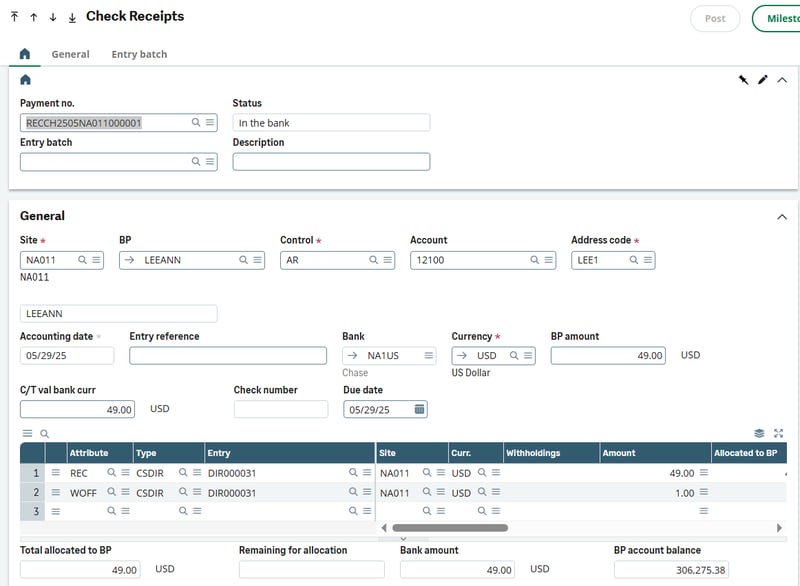
Once you've posted the transaction, review the accounting document. The customer's account balance should show as credited for the remainder of the invoice, and the underpayment booked to the desired account instead of the cash account.

Example #2: Correcting an Overpayment
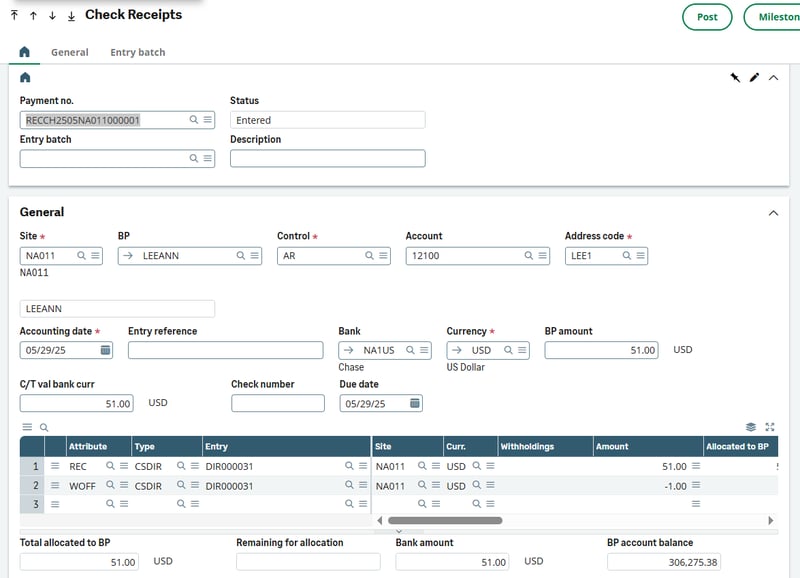
In this example, we're going to assume we received a payment from a customer that was more than the open invoice amount, leaving a small balance that is not due back to the customer. The customer owes $50 on an invoice, but paid $51. We have decided to record the $1 as an overpayment that will not show on the customer’s aging.
When entering the payment transaction, the REC line should be for the amount that the customer paid, which in this example is $51, and the payment details should include the following:
- Attribute Code = WOFF
- Invoice Type = CSINV
- Document = Customer's Invoice
- Amount = 1.00 (the difference between what the customer paid and the open amount left on the invoice).
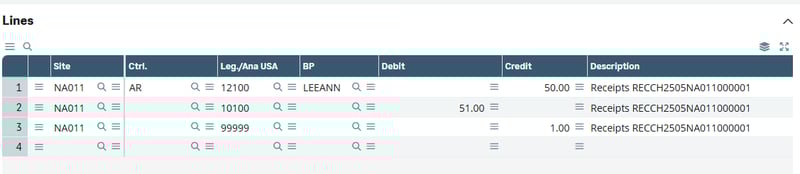
Once you've posted the transaction, review the accounting document. The AR balance should be credited by $50, which will close the balance due for the AR Invoice. The cash account should be debited by $51, which includes the overpayment, and $1 is credited to the preferred GL Account.
Want More Sage X3 Features & Functions?
For videos on Sage X3, visit our YouTube page and subscribe to stay up-to-date with the latest insights and tutorials. Our channel is dedicated to providing valuable resources for businesses looking to optimize their financial management with Sage X3.
 Check out these blogs to help get you started!
4 Functions to Use in the Preventive Maintenance Solution
How to Match Tolerances
How to Block Postings to a Sub-Ledger During the Period-End Process
How to Match Open Items