
In Sage ERP X3, a Complementary Invoice allows users to apply extra charges or amounts to an existing Supplier Invoice. Examples of these charges could be tariffs or third-party freight charges that we are paying to another supplier. A complementary invoice can be used to record these extra costs and allow inventory to absorb such costs if you are using valuation methods such as FIFO or Average Cost.
5 Steps to Create a Complementary Invoice
Use the steps to create a complementary invoice in Sage X3:
In this example, I am going to pay freight costs to UPS, and I want to absorb these costs into the related Purchase Receipt and Purchase Invoice.
- Go to Purchasing > Invoices > Invoices
- Create a new Purchase Invoice
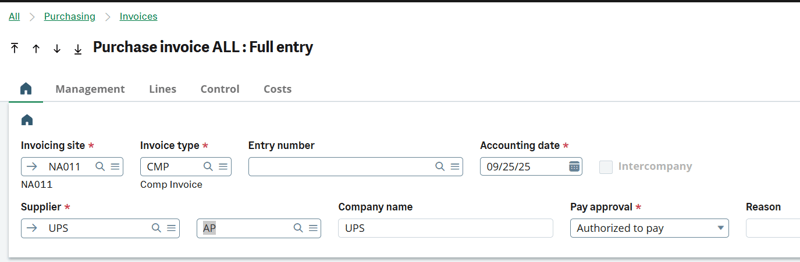
- Select the Invoice type "CMP"
- Enter the Accounting date and the 3rd party Supplier
- On the Lines tab click the Action box and select "Pre-loading the Lines"
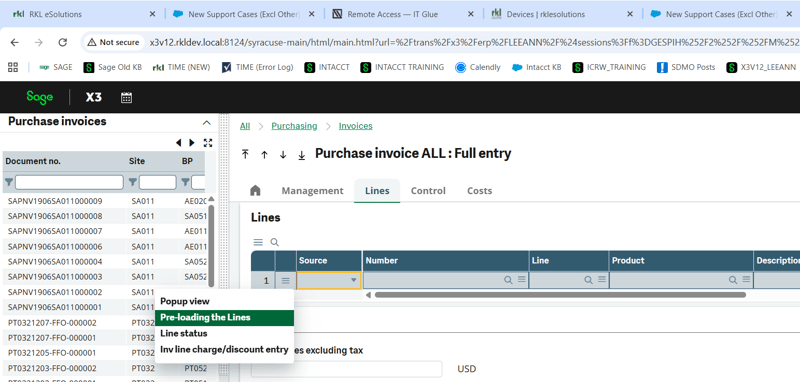
- Select the original purchase invoice from the Left List
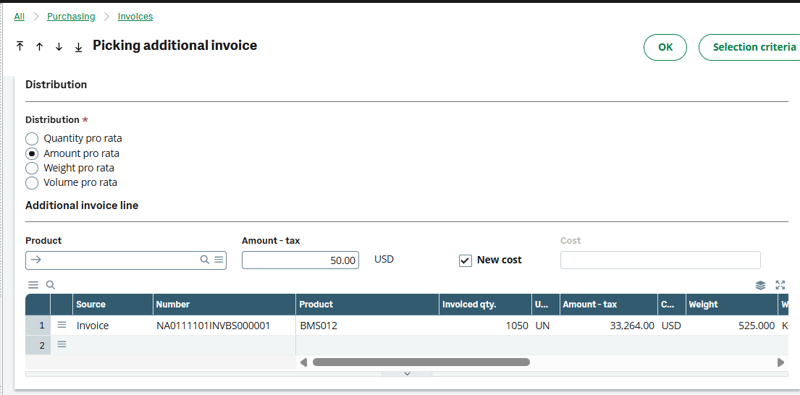
- Select "Amount pro rata" and the additional amount
- In this example, I will pay UPS $50.00 for freight, and I want the stock from the original purchase invoice to absorb the cost.
- The "New Cost" field box must be checked.
- Sage X3 will prorate the charges to the original invoice's lines, adding the additional cost to the item's landing cost.
- Post the complementary invoice.
If you have any questions or need assistance with creating a complementary invoice, contact RKL eSolutions.
Want More Sage X3 Features & Functions?
For videos on Sage X3, visit our YouTube page and subscribe to stay up-to-date with the latest insights and tutorials. Our channel is dedicated to providing valuable resources for businesses looking to optimize their financial management with Sage X3.
 Check out these blogs to help get you started!
4 Functions to Use in the Preventive Maintenance Solution
How to Match Tolerances
How to Block Postings to a Sub-Ledger During the Period-End Process
How to Match Open Items