


Tracking deleted payments helps explain gaps in payment check numbers and provides a clear audit trail. This visibility supports internal controls, simplifies audits, and helps organizations comply with country-specific recordkeeping requirements. X3 makes it easy to track and audit deleted payment activity.
Setup:
The PAYDELTRC general parameter must be set to Yes. When enabled, the system stores deletion details (like the user ID and deletion date) in dedicated tables (PAYMENTPORH and PAYMENTPORD).
- Go to Setup > General Parameters > Parameter values
- Open the TRS chapter and open the folder dropdown and select. *This parameter can be set at the Folder, Legislation, or Company level.
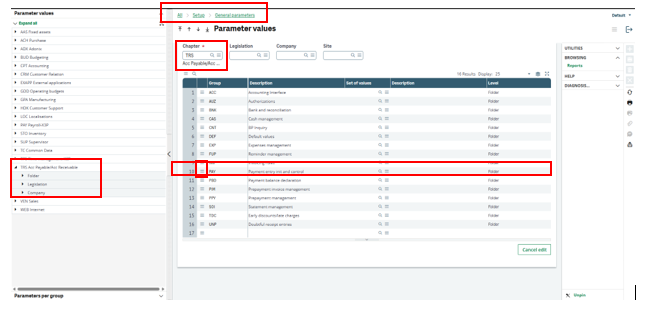
- Click on the Action icon (3 lines) next to the Group ‘PAY’
- Click Detail.
- Update the value of PAYDELTRC to ‘Yes’ and click OK.
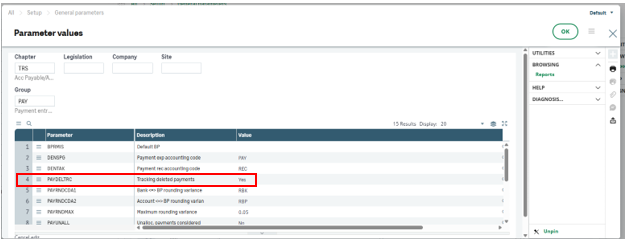
- Click OK.
Process:
-
-
Go to A/P-A/R accounting > Payments > Payment/receipt entry
-
Select the Entry transaction used for checks (Manual Check)
-
Delete a manual check that has a check number but has not been posted. Click the trash can icon on the right side to delete. (If the payment has been posted you will need to run the accounting cancellation process first before you delete the entry)
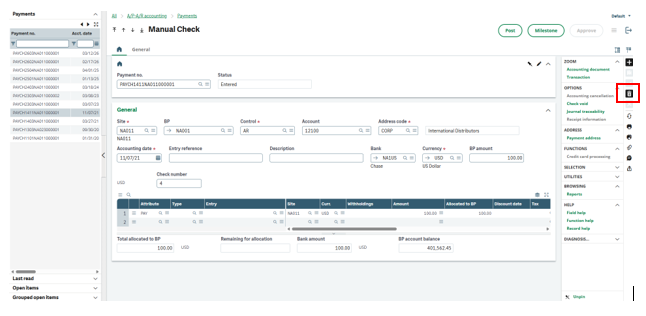
4. Click OK.
5. If you want to cancel, click the ‘X’.
-
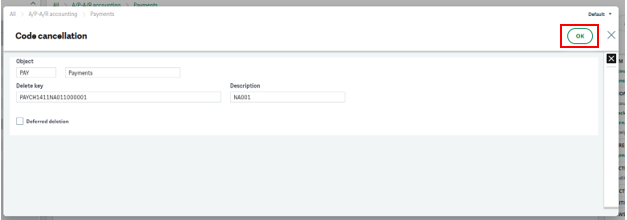
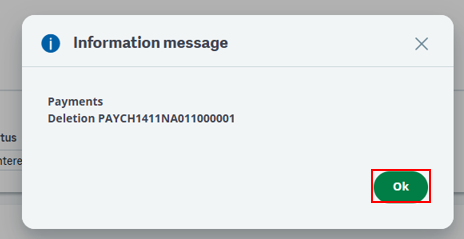
6. This message confirms that the payment has been deleted. Click OK.
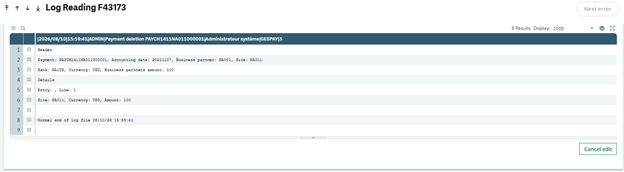
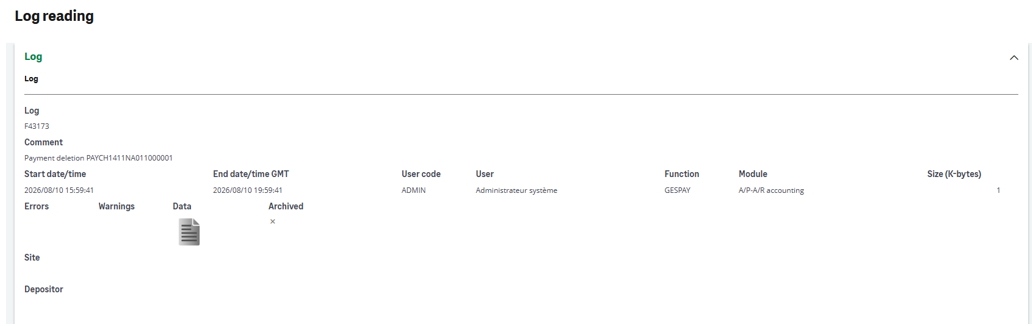
You will get a log reading showing the payment and its associated information (payment number, check number, site, accounting date, etc.). This is further confirming the payments deletion.
Tracking:
This deleted payment can be found in Development > Utilities > Maintenance < In lines (A Developer badge is required)
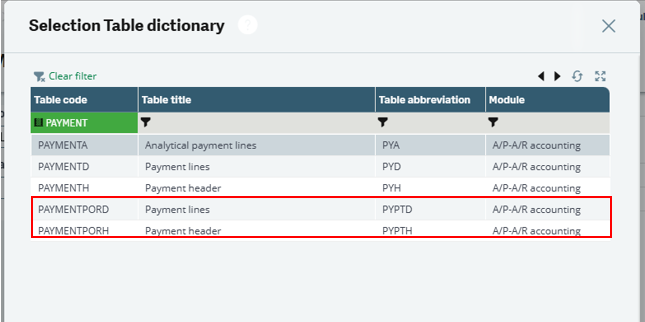
The two tables we want to look at our PAYMENTPORD (Payment lines) and PAYMENTPORH (Payment header).
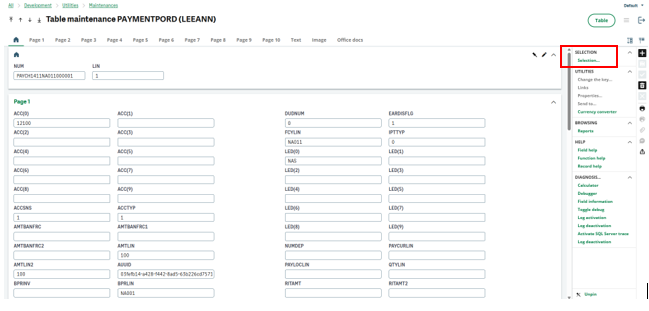
1. Click ‘Selection’ in the right panel to filter by that specific payment.
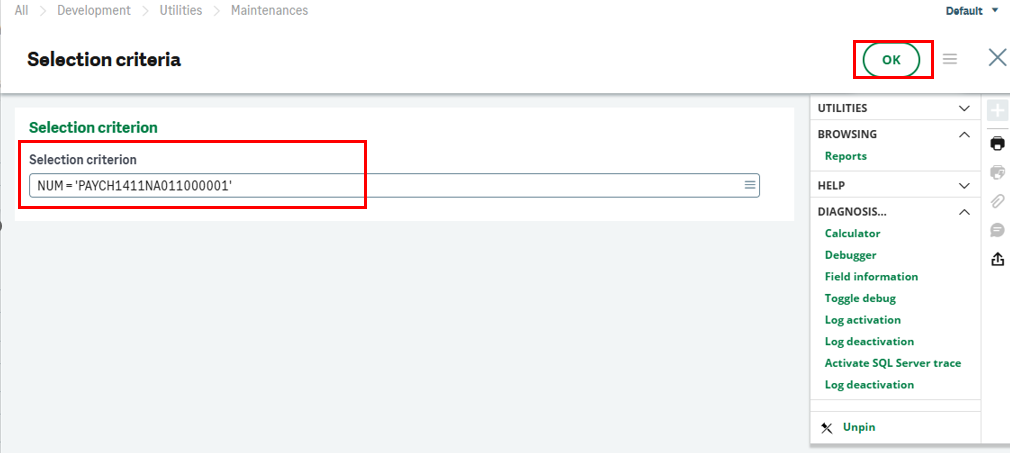
2. Your ‘Selection criteria’ should look something like this. Filter by the unique payment number. Click OK to confirm. You should now see results in the grid.
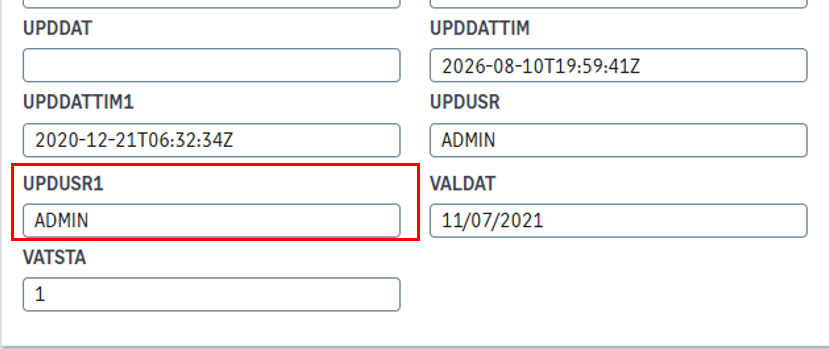
The PAYMENTORH table shows the user that deleted the record (UPUSR1).
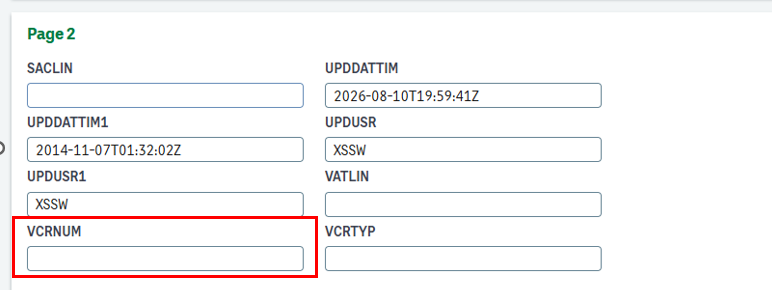
The PAYMENTORD table shows the VCRNUM which is the invoice document from the deleted check.
3. Navigate to Reports > Reports > Log reading to view this deleted payment
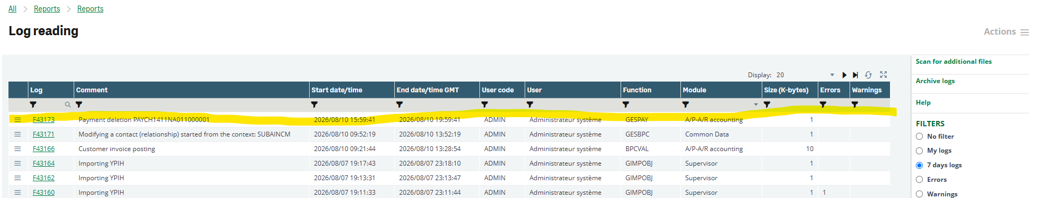
4. Click on the green Log number to jump to the log information.
Want More Sage X3 Features & Functions?
For videos on Sage X3, visit our YouTube page and subscribe to stay up-to-date with the latest insights and tutorials. Our channel is dedicated to providing valuable resources for businesses looking to optimize their financial management with Sage X3.
 Check out these blogs to help get you started!
4 Functions to Use in the Preventive Maintenance Solution
How to Process a Purchase Return
How to Create a Complementary Invoice
How to Record a Write-off and an Overpayment