

A lightweight PO approval workflow built on Sage Alerts, Outlook and Visual Integrator
Purchase order approvals have a way of stalling. The buyer enters the PO, then has to track down the person who signs off on it, and that person is usually in a meeting, on the road or simply does not use Sage 100. The PO sits. The vendor waits. Someone eventually walks a printout down the hall or sends a text asking for a thumbs-up, and the record of who approved what ends up scattered across phones and inboxes.
The better answer is to bring the decision to the approver instead of bringing the approver to Sage 100. What I’m going to highlight is a purchase order approval process built for a Sage 100 client using Sage Alerts, Outlook and Visual Integrator. The approvers never log in to Sage 100. They approve from their inbox, on their phone if they like, and Sage 100 is updated for them, with a clear record of who said yes and when. The Sage BOI could have also been used but because it was a simple update an automated VI approach was used to update the record in Sage.
The Idea: Move the Decision, Not the Data
Most integrations move data between systems. This one moves a decision to the person who has to make it. Sage 100 stays the system of record for the purchase order. Email becomes the interface for the approver. A few scheduled jobs connect the two, so the approval lands on the PO header without anyone re-keying it.
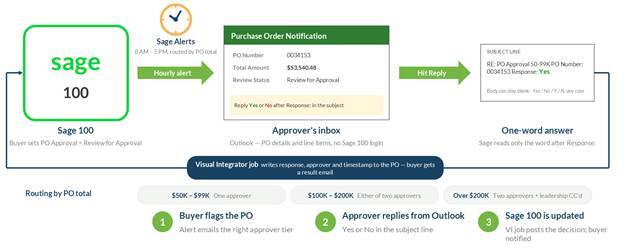
The workflow: a flagged PO triggers an hourly alert, the approver replies from Outlook, and a Visual Integrator job posts the decision back to the PO.
How It Works End to End
From the buyer's and approver's point of view, the whole process is five steps:
- Create the PO. The buyer enters a standard purchase order in Sage 100 and sets a custom PO Approval field to Review for Approval.
- Sage Alerts picks it up. An alert runs hourly between 8 AM and 5 PM, finds purchase orders flagged for review and routes them by total dollar amount.
- The approver receives an email. A Purchase Order Notification email lands in Outlook with the PO number, vendor, total, review status and the line items, along with one instruction: hit Reply and type Yes or No after the word Response: in the subject line.
- Reply with Yes or No. The body can stay blank. Sage only reads the word right after Response: in the subject, and Yes, No, Y and N in any casing are all accepted.
- Sage 100 is updated. The response, the approver's email address and a timestamp are written back to the PO header, and the buyer gets an Approval Response email with the outcome.
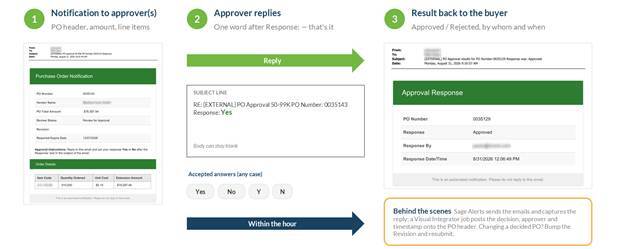
What the users see: the notification to the approver, the one-word reply, and the result email back to the buyer.
All the approver does is reply Yes or No
This is the part approvers love. To approve or reject a purchase order, they simply hit Reply on the notification email and type Yes or No right after Response: in the subject line. That is it. There is nothing to type in the body, no attachment to open and no link to click. The reply goes out, and the purchase order in Sage 100 is updated with the decision, who made it and when.
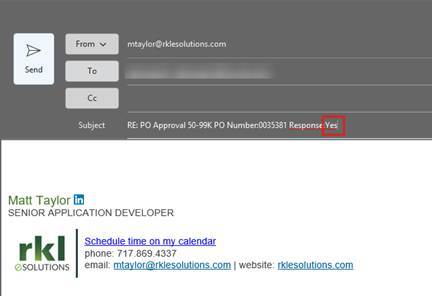
A real approval reply: the approver types Yes after Response: in the subject line and hits Send. The body can stay blank.
Because the entire approval happens in email, the approver never has to open Sage 100 at all. They do not need a Sage 100 login, a VPN connection or a laptop. They can approve a PO from their phone between meetings, from an airport gate or from the job site, and Sage 100 still ends up with a complete, accurate record of the decision.
That is the entire user experience. There is no portal to learn, no password to remember and no app to install. If the approver can reply to an email, they can approve a purchase order.
Routing Is Driven by the PO Total
Not every purchase order deserves the same level of scrutiny, so the alert decides who gets the email based on the PO total:
- $50K to $99K: a single approver. One response closes out the PO.
- $100K to $200K: either of two approvers. Both receive the email, only one needs to reply, and whoever responds first wins.
- Over $200K: two approvers plus leadership copied for visibility, so large spends never happen quietly.
The thresholds and the people behind them are just configuration. If the business changes its approval limits or reassigns an approver, the routing rules are updated in one place and the next hourly run follows the new rules.
What Happens Behind the Scenes
Three automated jobs run on a staggered hourly schedule and move the PO from Review for Approval to its final status without anyone touching Sage 100 directly:
- Capture the reply. An event parses the approver's reply and records the response, the approver's email address and the time in a custom staging table.
- Post it to the PO. A PowerShell script calls a Visual Integrator job that writes the response, approver and timestamp onto the PO header, using a supported Sage 100 import path rather than writing to the data directly.
- Close the loop. A second alert emails the original PO creator with the final outcome, and a cleanup step clears the staging table for rows that now match Sage 100, keeping the queue tidy for the next run.
Staggering the jobs matters. Each step has its own window to finish before the next one looks for work, so a reply is captured, posted and reported back to the buyer in an orderly sequence rather than in a race between jobs.
Changing a PO after it has been decided
Purchase orders change. Quantities move, prices get renegotiated, lines get added. If a PO needs to be changed after it has been approved or rejected, the buyer sets PO Approval back to Review for Approval and increments the PO Revision to an unused value. The alert only sends once per PO number and revision, so bumping the revision is what triggers a fresh approval email.
Good to Note
- Keep the subject intact. The system needs to see Response: followed by the answer.
- It is not instant. Jobs run on the hour, so allow up to an hour between the reply and the PO being updated.
- Buyers need an email address on their Sage 100 user account. That is how the system knows where to send the result.
- It is an honor system. There is no extra security around the PO Approval field. Anyone listed as an approver can respond on behalf of the company, which is exactly how the client wanted it: lightweight, transparent and fast.
Why This Approach Works
The appeal of this design is how little it asks of anyone. Buyers continue entering purchase orders as they always have, with one extra field. Approvers use the email client they already live in. Sage 100 stays the single source of truth, and the approval, the approver, and the timestamp are stored right on the PO header, where anyone can report on them.
Under the hood, it is built with tools already familiar in many Sage 100 environments: Sage Alerts for scheduling and email, Visual Integrator for updates and a small PowerShell script to tie them together. There is no change to Sage 100's core code, which keeps upgrades simple.
The same pattern fits plenty of other decisions that stall waiting on someone outside Sage 100: credit holds on sales orders, vendor setup requests, price overrides or invoice exceptions. Anywhere a yes-or-no is the bottleneck, email can carry the question, and Sage 100 can record the answer.
|
Whatever your next move, we're here to help. If purchase orders are sitting in Sage 100 waiting on someone to walk down the hall, or approvals are scattered across texts and phone calls, an email-based approval workflow may be the fix. Reach out to the RKL eSolutions Sage 100 team and we will walk through your approval process together. |
Want More Sage 100 Features & Functions?
Make sure to subscribe to our blog to stay up-to-date on the latest insights and trends. We're dedicated to providing valuable resources for businesses looking to optimize their financial management with Sage 100.
 Check out these blogs to help get you started!
How to Reverse a Cash Receipt
Automate Your Accounts Receivable Workflow with Sage Connect
Leveraging Reports with Sage Business Intelligence
How to Improve Your Sales Order Entry Workflow