

Picture the packing station on a busy afternoon. The order is pulled up in Sage 100 Sales Order Entry. To ship it, someone opens a carrier website or a separate shipping application, retypes the ship-to address, enters the weight, picks a service level, prints the label, then copies the tracking number back into Sage 100 so customer service can answer the inevitable “where is my order?” call. Multiply that by a few hundred orders and you get slow shipping, mistyped addresses and tracking numbers that never make it back to the order.
This is exactly the kind of problem a front-end integration solves. Here is an example: a shipping label button added right inside Sales Order Entry. One click, and the order is labeled and traceable.
What Is a Front-End Integration?
Many Sage 100 integrations run behind the scenes on a schedule. A front-end integration is different. It lives in the screen the user is already working in. A button or an event inside Sage 100 calls an outside service in real time and brings the result straight back into the record, while the user waits.
- A person triggers the action. Someone is at the screen and decides when it should happen.
- The person needs the result immediately. They cannot finish their task until the answer comes back.
- The result belongs on the record in front of them. The answer should be saved on the order, not in a separate system.
- Gather the order details. The button script reads the ship-to address, weight and service level directly from the sales order on screen. Nothing is retyped.
- Call the shipping API. The details are sent to a shipping service such as UPS, FedEx, USPS, ShipStation or EasyPost, which generates the label.
- Print the label. The service returns the label, which prints on the thermal printer at the packing station.
- Write back the tracking number. The tracking number is saved to the sales order, so customer service, invoicing and the customer all have it without anyone copying and pasting.
- Upgrades stay simple. Customizer changes and button scripts sit alongside Sage 100 rather than inside it, so they carry forward with far less effort than a source code modification.
- The screen stays familiar. Users keep working in the same Sales Order Entry screen they already know. There is just one new button where they need it.
- The carrier is swappable. The script is the only piece that talks to the shipping service, so moving from one carrier or shipping platform to another is a change to the script, not a re-implementation.
- Business rules stay in Sage 100. Data is read from and written back to the order through Sage 100 itself, so the same validation applies as if the user had typed it.
- Address validation to clean up a ship-to address before the order is saved.
- Real-time inventory checks against a partner or supplier before promising a date to the customer.
A shipping label checks all three boxes. The packer clicks when the box is sealed, needs the label right now, and the tracking number belongs on the sales order.
The Shipping Label Button
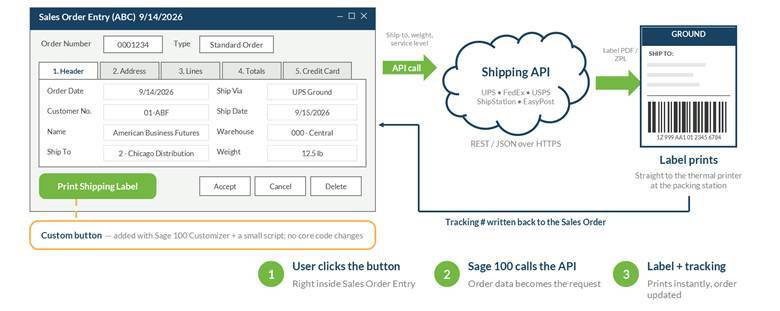
The front-end pattern: a custom button in Sales Order Entry calls a shipping API, the label prints, and the tracking number is written back to the order.
Here is what happens when the user clicks the button:
From the packer's point of view, it is a single click. From the business's point of view, every shipped order carries its tracking number and the address on the label is exactly the address on the order.
How It Is Built
The button is added with Sage 100 Customizer and a small script, not with any change to Sage 100's core code. That distinction matters:
Designing for the real world
A real-time integration has to handle the moments when the outside service says no. A good button script validates the order before it calls the API, so a missing weight or incomplete address is caught with a clear message instead of a cryptic error. If the carrier rejects the request or does not respond, the user is told what happened and the order is left untouched, so it can simply be retried. The goal is that the packer never has to wonder whether a label printed or whether the tracking number made it onto the order.
Beyond Shipping Labels
Once you have one button like this, the pattern is easy to reuse anywhere a user needs an answer from another system without leaving Sage 100:
Each of these follows the same shape: gather the data from the screen, call the service, and bring the result back to the record the user is looking at.
If it has an API, we can connect to it
Shipping carriers are just one example. The same button-and-script approach can reach out to almost any other system your business runs on and pull its data straight into Sage 100. Look up a customer's account history in Salesforce while you are on the phone with them. Check the status of an Amazon or Shopify order without leaving Sales Order Entry. Pull pricing, product details or customer records from a web store, CRM, marketplace or supplier portal and drop them onto the record in front of you.
As long as the software has an API, we can build against it. Salesforce, Amazon and Shopify are just a few to name. CRMs, e-commerce platforms, marketplaces, carriers, payment providers and industry-specific applications all follow the same pattern. When it comes to what Sage 100 can connect to, the sky is the limit.
|
Whatever your next move, we're here to help. If your team is retyping orders into a carrier website or copying tracking numbers back into Sage 100 by hand, a front-end integration can put that work one click away. Reach out to the RKL eSolutions Sage 100 team and we will walk through your shipping process together. |
Want More Sage 100 Features & Functions?
Make sure to subscribe to our blog to stay up-to-date on the latest insights and trends. We're dedicated to providing valuable resources for businesses looking to optimize their financial management with Sage 100.
 Check out these blogs to help get you started!
How to Reverse a Cash Receipt
Automate Your Accounts Receivable Workflow with Sage Connect
Leveraging Reports with Sage Business Intelligence
How to Improve Your Sales Order Entry Workflow