Sage Intacct uses email template functionality to help users personalize the communications sent from the system to external recipients. There are a variety of email templates that can be created and assigned to transaction types, customers, and vendors.
3 Steps for Personalizing Email Templates
Step #1: Create a New Email Template
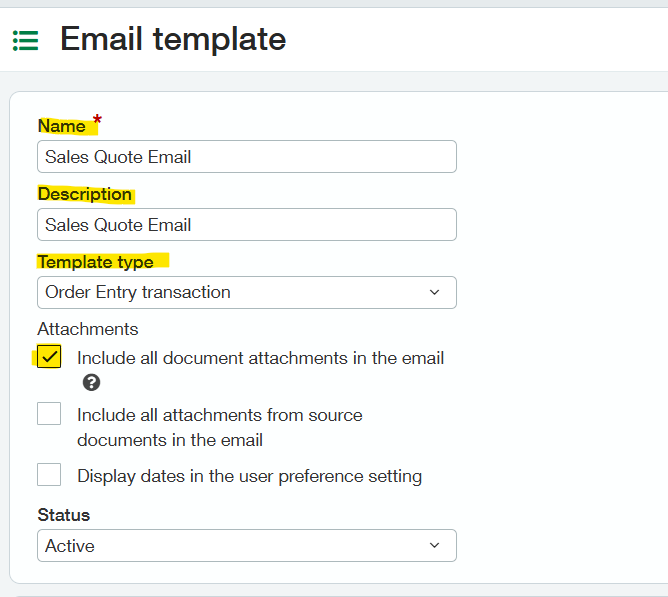
First, navigate to Company > Setup > +Email Templates. Here you can complete the Name, Description, and Template Type.
For this scenario, we will create an email template for an order entry transaction. Users have the option to include all document attachments in the email. The attachment will include any documents attached to the transaction. In the example below, I have entered the following:
- Name = Sales Quote Email
- Description = Sales Quote Email
- Template Type = Order Entry Transaction
- Include all document attachments in the email = Checked
- Status = Active
Step #2: Using Merge Fields for Email Addresses
The “Field lookup for contacts” helps users quickly find the merge field name related to emailing. You will copy the merge field information that populates for your selection into the fields below (To, CC, or BCC).

Notice how we were able to use the “bill-to email 1” and “bill-to email 2” options for this email template. This will automate who is contacted from this email template.

Step #3: Using the Merge Fields for the Email Body
In the Message content section, we have two field lookup options. "Field lookup for document elements" will populate the document elements, and "Field lookup for company elements" will populate the company elements.

These drop-downs are used to find the merge field names needed for the subject and body of the email template. In my example, I want the invoice number to be auto-generated based on the invoice being sent. The merge field tells Sage Intacct to update based on my individual transactions. One email template can handle many different transactions and customers.

The body of the email is also fully customizable. Users can create different email templates for different billing scenarios.

These email templates can be defaulted to transaction types, customers, and vendors. If you want to learn more about how email templates can help your company, please reach out to us at RKL eSolutions.
Want More Sage Intacct Features & Functions?
For more helpful tips and tricks about Sage Intacct, subscribe to our blog and stay up-to-date with our latest tutorials. We're dedicated to providing valuable resources for businesses looking to optimize their financial management with Sage Intacct.
 Check out these blogs to help get you started!
Uploading Your Budgets Using Pre-Built Templates
Reconciling Bank Transactions Using Import Templates
How to Authenticate and Validate Custom Email Domains