
Importing bank transactions is key to accurate record keeping, and if your bank isn't connected to Sage Intacct directly, it can disrupt reconciliation automation. This guide outlines nine simple steps to manually import your transactions and maintain seamless financial workflows.
9 Steps for Importing Bank Transactions
- First, you'll need to add "Enable from Subscriptions." To do so, navigate to Company > Admin > Subscriptions > Sage Cloud Services.
- Then, select "Configure," check the box to "Enable Bank transaction assistant file import," and select Save.
- Next, you'll need to add the required permissions to the Business User importing the transactions. After navigating to Subscription > Cash Management > Permissions, check the boxes for "List," "Add," "Delete," and "View " next to Bank transactions for API and import.
- Then, you'll need to create matching rules for your reconciliation. Navigate to Cash Management > Setup > Matching and creation rules, and then add a rule set for the created rules. A step-by-step guide is currently in process!
- The next step is to add the Bank and GL Account. Navigate to Cash Management> Setup > Checking (or Savings) and assign the correct matching rule set to your bank.
- Now, you'll need to log into your bank account and download the Transactions file to see its format.
- To prepare the Bank Transaction import, navigate to Cash Management > All > Bank transaction import files and click on "Add."
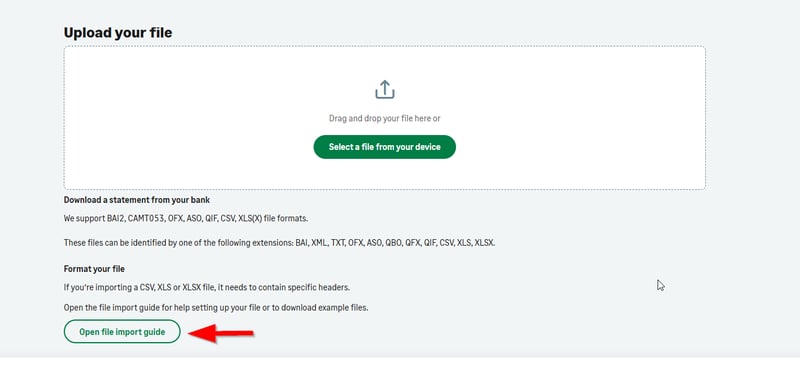
- Then click on "Open File Import Guide" and select "Learn More" on the line that best represents your file from the bank.
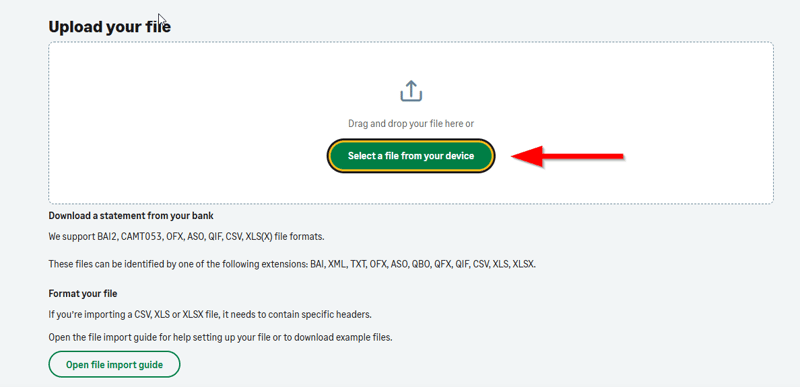
- Finally, you can start importing your bank transactions. Once again, navigate to Cash Management > All > Bank transaction import files, click "Add" and select "Select a file from your device" to upload your bank transactions.
Want More Sage Intacct Features & Functions?
For more helpful tips and tricks about Sage Intacct, subscribe to our blog and stay up-to-date with our latest tutorials. We're dedicated to providing valuable resources for businesses looking to optimize their financial management with Sage Intacct.
 Check out these blogs to help get you started!
Uploading Your Budgets Using Pre-Built Templates
How To Create Ad-Hoc Reports Using Views and Filters
Creating Expanded Columns and a Summary for Reports