
The new Sage Intacct import service provides more flexibility when importing data. You are able to use either a CSV or XLSX file format, and errors can be viewed and corrected directly in the import screen. The outline below contains instructions for importing journal entries.
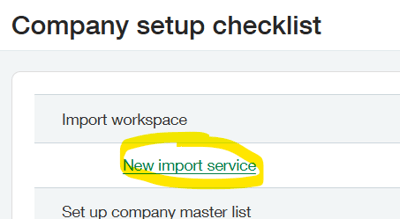
- The import service is accessed via the Company Setup Checklist.
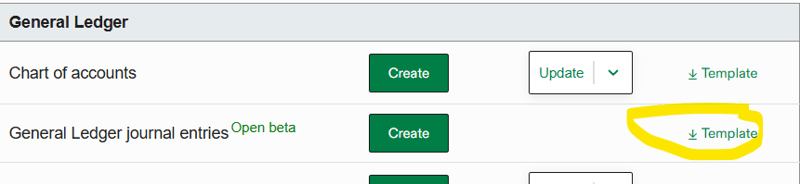
- It is recommended to download the template, but you can use your own import template and map the fields. The template is downloaded using the link on the right. In this demo, we will use both methods.
- For the Intacct template, populate it with all required information as designated in row #2. Please note that when using this template, line numbers are not required. The screenshot below shows a completed import file using the Intacct template:
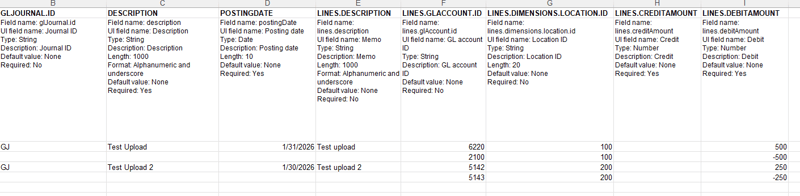
- Note that the first 3 columns are only populated for the first line of each entry.
- To begin the import process, click on the “Create” button next to General Ledger journal entries.
- In the import screen that appears, you can either drag and drop your file, or click on the “Upload file” button.

- Sage will then extract the contents of the file and take you to the field mapping screen. If you used the Intacct template, you can click Continue to bypass this screen. If you used your own template, map the fields in your file to the corresponding fields in Intacct. To map, just click the dropdown next to each incoming field to choose the Intacct field.
- After clicking Continue, the data is validated (checked for errors).
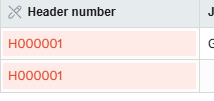
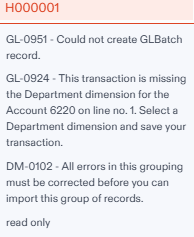
- Any errors will have the header number highlighted in red with a description of the error.
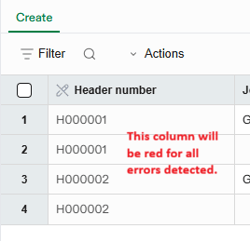
- Errors can be corrected directly in the screen by editing the appropriate fields as indicated by the error message. The error records will be located on the “Not valid” tab.

- Click on the fields highlighted in red to get the detailed error message.
- After correcting the errors (if necessary),click on Revalidate in the upper right of the screen. Your data should now appear on the “Valid” tab.
- If there are no further errors, click on Import in the upper right of the screen.
- The import will run, and a message will appear on screen once it is completed.

- You will receive a pop-up to confirm that you want to exit and delete records. Click Confirm. If the screen doesn’t close automatically, click on the “X” at upper right to close the screen.
- Note that all entries are imported in Draft format, so the last step is to navigate to General Ledger > Journal Entries to view the transaction listing for the journal that was used in the upload, and then post them from the list.
For additional information about using the import service, you can access this help article or contact RKL eSolutions for further assistance in using the Sage Import Service.
Looking for More on Sage Intacct?
For more helpful tips and tricks about Sage Intacct, subscribe to our blog and stay up-to-date with our latest tutorials. We're dedicated to providing valuable resources for businesses looking to optimize their financial management with Sage Intacct.
 Check out these blogs to help get you started!
Uploading Your Budgets Using Pre-Built Templates
How To Create Ad-Hoc Reports Using Views and Filters
Creating Expanded Columns and a Summary for Reports