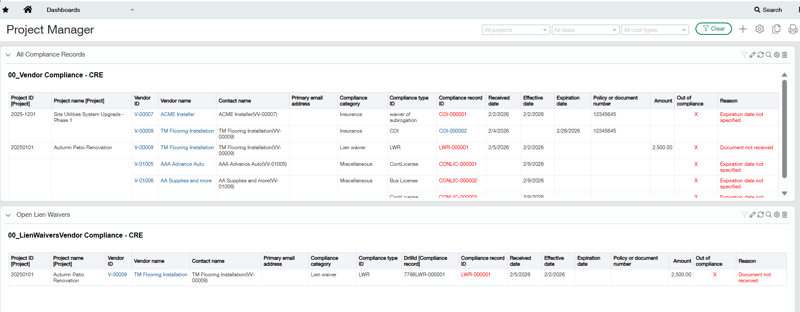
Wouldn’t it be nice to open your dashboard and just see all the vendor compliances you need by job or vendor? With Intacct, this becomes your new reality. All the details on lien releases, certificates of insurance (COIs), and other project-related documents are available in one central location—no more sorting through paper files or chasing down outstanding items via email.
Intacct’s powerful vendor compliance dashboard puts real-time compliance data at your fingertips. You can quickly filter and review compliance records by specific job or vendor, instantly identifying any missing documents or upcoming expirations. This real-time visibility means fewer last-minute surprises and reduces the risk of payment delays or costly project interruptions.
Getting Started with Intacct Vendor Compliance
If you subscribe to Intacct’s Construction module, Vendor Compliance is included. However, you’ll need to turn on this feature manually:
- Go to Company > Admin tab > Subscriptions to activate Vendor Compliance.
- Once enabled, assign compliance permissions under the Purchasing section.
Once Vendor Compliance is enabled, you’ll need to set up two main areas:
- Vendor Compliance Definitions
Definitions outline your compliance rules. Each one has:
- A unique ID and name.
- A compliance category (like insurances, lien waiver, or miscellaneous).
- Rules for checking non-compliance.
- A setting for how to handle out-of-compliance records when processing AP bills (stop payment, warn, or ignore).
- Vendor Compliance Types
Compliances types represent the specific documents you need to track for vendors. Examples include:
- General liability insurance
- Workers' compensation
- Contractor licenses
- State business licenses
- Required certifications (e.g., OSHA)
- Optional certifications (e.g., LEED)
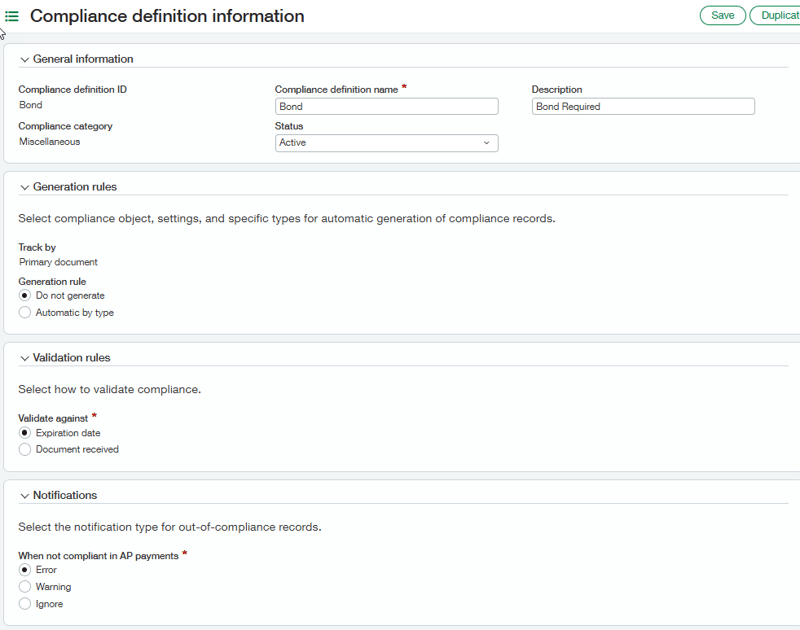
Step 1: Creating Definition Information
Go to Company > Purchasing > Setup > Compliance definition to create a compliance definition.
Click on the Add button to get started. You can also watch this short video on how to create compliance records.
- General Information
- Compliance Definition ID and Name: Assign a concise code and name (for example, "LR" for Lien Release).
- Description: Briefly describe the compliance item, such as "Lien Waiver."
- Compliance Category: Select the correct category (e.g., Lien waiver).
- Status: Set your compliance definition to "Active" so it's in effect.
- Generation Rules
Control when and how compliance records are created:- Generate for each: Choose the type of transaction (like AP Bill) that should trigger the compliance requirement.
- Minimum Lien Waiver Amount: Enter the lowest dollar amount that will require a waiver (e.g., $0.01).
- Minimum Primary Document Amount: If you want to set an additional threshold, you can enter it here.
- Allow Lien Waivers with Negative Amounts: Check this if lien waivers are needed for negative transactions (such as credits).
- Track by: Specify how you'd like to track compliance by Vendor or Primary Document.
- Generation Rule: Decide if compliance records should be created automatically based on the type of transaction (for example, when a subcontract is processed).
- Validation Rules
Determine how compliance will be measured:- Validate Against: Pick what Intacct should use to validate compliance-such as "Document received."
- Notifications
Choose how the system should handle out-of-compliance situations during AP payment:- Error: This will strictly block AP payments if the compliance document is missing or expired
- Warning: Users receive warning, but may be able to override, depending on permission.
- Ignore: No action or warning is given; the system disregards compliance status for this requirement.
Step 2: final steps Associating Compliance Definitions to Compliance Types
Once your definitions and types are set up, you can associate compliance records with specific vendors or transactions. This ensures you always have up-to-date documentation on file, making audits, payments, and project management much easier. You can also watch this short video on how to create compliance records.
You can also watch this short video on how to convert compliance definitions to compliance types.
Go to Company > Purchasing > Setup > Compliance types
- Select Add.
- Enter a unique Compliance type ID and name to identify this type.
- Select the compliance definition that reflects how to validate this compliance type.
- Enter a Compliance record ID numbering sequence. If you need to add a new numbering sequence, select the Compliance record ID numbering sequence menu and then select Add.
- Add any templates you want generated.
- Select Save.

working smarter, not harder
This ensures you always have up-to-date documentation on file, making audits, payments, and project management much easier. Leveraging Intacct’s compliance records helps automate document tracking, reduce errors, and simplify your operations. With customizable options and step-by-step setup, you can create a streamlined workflow that saves time and supports compliance—so you work smarter, not harder.
Reach out to RKL eSolutions for additional resources or assistance to begin your Vendor Compliance in the Intacct Construction module.
Looking for More on Sage Intacct?
For more helpful tips and tricks about Sage Intacct, subscribe to our blog and stay up-to-date with our latest tutorials. We're dedicated to providing valuable resources for businesses looking to optimize their financial management with Sage Intacct.
 Check out these blogs to help get you started!
Uploading Your Budgets Using Pre-Built Templates
How To Create Ad-Hoc Reports Using Views and Filters
Creating Expanded Columns and a Summary for Reports