

Below is how to record a cash sale in both Sales Order and Accounts Receivable. Using the cash sale feature is handy when you have counter sales and the customer pays for product with currency while in your facility. This can apply to existing customers as well as one-time customers.
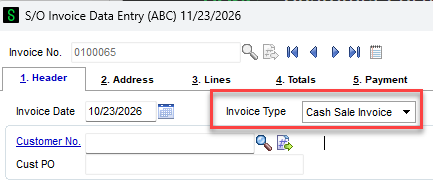
If you are selling something from your inventory you will need to use Sales Order Invoice Data Entry. Select the next invoice number and change the invoice type to Cash Sale
I have setup a customer number “COUNTER,” but you can use the reserved customer number “CASH”. If you use CASH for your customer number, the sales tax schedule and salesperson number will have to be selected. In either case, the invoice will not display on the invoice tab in Customer Maintenance, but it will show under Invoice History. The cash sale invoice will be included in sales reports even though it does not appear in the open invoice file.
Complete the Sales Order invoice in the usual fashion. Note that on Tab 4 you cannot enter a deposit amount. Use Quick Print to provide the customer with a receipt.
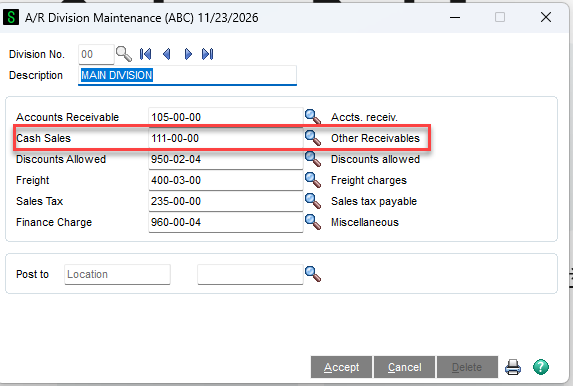
Before we update the invoice, let’s take a look at A/R Division Maintenance. One of the setup accounts is where to post “cash sales”. In my demo data 111-00-00 has been selected, “Other Receivables”.
Updating the invoice will result in a slightly different posting to general ledger. Rather than a debit to Accounts Receivable, the debit side of the entry will go to the account designated as Cash Sale. The cash received will be recorded when the cash is deposited to the bank and miscellaneous cash receipt credits the Other Receivable account. Then the Other Receivable account will be cleared
Let’s update the invoice and check out the journal entry.
Accounts Receivable invoice data entry has a similar feature with one small twist. Before clicking the Next icon for a new invoice number, type “CA”. This will designate the invoice as a Cash Sale. Complete the invoice normally and update. The posting to general ledger will be the same as in sales order. The debit for the sale will go to the designated cash sale account. When printing the invoice, the standard forms will display “CASH SALE” at the top.
Want More Sage 100 Features & Functions?
Make sure to subscribe to our blog to stay up-to-date on the latest insights and trends. We're dedicated to providing valuable resources for businesses looking to optimize their financial management with Sage 100.
 Check out these blogs to help get you started!
How to Reverse a Cash Receipt
Automate Your Accounts Receivable Workflow with Sage Connect
Leveraging Reports with Sage Business Intelligence
How to Improve Your Sales Order Entry Workflow