Benefits of Sage 100 Positive Pay
Are you taking advantage of the Positive Pay features provided within your Sage 100 software to help prevent check and ACH fraud?
The benefits of Positive Pay are as follows:
- Fraud Prevention:
- Significantly reduces the risk of check and ACH fraud, protecting your business from financial loss.
- Reduced Fraud Costs:
- Prevents potential costs associated with fraud, such as financial loss, business disruption and the administrative burden of dealing with fraudulent transactions.
- Enhanced Control:
- Provides greater security and control over your accounts by allowing you to review and approve or reject suspicious transactions.
How Positive Pay works:
- Submit Check Details: You create a file from your Sage 100 software with details of all checks you issued, including the check number, amount and payee.
- Send to Bank: You upload this export file, which includes the list of authorized checks, to your financial institution.
- Checks are Presented for Payment: When a check is presented to the bank for payment, the financial institution's system compares the check's information against the authorized list you provided.
- Handling Exceptions:
- If it matches: The check is processed and paid.
- If there is a mismatch: The check is flagged as an exception.
- Account Holder Review: The bank notifies you of the exception, and you decide whether to approve or reject the check through the financial institution’s online portal.
Configure export file
Configuring this export file is easy when using the Positive Pay Export wizard in the Sage 100 Bank Reconciliation module. Just follow the steps below:
- Access “Positive Pay Export” from the Main menu in the Bank Reconciliation module.
- Click the “New Export Setting” button and enter a name and description for your export setting.
- Using the bank’s file specifications as your guide, you can either create the export setting from a list of sample formats or create your own export setting using the Positive Pay Export Wizard.
Generating Export File
To generate the export file to send to your financial institution, follow the steps below:
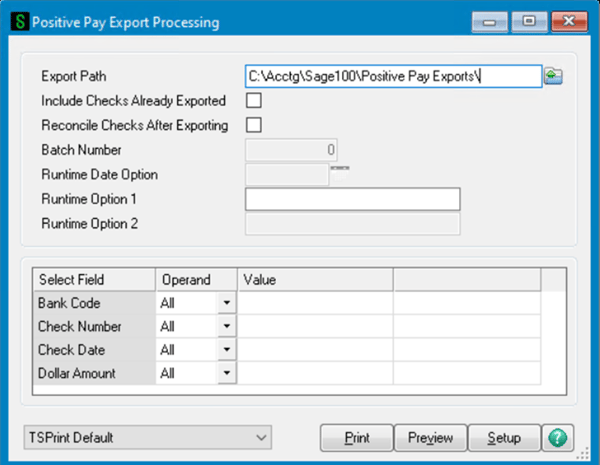
- Select Bank Reconciliation > Main Menu > Positive Pay Export.
- Choose the Export Setting you created above and press Proceed.
- Verify the Export Path where the export file will be saved.
- Enter the options needed below to create the export file.
- Click Print or Preview to review the list of checks to be exported.
- Click Yes when prompted to proceed with the export and create the Positive Pay export file.
Help your company prevent check and ACH fraud by implementing the Sage 100 Positive Pay feature today! If you have any questions about this feature, please reach out to RKL eSolutions.
Looking for More on Sage 100?
For more helpful tips and tricks about Sage 100, subscribe to our blog and stay up-to-date with our latest tutorials. We're dedicated to providing valuable resources for businesses looking to optimize their financial management with Sage Intacct.
 Check out these blogs to help get you started!
What's New in Sage 100 Version 2026
Top Signs Your Team Isn’t Using Sage 100 to Its Full Potential
How to Distribute Reports Using Sage Intelligence for Sage 100 Users