This article is intended as a guide to help you set up ACH (Automated Clearing House) Payment Processing within Sage 100.
In some of the steps, you will need to provide information that would be supplied by your bank. If your financial institution provides the ability to submit an ACH file, then they should be able to provide you with the settings required to complete the ACH configuration. Typically, they will have a document that provides details on their requirements for ACH, as well as a sample file that you can use as a reference when checking the ACH files produced from Sage 100.
5 Steps for Setting Up ACH Payment Processing
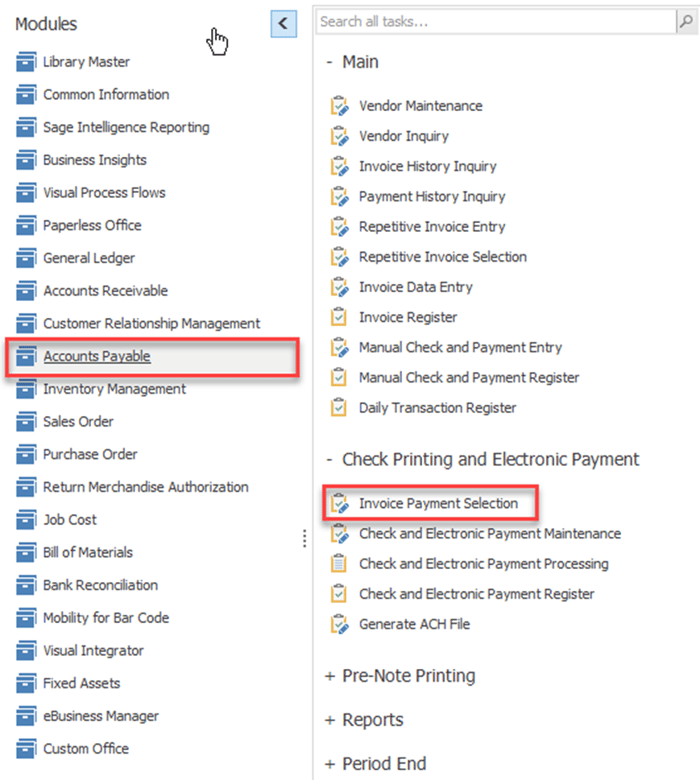
- First, navigate to Accounts Payable > Check Printing & Electronic Payment > Invoice Payment Selection.
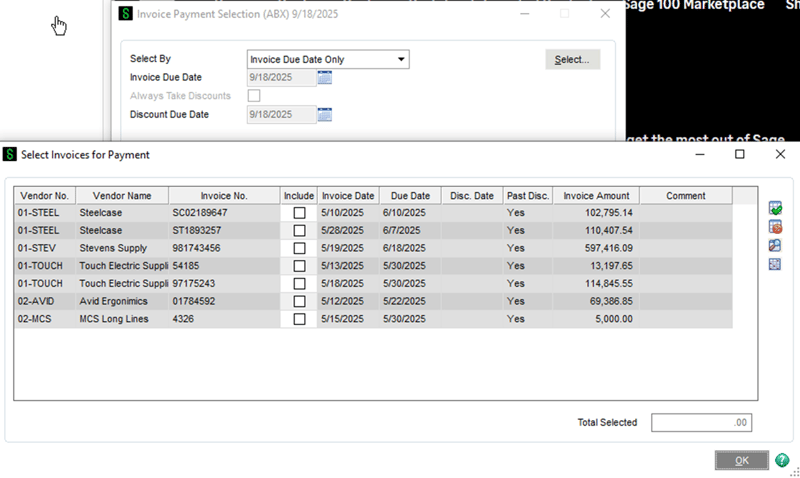
- Check the “Include” box for your desired invoices and then click the “OK” button. Then, you may exit the Invoice Payment selection window.
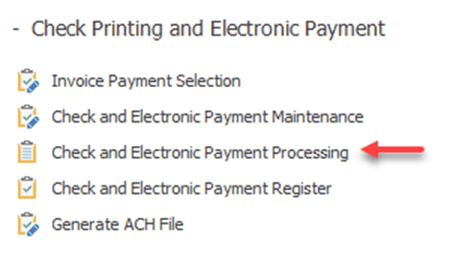
- Then, navigate to Accounts Payable > Check Printing & Electronic Payment > Check & Electronic Payment Processing.
- The prompt “Select Payment Type” will pop up. In the Payment Type field, select Both to include Checks and Electronic Payments to be processed or Electronic Payments for only ACH.
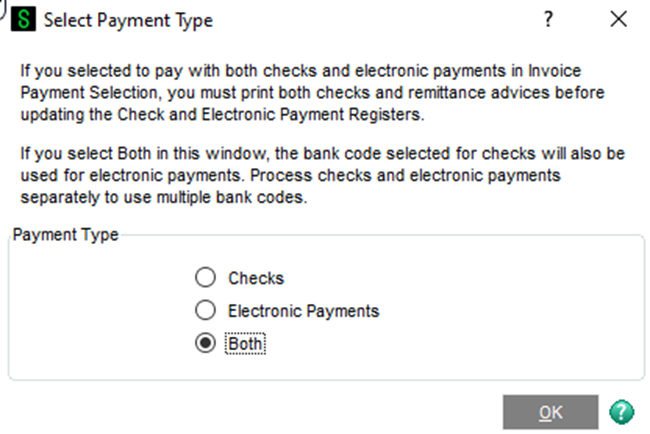
- The prompt “Select Payment Type” will pop up. In the Payment Type field, select Both to include Checks and Electronic Payments to be processed or Electronic Payments for only ACH.
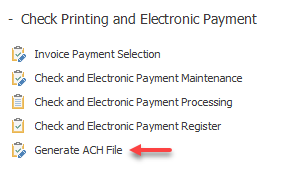
- After updating the Check Register, navigate to Accounts Payable > Check Printing & Electronic Payment > Generate ACH File.
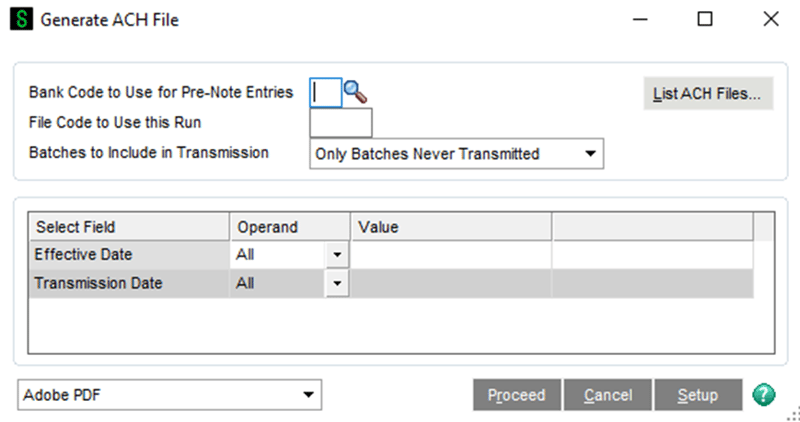
- You may enter the Effective Date field if desired. Then click Proceed. The ACH File will now be generated and saved at the file path that was designated in AP Setup Options > Upload file to Bank ACH website.
Want More Sage 100 Tips & Tricks?
Make sure to subscribe to our blog to stay up-to-date on the latest insights and trends. We're dedicated to providing valuable resources for businesses looking to optimize their financial management with Sage 100.
 Check out these blogs to help get you started!
How to Reverse a Cash Receipt
How to Reverse an Invoice Posted to the Wrong Month
Understanding the Purchases Clearing Report
How to Improve Your Sales Order Entry Workflow