Managing the complexities of accounting software can often feel daunting, but understanding specific tools and reports can greatly simplify the process. The Purchases Clearing Report in Sage 100 is a crucial component for those dealing with purchase orders and inventory management. In this blog, we'll explain how it can streamline your month-end reconciliation and ensure your accounts are accurate and up-to-date.
What is Purchases Clearing?
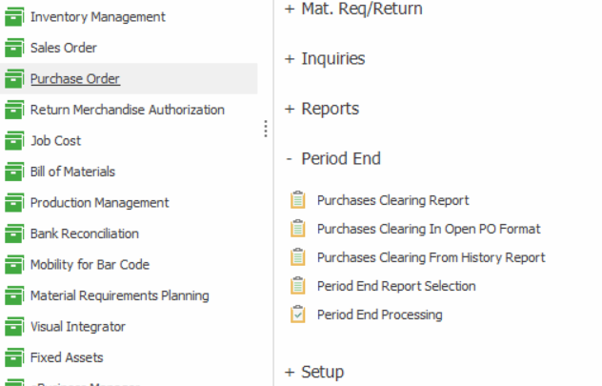
In Sage 100, the Purchases Clearing Report is found under the Period End menu in the Purchase Order module. It reconciles your Purchases Clearing account with open purchase order amounts.
This report details quantities ordered, received, and invoiced. If these figures don’t align, the purchase order remains in a Backorder Status until discrepancies are resolved.
How It Works
The Purchases Clearing account is credited when goods are received into inventory (and can also include allocated landed costs and sales tax). When an invoice is recorded in the Receipt of Invoice Entry, this account is debited, and the corresponding Accounts Payable liability account is credited, ensuring that all transactions are accurately reflected in your financial records.
*If you enter receipts in Transaction Entry or if you change the ordered quantity/unit cost after recording the Receipt of Goods/Receipt of Invoice entry, the total purchases clearing in the Purchases Clearing in Open Format Report will not accurately reflect the Purchases Clearing account balance.
Example:
An item is received at $100 and invoiced at $120. A Variance Register will print and update the $20 difference to the PO Variance account, and the offset amount will post to Purchases Clearing.
| Receipt of Goods | ||
| GL Account | Debit | Credit |
| Inventory | $100 | |
| Purchases Clearing | $100 | |
| Receipt of Invoice | ||
| GL Account | Debit | Credit |
| Purchases Clearing | $120 | |
| Accounts Payable | $120 | |
| Variance | ||
| GL Account | Debit | Credit |
| PO Variance | $20 | |
| Purchases Clearing | $20 | |
Common Issues and Solutions
Backordered Status
A purchase order may remain in backorder if invoices are entered incorrectly or if the received and invoiced quantities don’t match the ordered quantity (e.g., a vendor didn't send the full amount ordered and plans on sending more at a later time). To resolve this, ensure all quantities are entered accurately and that invoices are processed through the correct modules. Remember:
- Invoices must be entered into the Purchase Order > Receipt of Invoice NOT the AP Invoice Data Entry
- Items physically received in the warehouse must be posted via Purchase Order > Receipt of Goods
Direct A/P Entry
Sometimes invoices are entered directly into Accounts Payable, leading to discrepancies. To fix this on current invoices, quantities can be adjusted in Purchase Order Entry, or a correcting Receipt of Invoice can be generated.
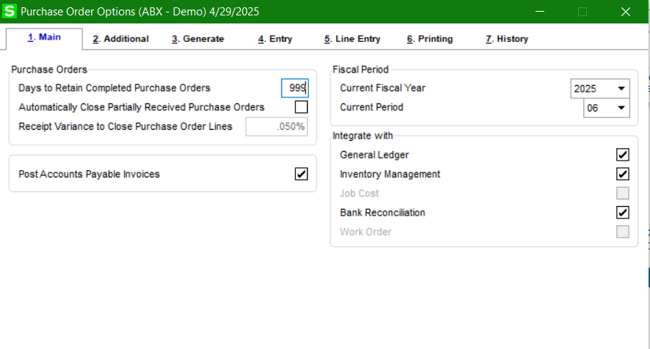
To fix it for future POs, go to Purchase Order > Setup > Purchase Order Options. Then, select the "Post Accounts Payable Invoice" checkbox. The system will now compare the ordered, received, and invoiced quantities to determine the purchase order status.
 Check out "How to Use the Sage 100 Purchases Clearing Report" for step-by-step instructions on how to fix invoices from various scenarios.
Purging Obsolete Purchase Orders
Once discrepancies are resolved and purchase orders are complete, it’s essential to purge obsolete transactions. This process helps maintain a tidy and efficient accounting system. Ensure that all dates are older than the specified purge date, and remember that back-ordered POs are not purged unless corrected.
Reviewing Purchases Clearing
After all corrections are made, compare your Purchases Clearing account and Purchase Order Variance account with the Purchases Clearing Report. Perform any final balancing through Journal Entries to ensure everything aligns perfectly. This approach not only maintains accuracy but also provides peace of mind, knowing your financial data is reliable.
Managing purchase orders with Sage 100’s Purchases Clearing Report can transform a complex task into a straightforward process, allowing you to focus on what truly matters—growing your business.