Intacct has 2 types of configurations: Multi-Entity Shared and Distributed Console. This Blog pertains to Distributed Consoles only.
- Multi-entity shared: One Intacct environment is created with one or more entities that share a Chart of Accounts. *This is the most common configuration.
- Distributed Console: Separate instances of Intacct that do not have any connection to each other and do not share a Chart of Accounts or any other data. Each instance stands on its own and can have one or more entities within the instance.
If you have a Distributed Console, creating a template in your Intacct Console is helpful when adding new instances that may have similar configurations. Before diving into the process, ensure you have purchased the additional entities necessary for your new instance and confirm that you are configured with a Distributed Console. Each entity within an instance must be acquired in advance. Watch this demo video to learn how to add a new instance or follow the steps below.
Creating the Template
First, navigate to the console where you have access and look for the menu option labeled "Templates." Here, you can create a new template, which serves as a blueprint for copying other company settings.
- Create from Scratch or Copy Existing Instance: You have two options when creating a template. You can either start from scratch or copy an existing instance to serve as your template. This flexibility allows you to adapt to the specific needs of your organization.
- Setting the Foundation: Choose your starting fiscal month and determine your General Ledger (GL) account layout. If you're using an existing instance as your template, these configurations will populate automatically.
Once your template is saved, you can edit it to make necessary adjustments, ensuring it meets your specific requirements.
Creating a new intacct instance
After your template is ready, the next step is to create a new instance using a straightforward wizard. This process involves several key steps:
- Initiate the Instance Creation: Go to the console and select " Instances" then click "Add" to start the wizard. You'll be guided through each step of creating a new instance.

- Define Instance Details: Enter the type of instance you are creating, such as a Production, and ensure the company ID is unique. This ID must be unique not only within your company but across all Intacct customers. A practical tip is to incorporate your email domain for uniqueness.
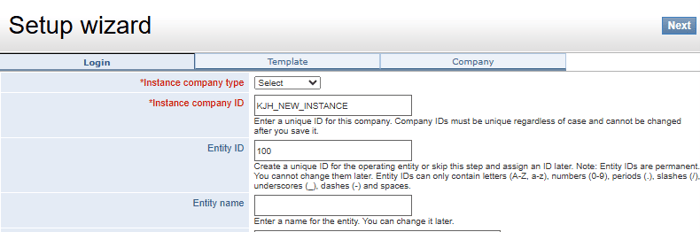
- Set Up Administration: Define the original entity for the instance, including the name and administrator details. Set up an admin password, which will be sent to the admin, allowing them to establish their own secure password subsequently.
Selecting the right template for your instance
When setting up a new instance, choosing the appropriate template is vital because it can’t be changed later. You have a few options:
- Blank Template: Creates an instance without any pre-set data. This is generally not recommended as it lacks foundational setup.
- Quick Start Template: A preferred choice if you don’t have a custom template, offering industry-specific configurations, such as not-for-profit or service sectors. This template includes financial reports and account group options tailored to your industry.
- Custom Template: Use a template previously created, allowing for consistent and efficient setup across multiple instances.
Finalizing Your new instance
The last step in the wizard is setting up your company information.
-
Company Tab Configuration: Fill in essential company details, such as name, address, and time zone. These specifics ensure your instance is accurate and ready for use.
- Completing the Setup: Once all information is entered, hit "Done" to finalize your new Intacct instance. You can now add entities within this instance, keeping in mind the associated fees for each entity.
Creating templates speeds up the process of adding new instances in Intacct. After the instance is created, data in Intacct can still be changed. By following these steps, you ensure that each instance is tailored to your organizational needs, promoting efficiency and accuracy. Remember the importance of purchasing additional entities upfront and selecting the right template to meet your business’s unique needs. Whether you're starting from scratch or building on existing frameworks, Intacct offers a robust platform for growth and adaptability.
If you have any questions or need further assistance, feel free to reach out to RKL eSolutions support.
Looking for More on Sage Intacct?
For more helpful tips and tricks about Sage Intacct, subscribe to our blog and stay up-to-date with our latest tutorials. We're dedicated to providing valuable resources for businesses looking to optimize their financial management with Sage Intacct.
 Check out these blogs to help get you started!
Uploading Your Budgets Using Pre-Built Templates
How To Create Ad-Hoc Reports Using Views and Filters
Creating Expanded Columns and a Summary for Reports