

What is a bank feed?
A bank feed is a connection between Sage Intacct and your bank. Sage Intacct receives bank transactions through the bank feed and automatically matches them with the help of banking rules for reconciliation to help eliminate the month-end close. (Note that some posted bank transactions will take up to 1-3 days to appear in Sage Intacct)
Subscriptions & Permissions:
- Enable Sage Cloud Services and subscribe (check with your account manager, additional fees might be charged)

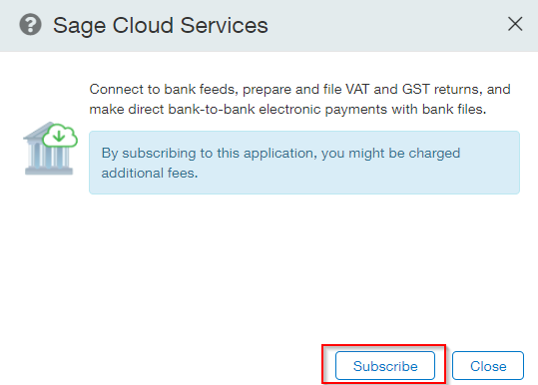
- Ensure permissions are enabled in Cash Management

Step Summary:
- Connect Bank Feed
Connect Bank checking, savings or credit card accounts (first 200 connections are free) - Creating Bank Rules
- Create:
- Create rule set to add matching rules
- Matching Rules
- Creation Rules
- Bank and Credit Card Reconciliation
- Bank Reconciliation
- Bank and Credit Card Reconciliation
Bank Feeds
Connect a Bank Feed to a cash account
- Cash Management > Checking Account > Edit
- Banking Cloud Tab > Connect (Review all terms and conditions)
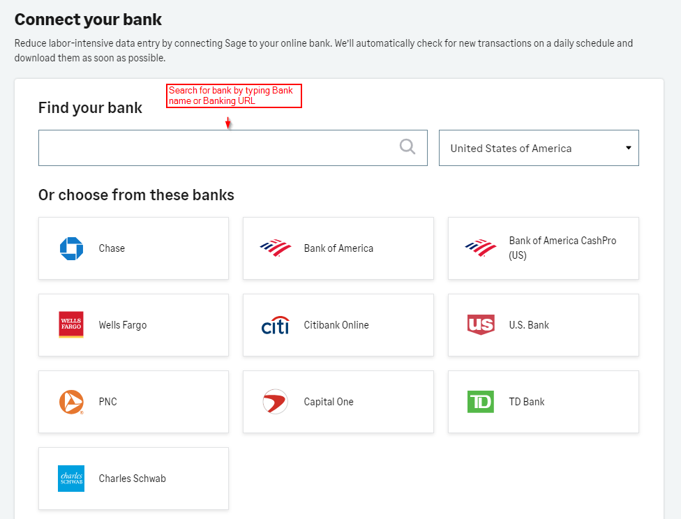
- You can search for your bank or click a bank, if the institute is not found it is not supported
- Sign-In
- Select a starting date (a best practice is to download a transaction within the last 30 days). You can only choose your start date once.
- Status will say pending confirmation—Click confirm
- Bank Transactions will now download and be viewable in the Bank Transaction List (Cash Management > Transactions > Bank Transactions )
- You can apply payments > View > Receive Payment > Select Customer > Select Invoice > Save and the payment will match to payment transaction

What are rules?
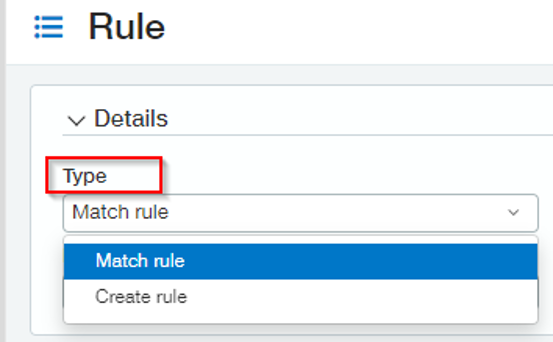
Matching Rules – Create a matching rule to match transactions from a bank feed or import file to what already exists in Intacct (matches from bank feed to what is in Intacct).
Creation Rules – We use the create rule function to auto-create journal entries to match what’s posted to your bank, reducing the need to create entries manually (create journal entries to what’s in your bank).
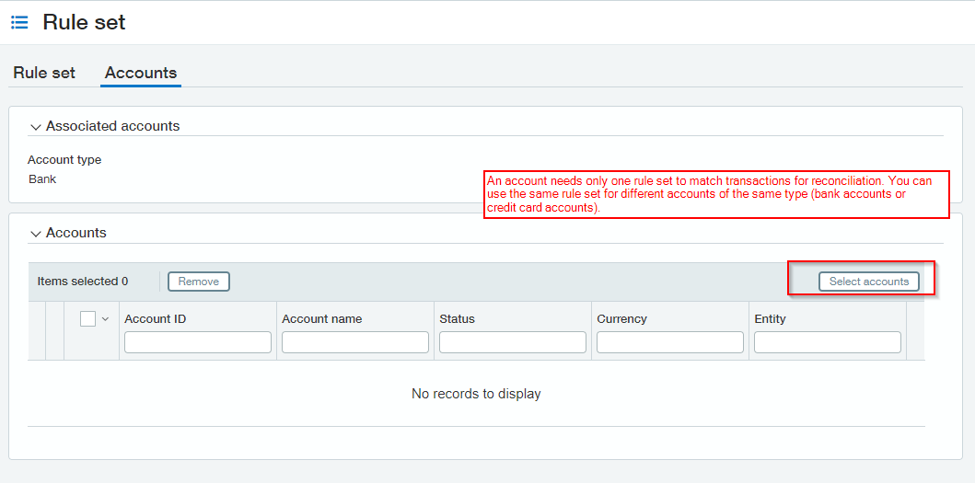
Rule Set - Rule sets determine how incoming transactions from a bank feed or import file are automatically matched for reconciliation. Create different rule sets for credit card accounts and bank accounts. An account can have only one rule set. However, you can use the same rule set for different accounts.
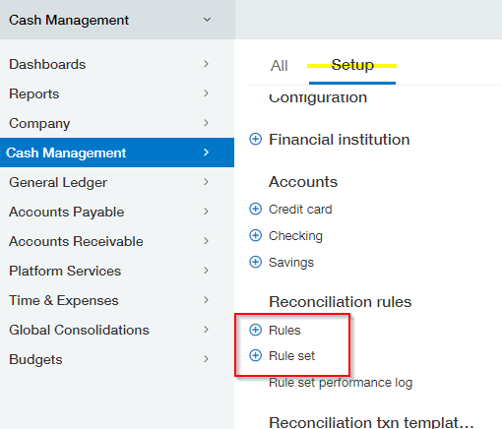
Create a Matching Rule
Cash Management > Set up > Rule > Add
- Type – Match Rule
- Assign an ID and Name (ID cannot be edited once made)
- Description – Ex. Match Date, Amount, and Document
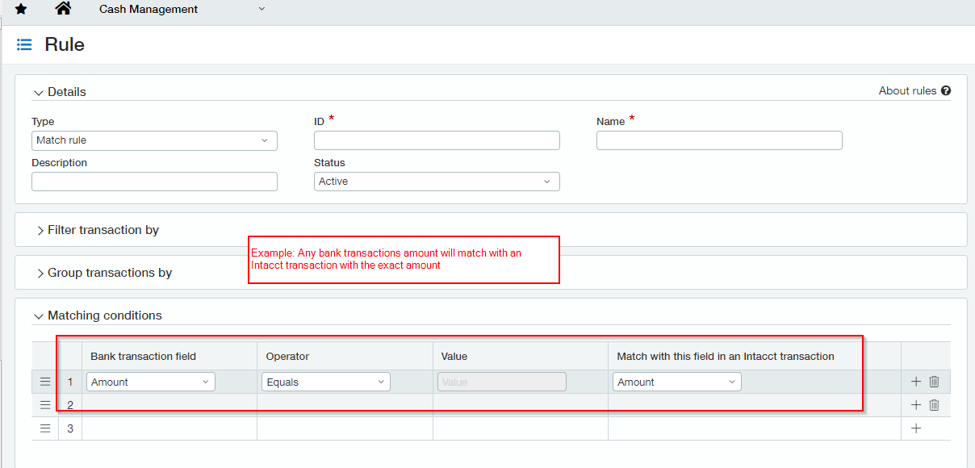
Matching Conditions Ex. Amounts = Amount
Creation Rules
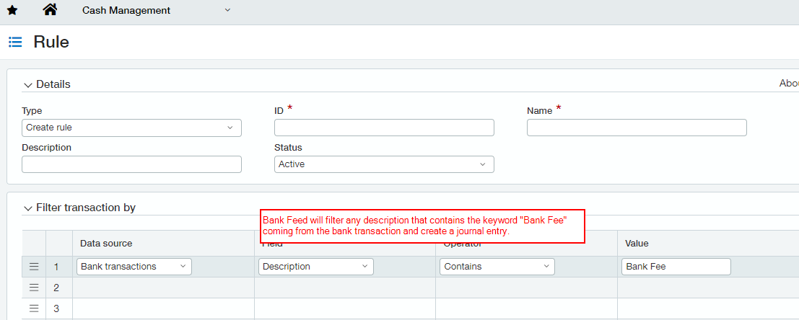
Creation Rules are useful for recurring charges (electric bill) or bank fees
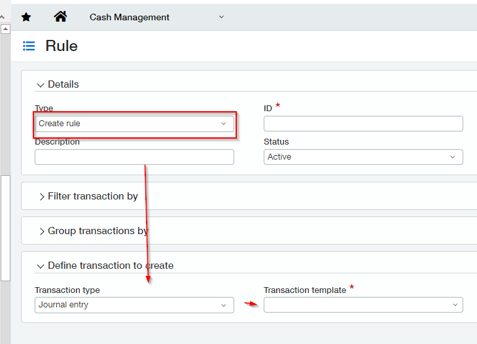
- Type – Create Rule
- Assign ID and Name
- Filters – Example: We want our data source to come from the bank transaction to find any description that begins with SCE
- Define – We want to pick Journal Entry by 8/18, you will be able to select a credit card.
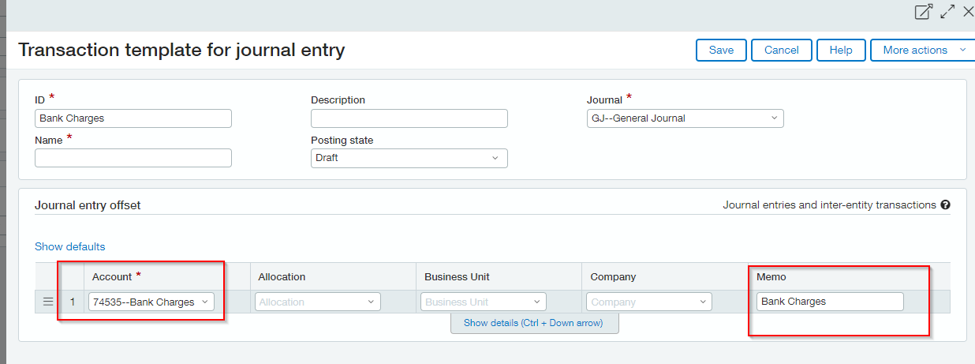
- Transaction Templates – Templates enable you to define the posting of the journal entry. Tip: You’ll want to name the template so you know what it will be used for.
- Add the Name description and which journal.
- Posting Status – Posted will post directly/Draft will not post directly
- Journal entry offset – The rule will create a journal entry to the account, allocation if any/ department/ entity/ and will give you a standard memo or it can be changed
Rule Sets
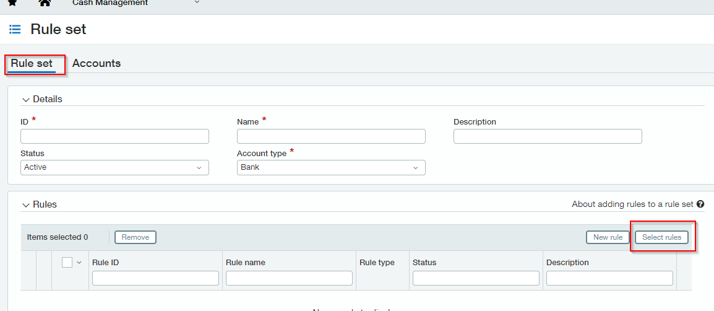
After you create one or more rules and assign them to a rule set, apply the rule set to an account.
Cash Management > Set Up > Rules > Rule Set > Add
- Set ID
- Name & Description
- Status – Active
- Account Type – Bank/Credit Card
- Select Rules
- Accounts Tab – Select the Bank/Credit Card account you want to associate the rule with (List will only show the Bank Accounts not associated with a Rule).

Bank Reconciliation
- Cash Management > All > Reconciliation > Bank
- Once Bank Feed is connected, the Matching Attribute will be shown from the created Match Rule.
- Summary Section: Fields to note —(When you click refresh, the system pulls newly created transactions from Intacct that might affect the reconciliation & bank feed data).
- Bank Data Tab: Where all the data you downloaded will be displayed, and allow you to go through the match process.
- Click the match link—either the Intacct or Bank (bank side can partially match transactions, for example, you might have multiple Intacct transactions that match to a single bank transaction – Partially matched).
Looking for More on Sage Intacct?
For more helpful tips and tricks about Sage Intacct, subscribe to our blog and stay up-to-date with our latest tutorials. We're dedicated to providing valuable resources for businesses looking to optimize their financial management with Sage Intacct.
 Check out these blogs to help get you started!
Sage Intacct R2 2026: What You Need to Know about the Latest Release
Tips & Tricks for Tweaking Sage Intacct Financial Statements
Create Expanded Columns and a Summary for Reports in Sage Intacct