


Sometimes it only takes a small adjustment to a Financial Report to give you your ideal statement!
Best Practice - Before making changes to a Financial Report, Duplicate your report and save it under another name.
Go into General Ledger > Financial Reports and Edit the report you wish to change.
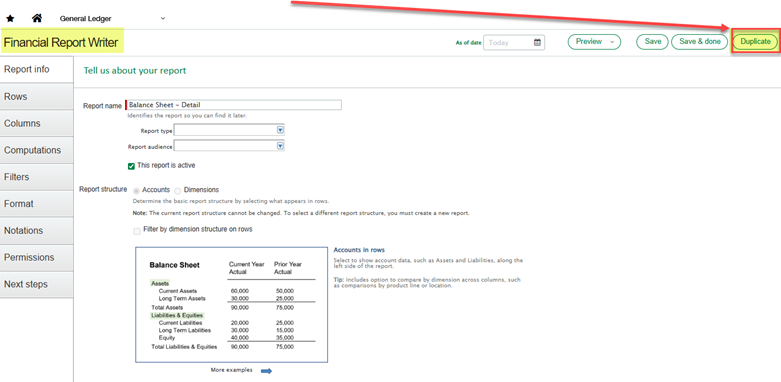
Click on Duplicate in the upper right corner:
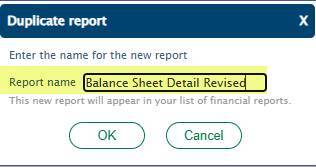
And then enter the new Report Name:
Below are a few common issues, along with tips to assist you in creating the statements you’ve been waiting for!
Issue # 1 My Financial Report shows accounts with zero balances. How do I hide them?
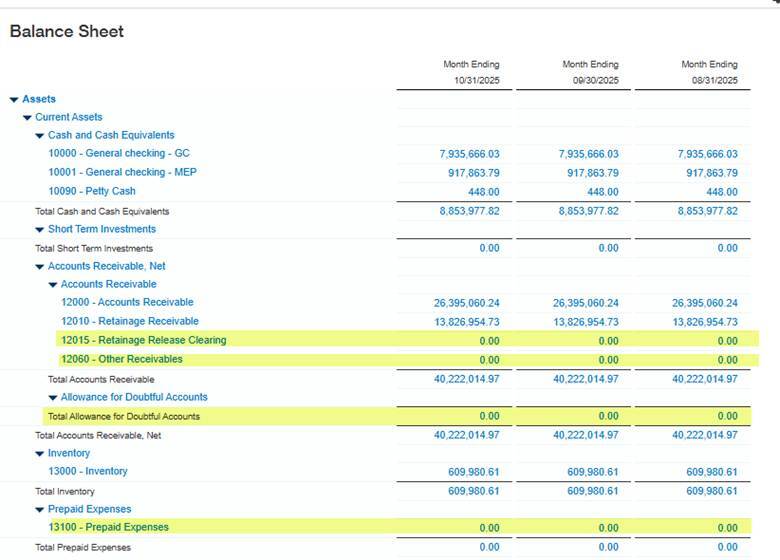
Example: I don’t want the highlighted rows that have zero balances to show:
Solution:
Go to General Ledger > Financial Reports and Edit the report you want to modify.
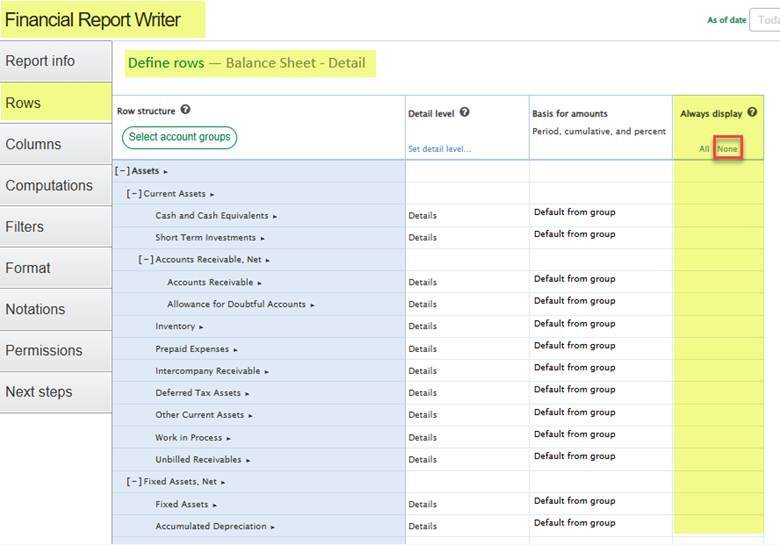
Then click on Rows on the left side of the screen. The column on the right is labeled Always Display. To hide all zero balance rows, select None:
Result:
Preview the report after making this change:
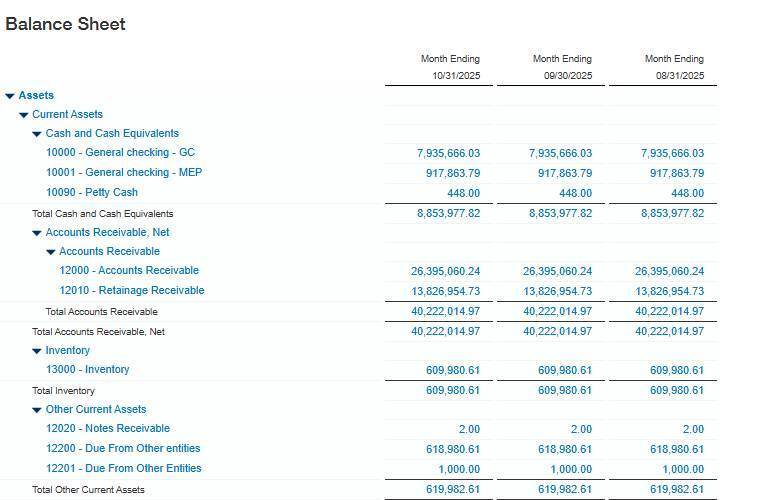
Issue #2: Accounts are showing up in the incorrect groupings on my statement
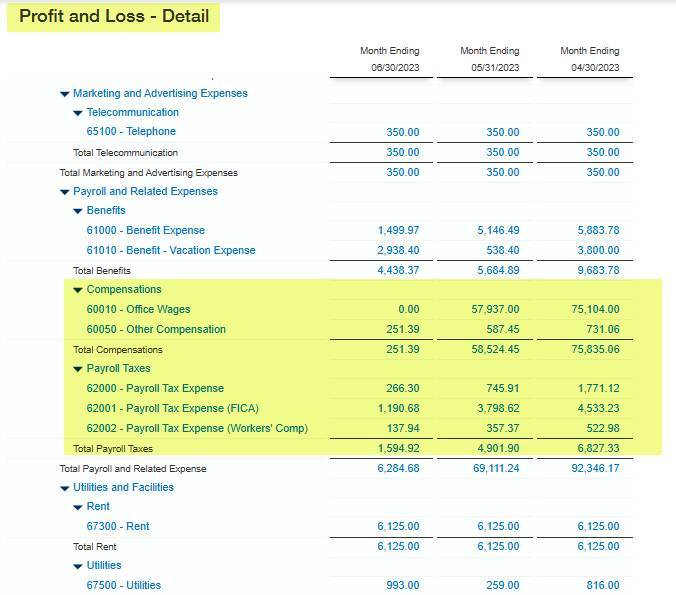
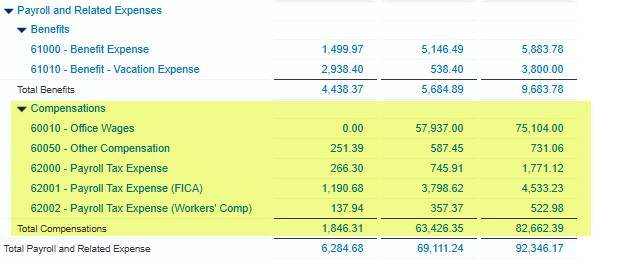
Example: On my Profit and Loss Detail, I want all my Payroll Taxes to appear as part of Compensations:
Solution:
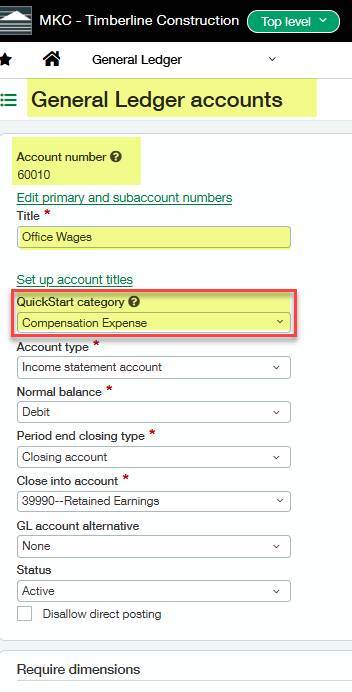
On the GL Accounts, the “QuickStart category” determines where the Account appears on your Financial Reports.
When we go into General Ledger > General Ledger accounts, and pull up account 60010 - Office Wages, we see that it has a QuickStart Category of Compensation Expense:
We need to edit the accounts showing up under “Payroll Taxes” – Accounts 62000, 62001, and 62002 – and change the QuickStart category to Compensation Expense:
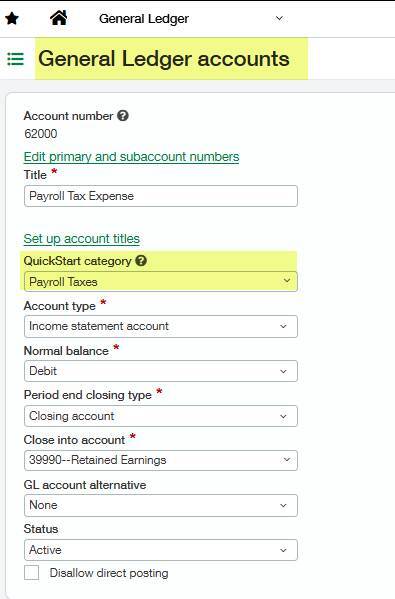
Here we see that all three accounts now have the correct QuickStart Category: 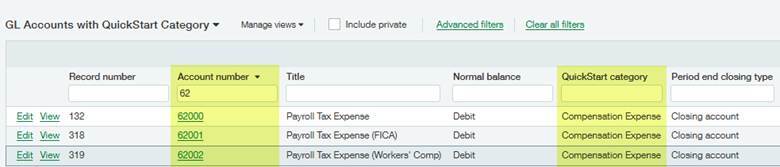
When we re-run the Profit and Loss Detail Report, we see all three accounts included in Compensations:
Issue # 3: How can I hide the headings on my Financial Reports?
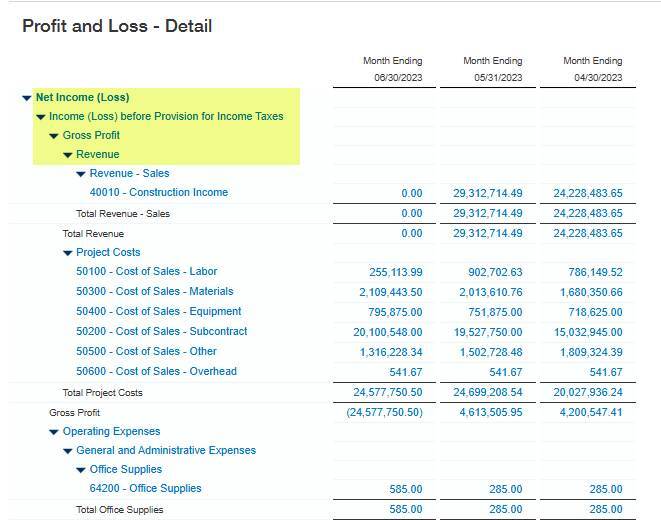
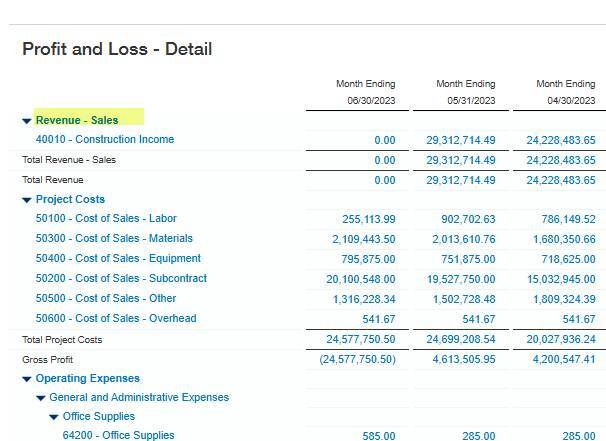
Example: I don’t want these highlighted headings to appear on my Profit and Losee Detail statement:
Solution:
Go to General Ledger > Financial Reports and Edit the report you want to modify. On the left-hand side, select Format, and then select the Rows and totals tab.
You will see options for both Row formatting and Total formatting. To hide the Headings, Check the Hide heading boxes:
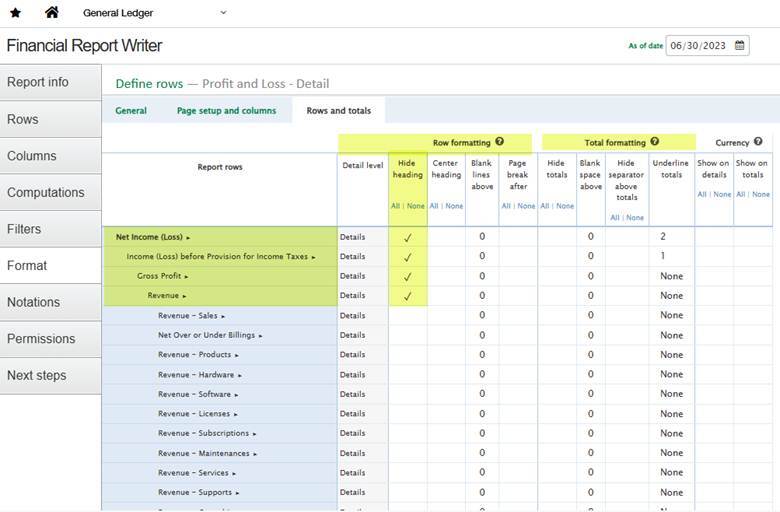
When you Preview the Report, the first heading will be Revenue – Sales:
Make additional changes to the Rows and Totals and Save your changes.
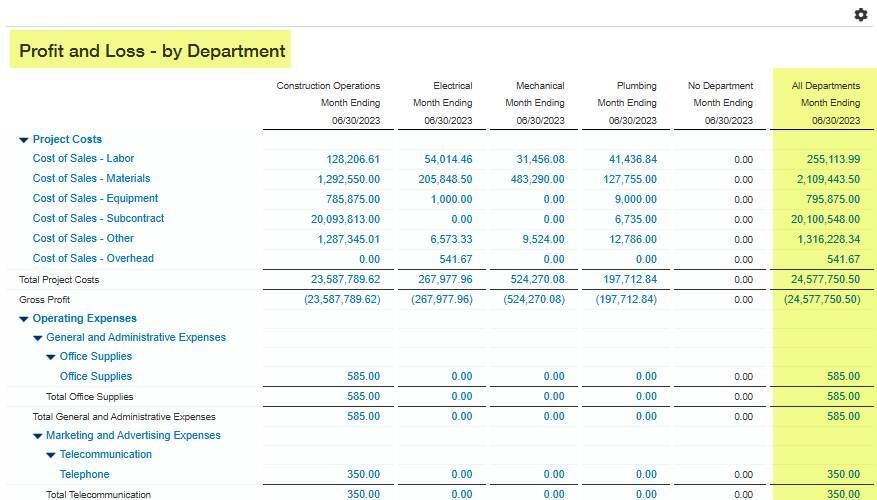
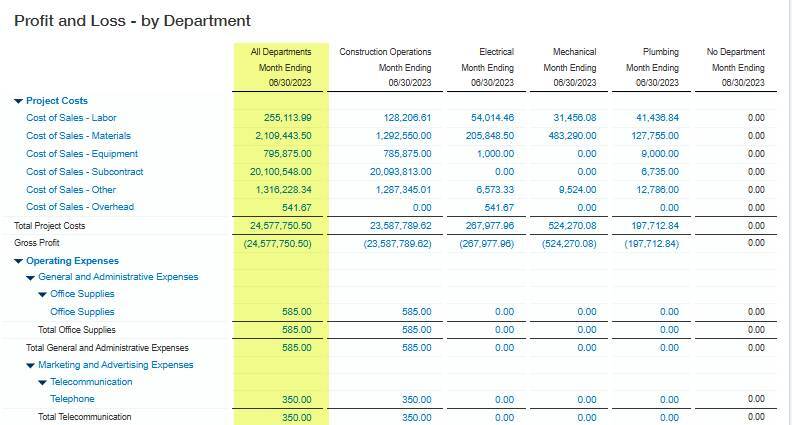
Issue # 4 – My Profit and Loss by Department looks great, except I want to show the Total of All Departments on the left:
Example:
Solution:
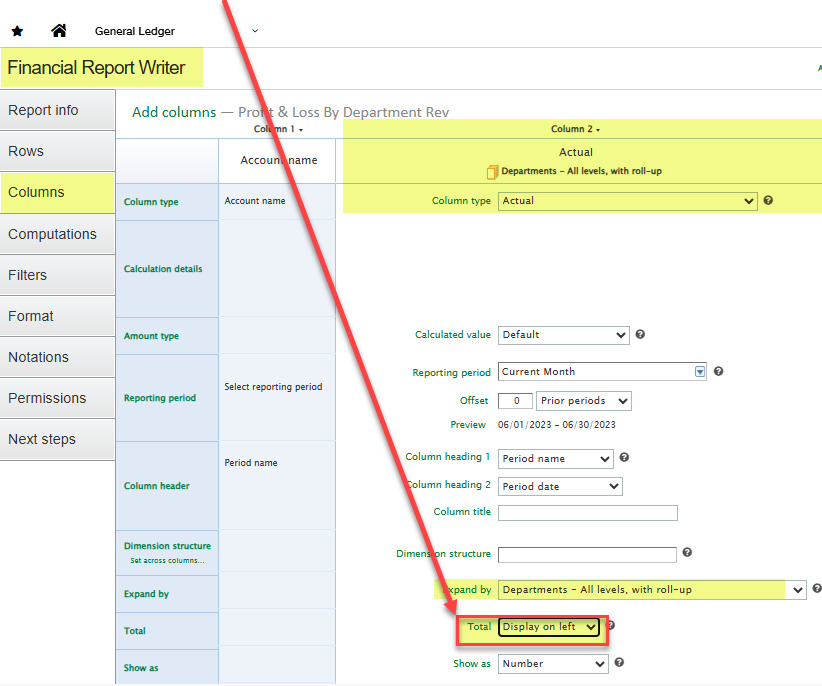
Go to General Ledger > Financial Reports and Edit the report you want to modify. On the left-hand side, select Columns, and click in the Actual column. The report will already know to Expand by Departments – All Levels, with roll-up. But right below that, there is a Total prompt. Change from Display on Right to Display on Left. Or select Hide Total if you prefer to exclude the total column.
Preview the report:
Issue # 5 How can I show negative numbers in red on my Financial Statements?
Example:
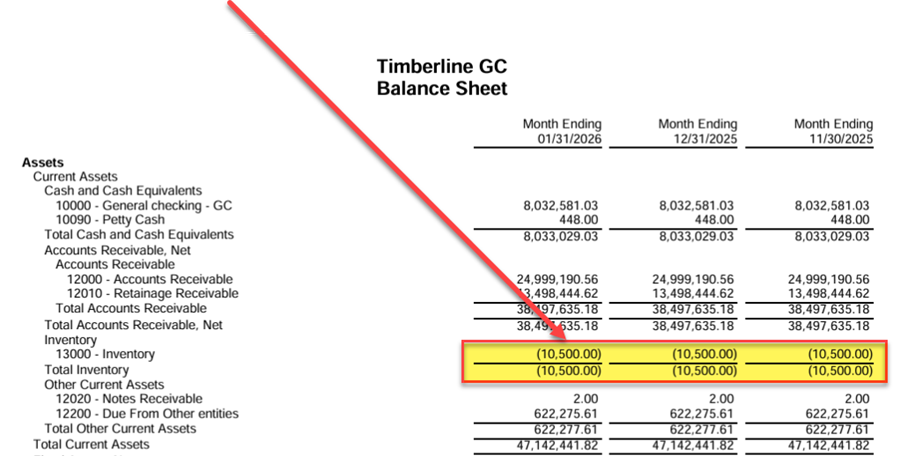
In this statement, I want to show these amounts in red so they stand out:
Solution:
- Go to General Ledger > Financial Reports and Edit the report you want to modify Edit the Financial Statement.
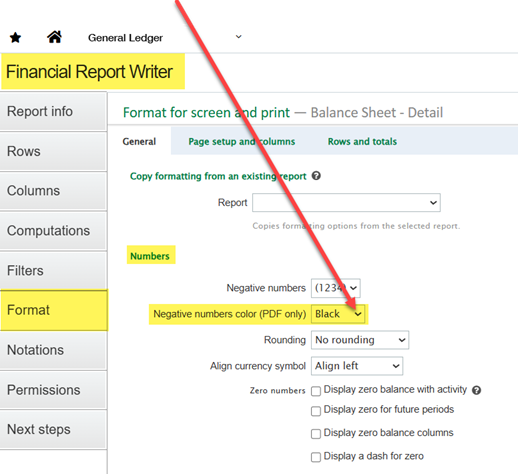
- Select the Format tab
- In the Numbers section, set the Negative numbers color (PDF only) option and choose red (or any other color) from the dropdown list.
- Preview the report and select the Print version (PDF):
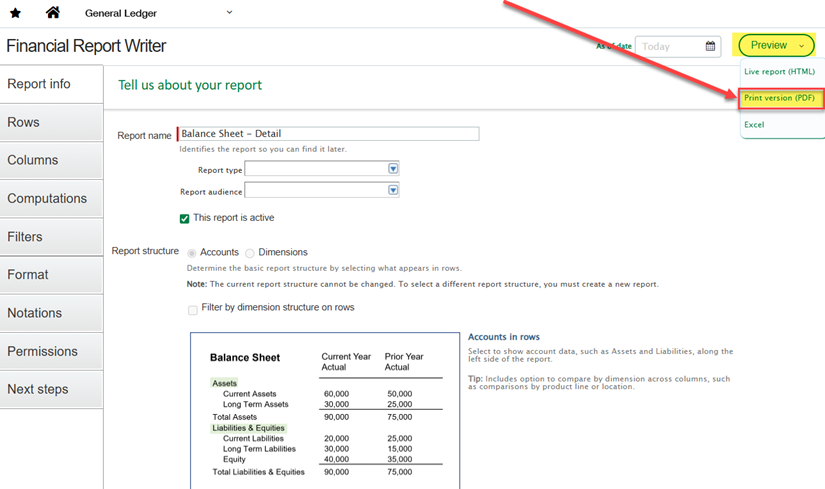
Note: The colors will only appear when viewing the PDF.
When you print the Live report (HTML) the report will appear in black and white.
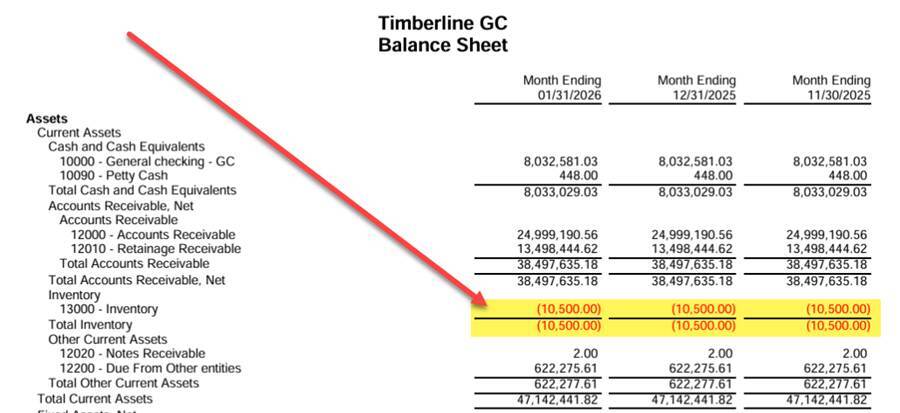
Here are the results:
Issue # 6: Can I squish the report so all columns are printed on one page?
Example: When I print my report as a PDF, only the first 3 locations print:
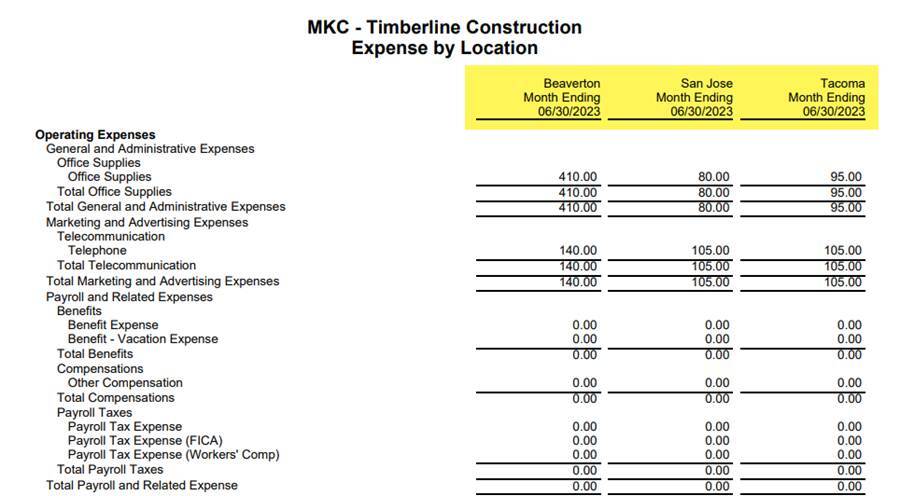
Solution:
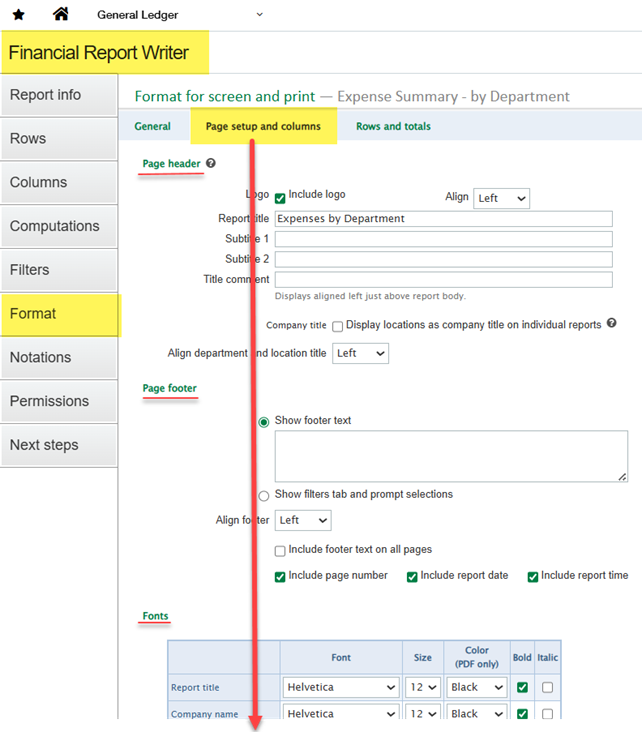
Open up the report in Financial Report Writer and go to the Format tab.
Click on the Page setup and columns tab. Scroll down (below the Page header, Page footer, and Fonts sections - to the Page Settings section:
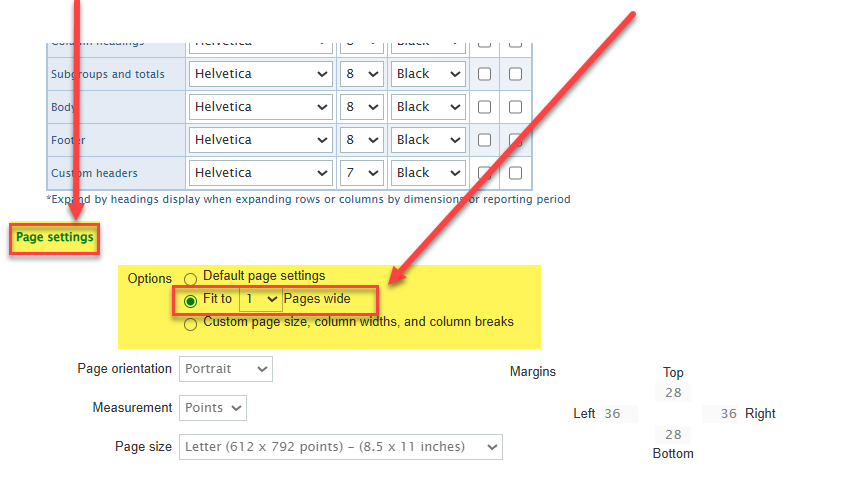
Keep scrolling down, to Page settings and change the Option to Fit to 1 Pages Wide:
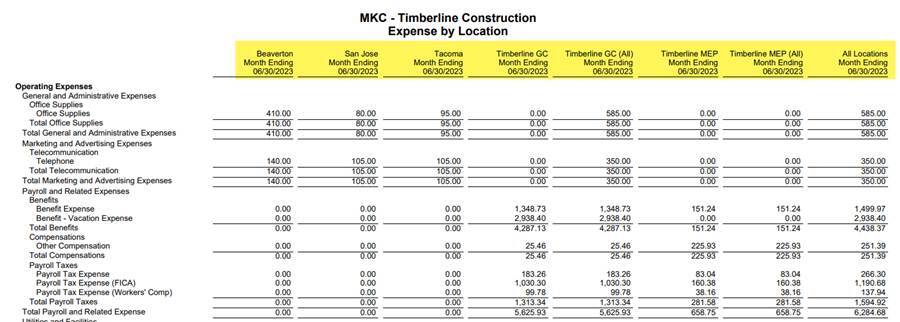
Preview the report as a PDF, and it shows all locations:
These are just a few of the many adjustments that you can make to improve the format of your Financial Reports!
Looking for More on Sage Intacct?
For more helpful tips and tricks about Sage Intacct, subscribe to our blog and stay up-to-date with our latest tutorials. We're dedicated to providing valuable resources for businesses looking to optimize their financial management with Sage Intacct.
 Check out these blogs to help get you started!
Sage Intacct R2 2026: What You Need to Know about the Latest Release
How to Customize Printed Documents in Sage Intacct
Create Expanded Columns and a Summary for Reports in Sage Intacct