Sage Intacct AP Automation Updates May 2026
Configuration Changes:
- Accounts Payable:
- Email bounce-back notifications – you can now provide an email address to get a notification when the emailed documents do not process.
- Purchasing:
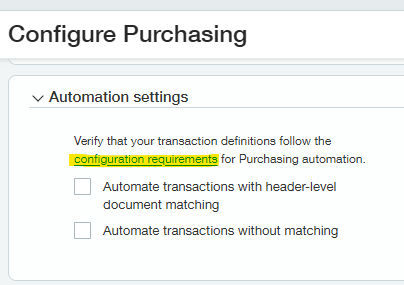
- Ability to see configuration requirements link when setting up:
-
-
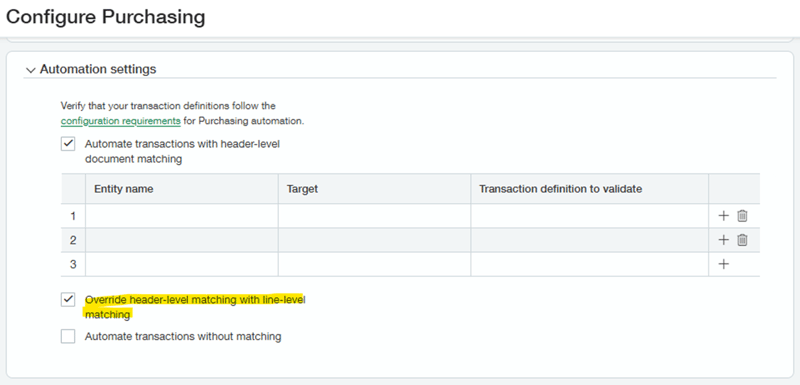
Override header-level matching with line level matching
-
-
-
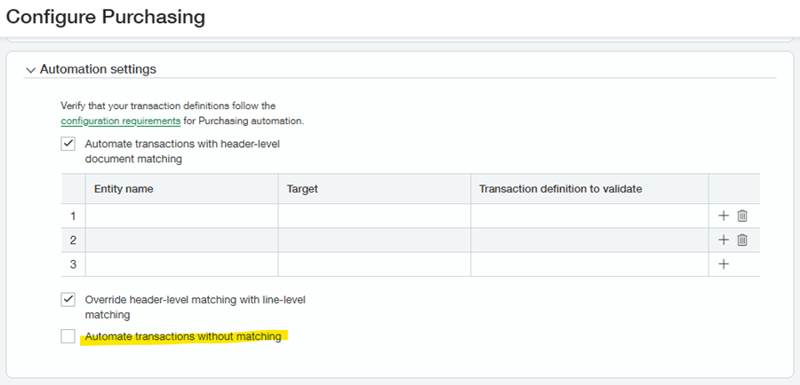
Ability to automate transactions without matching – this would allow you to put in purchasing transactions and have the system automate the input without doing a matching process.
-
When you submit a vendor invoice by email or upload, AP Automation with Purchasing uses the Sage Network AI to do the following:
- Correctly identify the vendor.
- Extract details such as names, dates, addresses, and line items.
- Code dimension details, such as the GL account, location, and department.
- Match vendor invoices to purchasing transactions
- Create a draft transaction using this information that's ready for you to review and post.
- Detect and flag duplicates, so you don't overpay.
Best Practices
- The more you use it, the smarter it gets
AI/ML improves with continuous use—the more transactions you process, the better predictions will become.
Every correction refines the model, enhancing accuracy for future transactions.
- Post transactions to train the AI
AI only learns from transactions that are posted or submitted for approval. Unposted draft transactions do not contribute to training.
To improve predictions, always finalize transactions instead of leaving them unposted.
- Set up default GL accounts
Assign a default GL account for your vendor records. To ensure that the default expense account is being considered and up-to-date, edit each vendor and select Save.
If the AI has low confidence on its GL account prediction, it will fall back on the default GL account for accuracy.
- Set up default GL accounts
AI predictions work best when feedback aligns with the requested transaction structure. In this context, feedback refers to any action completed and recorded by the AI to learn your preferences.
Single-line versus multi-line processing:
- If you request a single-line prediction, only submit single-line feedback. Multi-line edits are not captured by the AI in this instance.
- If you need multi-line details, make sure that your AI request is set for multi-line transaction processing before submitting feedback.
- For multi-line corrections: Always update the existing lines instead of deleting and adding new ones. This keeps AI learning in the correct order.
- Avoid deleting incorrect predictions—correct them instead
Avoid deleting transactions with incorrect AI predictions. Instead of deleting and re-uploading the same transaction, correct the data and post the transaction so AI can learn from the adjustment.
- Train AI by creating transactions on different days
Avoid deleting transactions with incorrect AI predictions. Instead of deleting and re-uploading the same transaction, correct the data and post the transaction so AI can learn from the adjustment.
- Understand AI learning patterns and accuracy expectations
AI extracts transaction data with high accuracy, but early results might require more corrections for GL account classifications. GL classification accuracy improves over time as AI learns from your company's specific patterns.
- Enhance AI prediction on memos with clear descriptions
When correcting the memo field, write text that best matches the item description as provided in the document. This helps the AI understand context and improves future predictions in the memo section.
- AI populates most fields, but manual review is still needed
AI automatically fills in most fields on transactions, but some manual validations might still be required. Review key fields like GL accounts, tax codes, and department assignments before posting.
The more corrections that you provide, the faster AI adapts to your company's accounting practices.
FAQ:
Q: Are there ways I can improve the accuracy of matches when I first start using AP Automation with Purchasing?
A: Use Vendor names in your Vendor information records that match how names appear on vendor invoices. Provide source transaction numbers to vendors that match the numbers recorded in the system. When automating with document matching, AI detects matches between vendor invoices and source transactions using a variety of means, including what it learns from corrected transactions that you post. That means that even if your data is not the easiest to match, the AI/ML system still learns how to make matches, over time.
Q: How do the credits for AP Automation subscription usage work? (Credits are how the AP automation module is billed).
A: AI creates different transaction types depending on your automation configurations. Some transaction types are credited differently based on the complexity of the prediction requirements.
Your company pays for a number of credits to use each month.
|
Transaction type |
Description |
Credits |
|
AP Bill |
The AP transaction was created or converted to a bill. |
1 |
|
Header-level matching |
The Purchasing transaction was matched at the header-level. |
1 |
|
Line-level matching |
The Purchasing transaction was matched at the line-level. |
2 |
|
Nonmatching |
The Purchasing transaction was created with no match. |
1 |
For Purchasing transactions, credits are consumed based on the type of transaction predicted by AI. When you manually change or remove the transaction match, this change is not reflected in your subscription usage. You can view edits to automated transactions in the audit trail.
Q: Will Sage Intacct match a vendor invoice to multiple purchase orders?
A: Intacct matches a vendor invoice to a single source document, for example, a purchase order.
If you need to link multiple source documents to one vendor invoice, follow these steps:
- Select the Enable the conversions for multiple source documents option in your Purchasing configurations and save.
- When editing automated transaction drafts, select a different open-source document on any line item in the Show details window.
Q: How are line items created in the draft vendor invoice?
A: Line-item handling is based on whether you enable line-level matching in your Purchasing configuration during setup.
With line-level matching, AI/ML predicts line item matches between the source transaction and the vendor invoice. Any differences are flagged for your review. You can edit the line items as needed when you review the draft.
Without line-level matching, Sage Intacct populates the vendor invoice with all lines from the source purchasing transaction, ignoring the vendor document. When you review the draft, you compare each line to the vendor document and make any necessary adjustments.
Q: What currencies are supported by AP Automation with Purchasing?
A: AP Automation with Purchasing is optimized for USD currency. While other currencies are usually recorded correctly, we cannot guarantee that AI/ML will recognize the currency.
Vendor invoices without currency symbols are recorded using the base currency of the entity or the level where the vendor invoice was uploaded or emailed.
Q: What file formats does Sage Intacct accept for emailed and uploaded documents?
A: Intacct accepts documents formatted as follows:
- Format: XML (EN16931), PDF, JPG, JPEG, TIFF, HEIC, or PNG
- Encryption: Unencrypted
- File size: Up to 20 MB in size
- Document length: Fewer than 200 pages
Q: If I have multiple files that relate to a single vendor invoice, do I email or upload them together?
A: When a vendor invoice includes additional files, upload or email only the vendor invoice. This is important because Sage Intacct creates a draft transaction for each file you upload or email, whether it is a vendor invoice or supporting material.
After Intacct creates the draft transaction, you can add supporting files to the vendor invoice as attachments.
Q: How many purchasing documents can I upload at one time?
A: You can upload up to 30 documents at once. To upload more, select Upload again and then drag and drop more files.
Q: Can I upload a single file that includes multiple purchasing transactions?
A: If you have multiple purchasing documents, upload the documents in separate files. You can upload multiple files as a batch. This is necessary because for each file you upload, Intacct creates a single draft transaction.
Looking for More on Sage Intacct?
For more helpful tips and tricks about Sage Intacct, subscribe to our blog and stay up-to-date with our latest tutorials. We're dedicated to providing valuable resources for businesses looking to optimize their financial management with Sage Intacct.
 Check out these blogs to help get you started!
Sage Intacct R2 2026: What You Need to Know about the Latest Release
Tips & Tricks for Tweaking Sage Intacct Financial Statements
Create Expanded Columns and a Summary for Reports in Sage Intacct