In Sage Intacct, a customer refund is a record of a payment that you've already made or are preparing to make back to a customer. When you record a refund, Sage Intacct provides a list of available credits for the customer, based on the selected currency. You match the credits to the refund and adjust the refunded amount for each credit as needed.
Outlined below are the configuration and use instructions for customer refunds in the Accounts receivable module. A few items to note:
-
If you DO NOT choose to process refunds through AP, this process is meant to take place AFTER you have already processed a payment via your bank or other payment processor outside of Intacct. That refund process is simply to record that payment without having to cross into the Accounts payable function.
-
If you DO choose the option to process through AP, you will be able to make changes in the system to auto-create a vendor and process the payment in AP, as you would with a normal bill.
Configuring Customer Refunds:
- Navigate to Accounts receivable > Setup > Configuration.
- Scroll down to the Customer refunds.
- Select the option “Record paid refunds”. If you would also like to push the payment from AP, click the “Process refund payments in Accounts Payable” checkbox.
- Once you select these options, fill in the remaining required options:
- Create a GL account to process the refunds through if processing payments through AP.
- Update the Customer refunds for the desired journal to record the disbursement.
- Update the Summary frequency section; you can optionally set it to match the other posting frequencies.
- You will be required to create and assign a number sequence for Customer refunds.
- Click Save.
- Update any user permissions to include the Customer refunds function within roles or individual permissions, depending on how your system is set up.
- You should see the Refunds function listed under the Payments section of the Accounts Payable module.
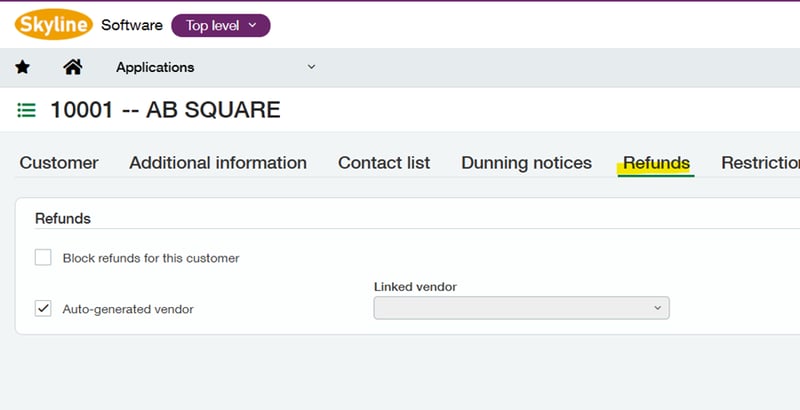
- If enabling Processing refunds through Accounts Payable, the Customer record will add a new tab called Refunds, where you can:
- Block refunds for that customer
- Auto-generate a vendor to be used when a payment is generated
- Directly link to a vendor that has already been created.
How to Create and Process a Customer Refund
NOTE: To process a refund, there must be a credit available. A negative invoice is eligible for refund only if it does not contain a positive line item, even if a negative balance remains. Inline credits cannot be selected as refunded credits. Refunds are only supported in the base currency.
Creating a refund (NOT processing payments through AP):
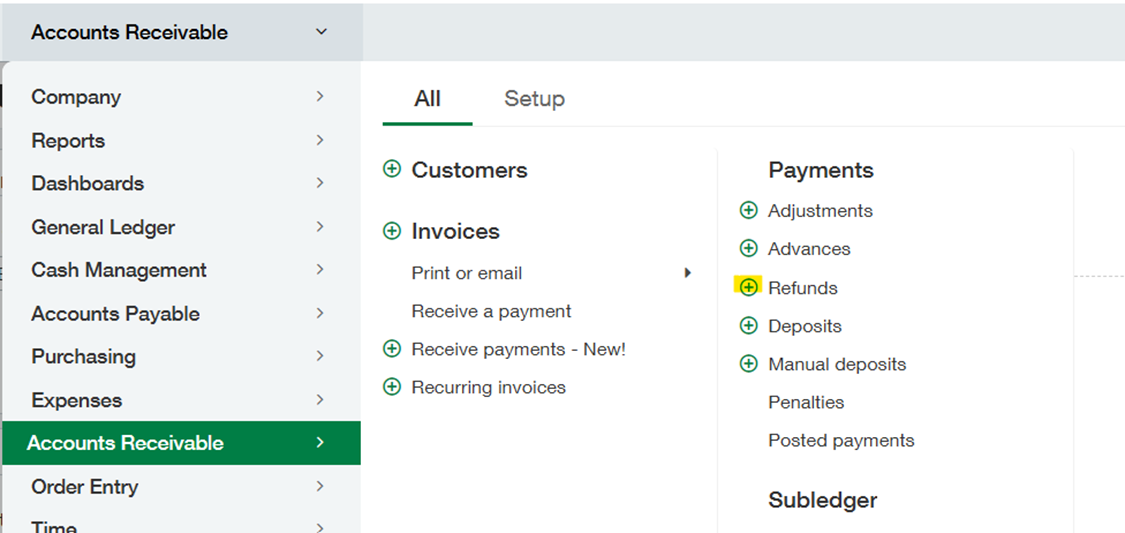
- Navigate to Accounts Receivable > All > + next to Refunds.
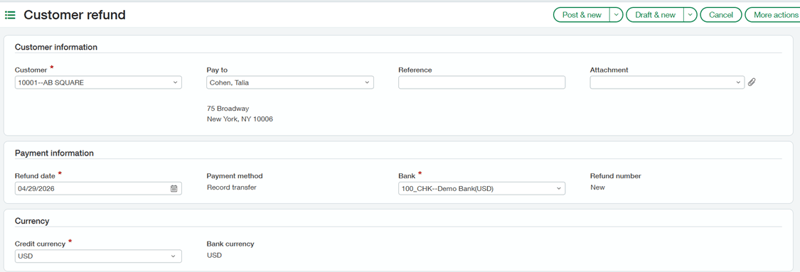
- Add relevant information such as Customer, Refund date, Bank, Credit currency, etc. Reference and attachment are optional.
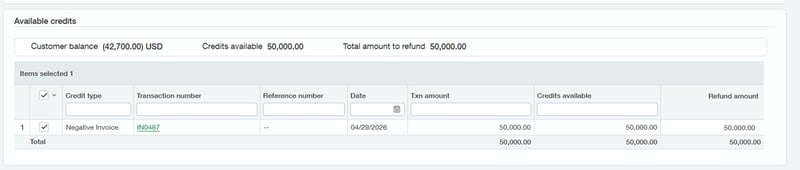
- The available credits will be listed in the Available credits section at the bottom. Select the credits you will refund.
- Click Post.
Create a refund (Processing through AP):
- Navigate to Accounts receivable > All > + next to Refunds.
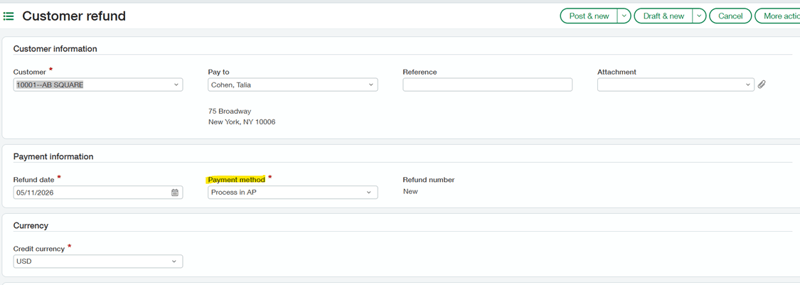
- Add relevant information such as Customer and Refund date. Reference and attachment are optional. Make sure to choose "Process in AP" as the payment method.
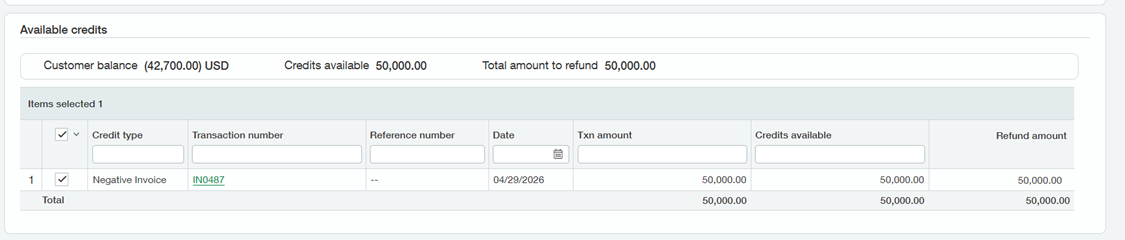
- The available credits will be listed in the Available credits section at the bottom. Select the credits you will refund.
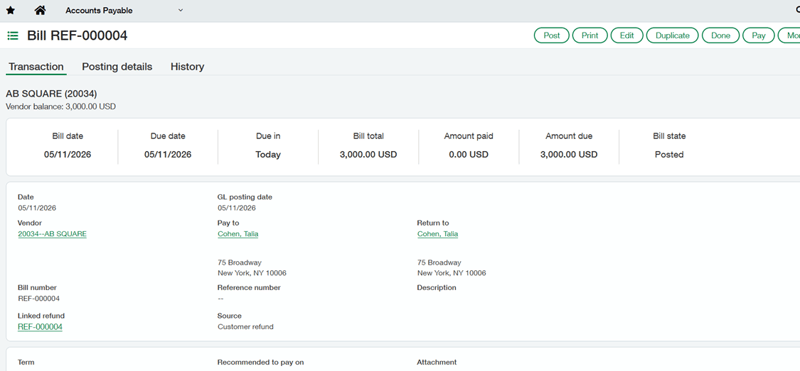
- Click Post. This will generate a bill in AP to process a payment as normal.
Edit a Refund:
- Go to Accounts Receivable > All > Payments > Refunds.
- Find the draft customer refund you want to change.
- Select Edit at the end of the row.
- Make your changes.
- Select Draft or Post.
Delete a Refund:
- Go to Accounts Receivable > All > Payments > Refunds.
- Find the draft customer refund you want to remove.
- Select More actions > Delete at the end of the row.
- Select Delete to confirm.
Void a Refund:
- Go to Accounts Receivable > All > Payments > Refunds.
- Find the posted customer refund you want to void.
- Select More actions > Void at the end of the row.
- Enter a date for Void the refund on date.
- Optionally, add a Memo.
- Select Submit.
Looking for More on Sage Intacct?
For more helpful tips and tricks about Sage Intacct, subscribe to our blog and stay up-to-date with our latest tutorials. We're dedicated to providing valuable resources for businesses looking to optimize their financial management with Sage Intacct.
 Check out these blogs to help get you started!
Sage Intacct R2 2026: What You Need to Know about the Latest Release
Tips & Tricks for Tweaking Sage Intacct Financial Statements
Create Expanded Columns and a Summary for Reports in Sage Intacct