Effectively managing tariffs within Sage 500 is essential for maintaining compliance and optimizing your financial operations. This guide provides a structured approach to configuring tariffs using Sage 500's native functionalities, ensuring seamless integration into your sales processes. By following these detailed steps, you can adeptly adjust tax codes, schedules, and invoice forms, thereby enhancing your system's efficiency without the need for external integrations.
*This does not apply to environments using any sales tax 3rd party integration.
- Navigate to Accounts Receivable > Maintenance > AR Setup > Set Up AR Options
- Then, go to the "Other" tab and uncheck the "Track Sales Tax on Sales" box
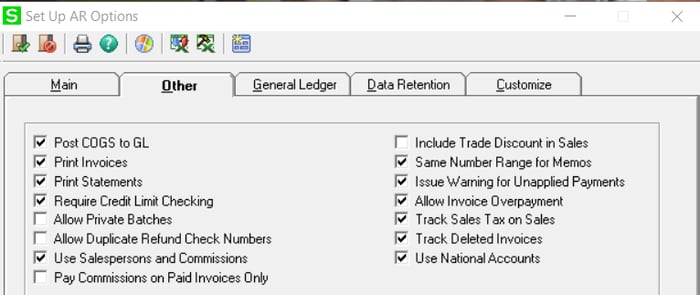
- Save your changes.
- Now, navigate to Common Information > Maintenance > Maintain Sales Tax > Maintain Tax Codes
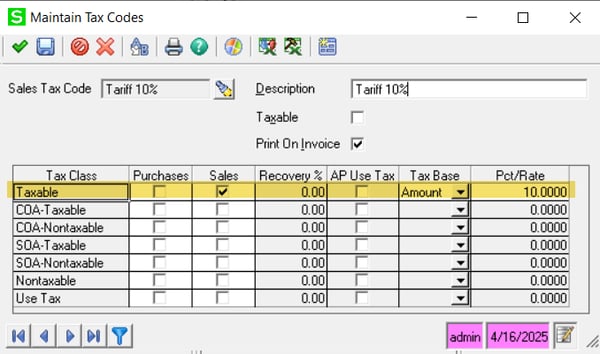
- Create a tax code specific for the tariff percentage and select the boxes for the appropriate tax class (Taxable, COA-Taxable, COA-Nontaxable, SOA-Taxable, SOA-Nontaxable, Nontaxable, Use Tax) you want the tariff applied. Check the ‘Print on Invoice’ box if you want it displayed on the printed sales invoice. In the example below, I have entered the following:
- Sales Tax Code = Tariff 10%
- Description = Tariff 10%
- Print on Invoice = checked
- Tax Class = Taxable
- Sales = checked
- Tax Base = Amount
- Pct/Rate = 10
- Then, navigate to Common Information > Maintenance > Maintain Sales Tax > Maintain Tax Schedule.
-
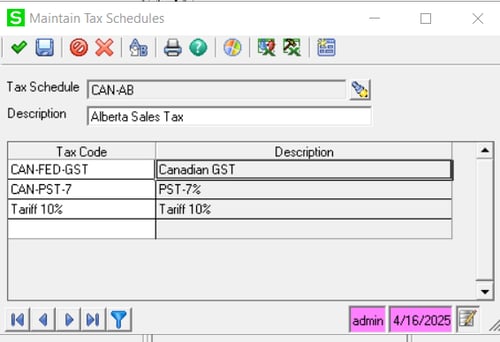
If the Tariff you just created applies to all products, you need to update all of the Sales Tax Schedules to include the new Tariff Tax Code. In the Sales Tax Schedule "CAN-AB" example below, I have entered :
- Tax Schedule = CAN-AB
- Description = Alberta Sales Tax
- Tax Code = Tariff 10%
- Description = Tariff 10%
-
Next, navigate to Common Information > Maintenance > Maintain Sales Tax > Maintain Company Tax Information.
-
This is where you can assign which GL Accounts to use for the sales tax posting.
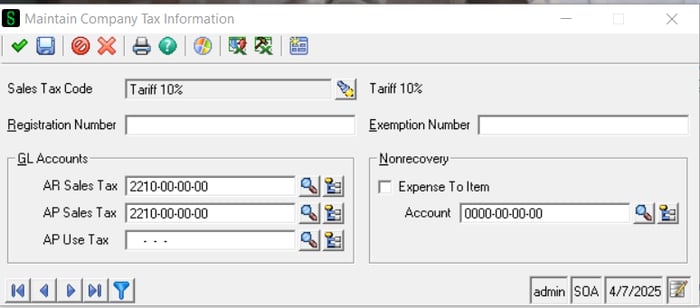
-
Now, when you create a Sales Order (Enter Sales Order and Quotes), you can select the Tax Class you've just created by selecting the Favorites tab in the side menu on the right and choosing "Tariff %" under Tax Class.
-
Enable Sales Tax Reporting in AR Options.
-
Set up a Sales Tax Code and Sales Tax Schedule for the tariff.
-
In AR Division Maintenance, determine where you want the credit to go in the GL. For example, if you’re putting the tariff to an expense account when you pay it, consider putting it to that account so they offset.
-
If needed, assign the new tariff Tax Schedule as the default for each customer in Customer Maintenance.
-
Since Sales Tax Reporting was previously disabled, all items have Nontaxable as their default Tax Class. You’ll need to change that to Taxable during invoice entry, for any items where charging the tariff to the customer is appropriate.
-
Invoice forms should be modified to change the text “Sales Tax” to “Tariff”.
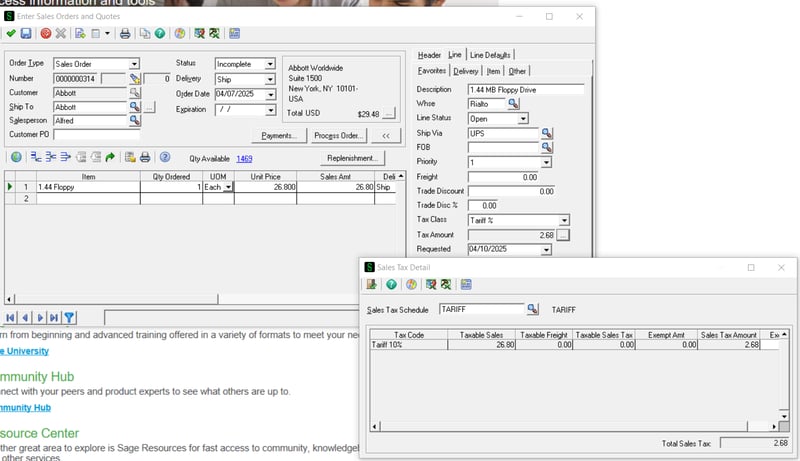
-
-
If you're charging different percentages for Tariffs on sale transactions, you need to add and assign additional Tax Classes to the items in the Item Maintenance Function. To do this, navigate to Common Information > Maintenance > Maintain Sales Tax > Maintain Tax Class.
- Add a sales tax class for each Tariff percentage.
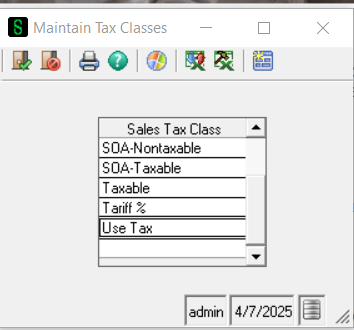
-
Next, add a new code for each Tariff % (review steps 4 & 5).
-
Completing the item maintenance can be done using the Global Item Change function in "Utilities" or by using Data Porter. The Sales Tax Class will need to be updated.
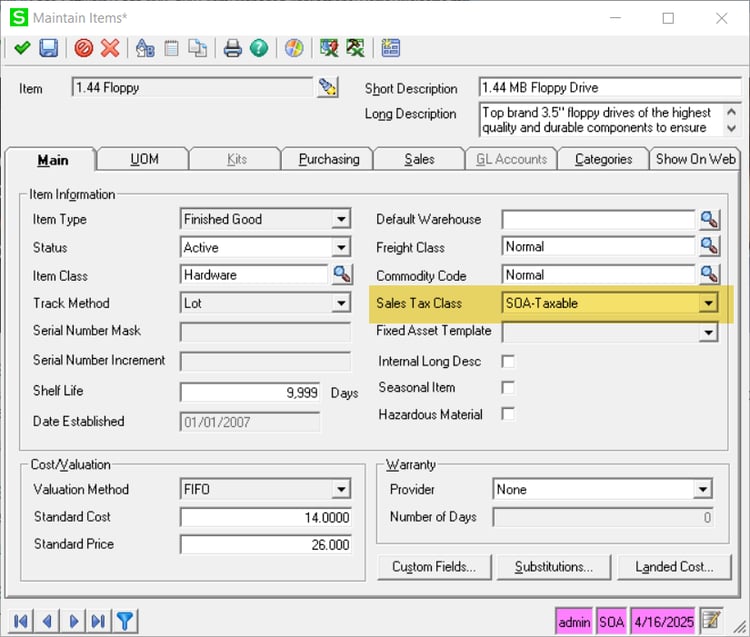
-
If these changes are needed, additional updates will need to be made to the tax codes to adjust for the new tax classes assigned to items.
Please reach out to us for any assistance in the setup or if you have any questions.
Migrating to the Cloud
Sage announced the end of life for Sage 500 more than ten years ago. Since then, users have migrated within the Sage family to either Sage X3 or Sage Intacct. Our team is dedicated to providing
 Check out these blogs to help get you started!
Sage 500 End of Life: 2025 Update
Life After Sage 500—What's Next?
The 5 Stages of Denial: Sage 500 End of Life
Sage vs Sage: Decoding the Sage ERP Portfolio