
We’re thrilled that we’ve just added new employees in our accounting department, but how do we set up a new User in Sage 300CRE? Below are the steps to take to add your new Users and to customize their Roles. Be forewarned, only Security Administrators can add new users.
How to Create a New User
- Login to Sage as a User who is a Security Administrator.
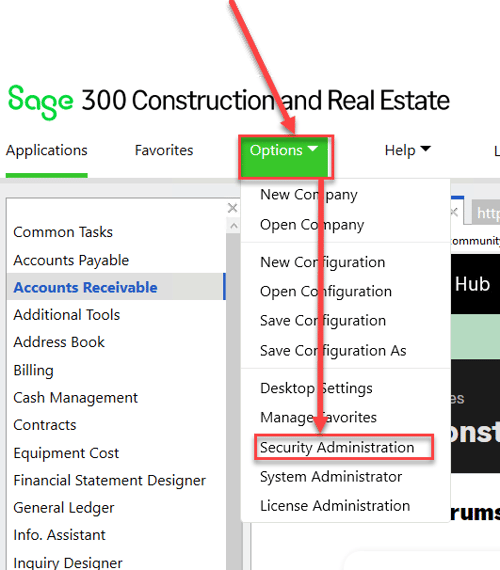
- Then, from the Sage Desktop, select Options > Security Administration.
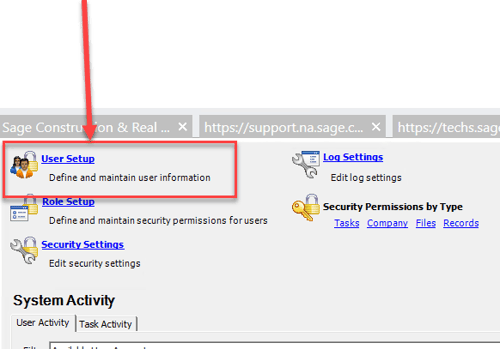
- Select User Setup.
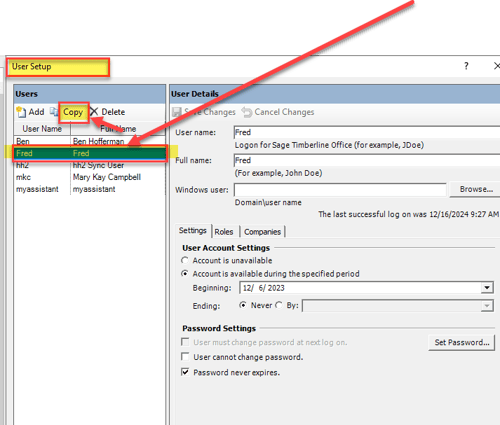
- The User Setup Window will open. The easiest way to create a new user is to Copy an existing User which will copy over the existing User's Roles and Companies.
For example, my new employee should have the same access as Fred, so I highlight Fred and select Copy.
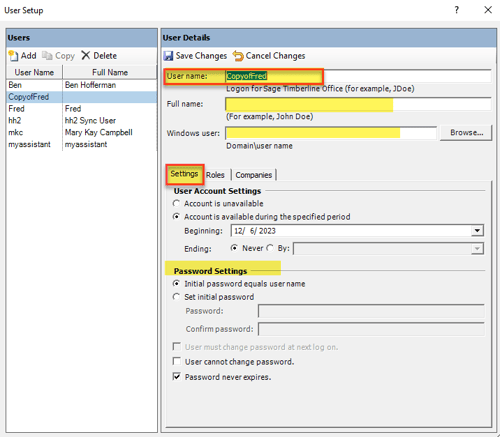
- Then, on the right side of the screen we will find the User Details for the new users. Enter the New User's Name, the Full Name, optionally specify the Window's User, and specify Password Settings.
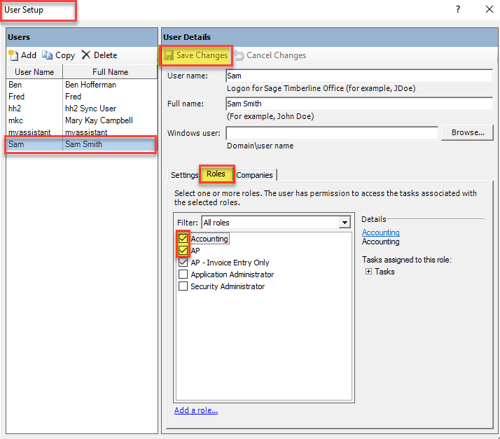
- Click on the Roles tab and verify (or adjust) the Roles that the new User should be included in.
For example, our new user, Sam, should have access to the Accounting and AP Roles.
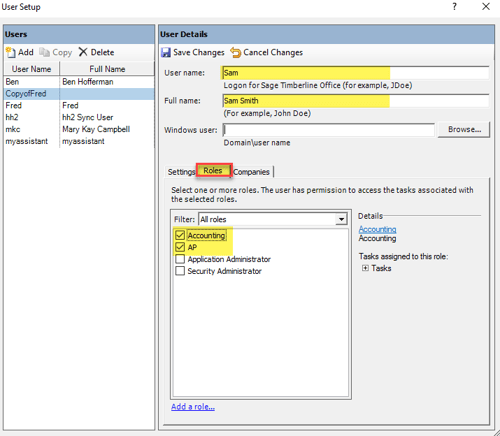
Caution: Application Administrators have full access to all features in Sage300CRE software. Security Administrators can add, modify, and delete Users and Roles.
- Click on the Companies tab and adjust access to your various Sage 300 CRE Data Folders.
In my example Sam will only have access to 2 of our Sage 300 CRE data folders.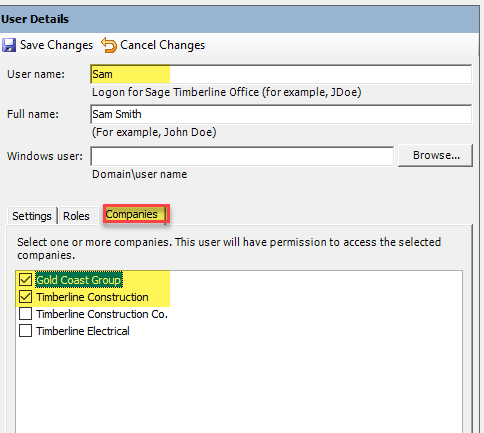
- Be sure to Save Changes, and then close up User Setup.
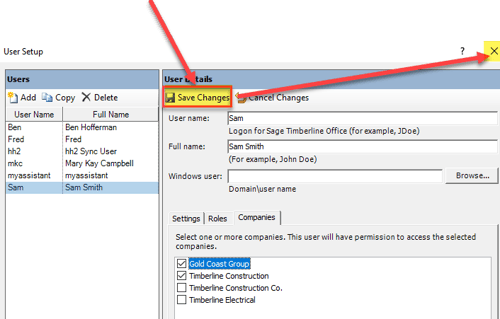
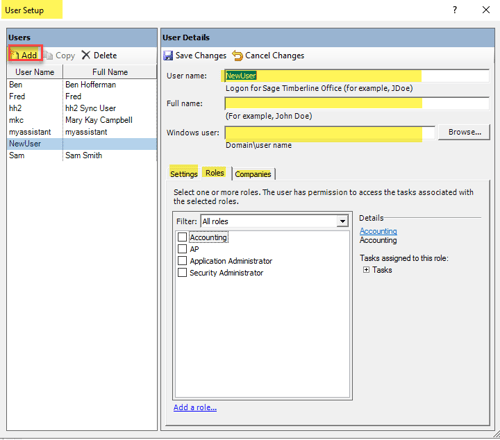
- If the user has unique access to the software, instead of copying a user, Add a User and then adjust User Settings, Roles, and Companies.
How to Create New Roles
- If the new User requires a different Role, go into Role Setup and enter the Name and Description of the Role.
- On the Tasks tab, expand out the list of menu options, and check off the options you want the user to access.
For example, I have created an AP- Invoice Entry Only role, and specified that the user can Enter Invoices.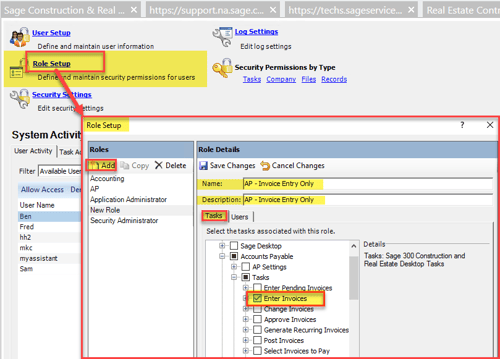
- I am also going to give this user access to some AP reports. To do this, scroll down in the Task List to Reports and Inquiries > Reports > Accounts Payable Reports, and check off the reports this user should have access to.
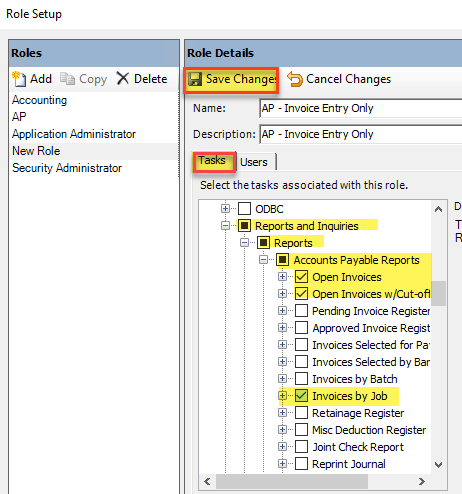
- Once we check off all the Tasks (including Reports and Inquiries) for the new Role, we click on the Users tab and add Users to the role. I am adding Sam as a User assigned to this role.
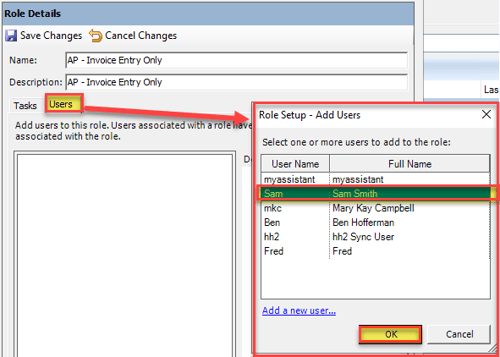
- Once you click "OK," Sam is added to the Role.
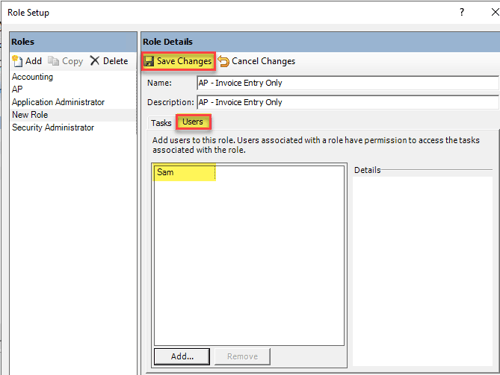
- Be sure to Save Changes before closing out of Role Setup.
Warning: If I’ve previously assigned Sam to both the AP and Accounting Roles, but now we have determined that he should only he assigned to the more limited AP – Invoice Entry Only Role,
- We need to remove access to AP and Accounting Roles. This can easily be done back in User Setup. We will go into User Setup, highlight Sam, go to the Roles tab, and uncheck Accounting and AP. Then we'll Save Changes.
If you need of additional help to add new users and roles in Sage 300 CRE, reach out to RKL eSolutions support, and our expert consultants will walk you through the process.
Interested in Sage Intacct Construction?
Sage Intacct Construction is the best of both worlds for construction accounting professionals! It combines Sage 300 CRE's construction-focused functionalities, like enhanced WIP reporting and project management, with Sage Intacct's robust cloud-based capabilities. If you're interested in taking a look at Sage Intacct Construction, learn more here!
 Check out these blogs to help get you started!
A Blueprint to Choosing the Right ERP Software for Your Construction Business
Real-Time Insights: Why Sage Intacct Construction is Essential for Financial Management
The Latest Update in Sage Intacct Construction 2025 Release 3