This is to review and advise on how to set up the Client Server ODBC driver and service for Sage 100 Advanced. These instructions should be performed on the Sage 100 server. Please read the entire document before proceeding.
CS ODBC Driver Set-Up Overview
The following screenshots are the four basic steps to enable the client server ODBC driver and service to use with Sage 100.
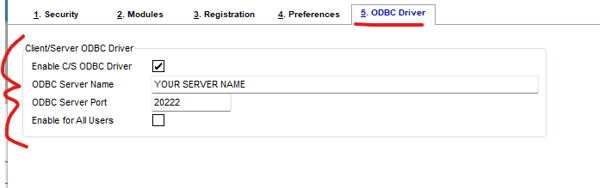
Set-Up Sage 100 System:
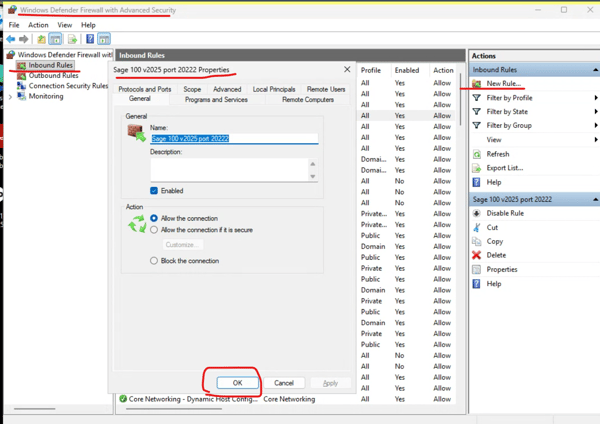
Enable Sage 100 Users:
Create Service:
Set-Up Service:
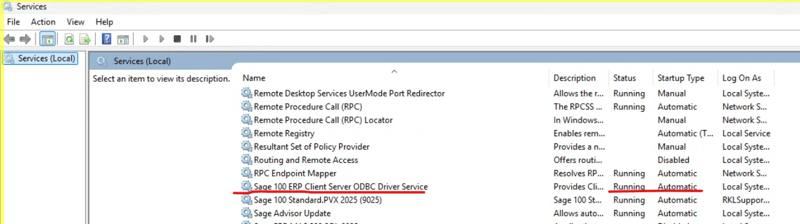
Continue scrolling below to learn the steps to enable the client server ODBC driver and service to use with Sage 100.
how to enable in system configuration
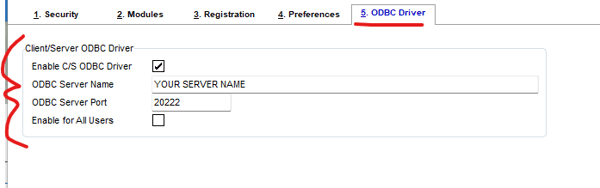
Sage 100 > Library Master > Setup > System Configuration > ODBC DRIVER tab
- Click the box to enable Client / Server ODBC Driver
- This field displays the path to the Sage 100 Advanced server that is running the Client/Server ODBC driver and can only be viewed.
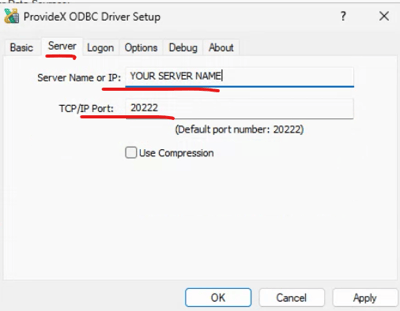
- Type the Sage 100 Advanced server port number on which the Client/Server ODBC driver is running. Typically, this is 20222.
- Make sure there is an Inbound firewall rule setup for this port. (see below)
- Select this check box to Enable the Client/Server ODBC driver for all users. Clear this check box to enable the driver for specific users.
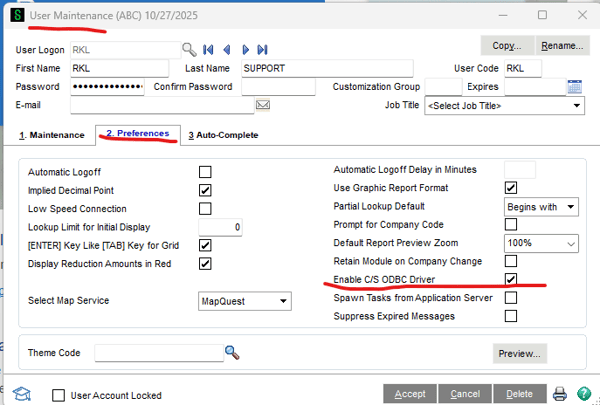
how to enable for certain users, if the "enable for all users" was not checked
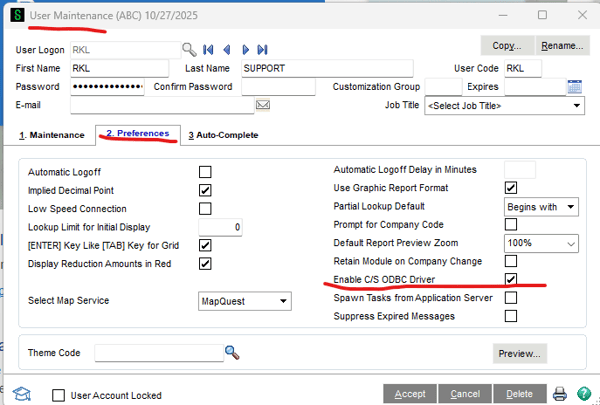
- In Library Master > Security > User Maintenance > Preferences tab
- Check the ‘Enable C/S ODBC Driver’ for your user.
- Check this box for other users as needed after the service is set up successfully.
create Service - on the sage 100 server
These instructions will list how to run this as an Application and as a Service.
- To run as an Application:
Note: This will have to be done each time the application is closed, such as when the server is shut down and restarted
- Access the server where Sage 100 Advanced is installed
- Open Windows Explorer and locate the pvxiosvr.exe file in "..\MAS90\Home"
- Right-click pvxiosvr.exe and select "Run as Administrator"
- A small "ProvideX File Server" window should appear a status message: "The Server is Running". Allow it to stay running. (It can be stopped by clicking the "Shutdown" button.)
- To run as a Service:
Create the Service
(Note: If the service is set to always start automatically, it will do so each time the server is shut down and restarted.)
- Access the server where Sage 100 Advanced is installed
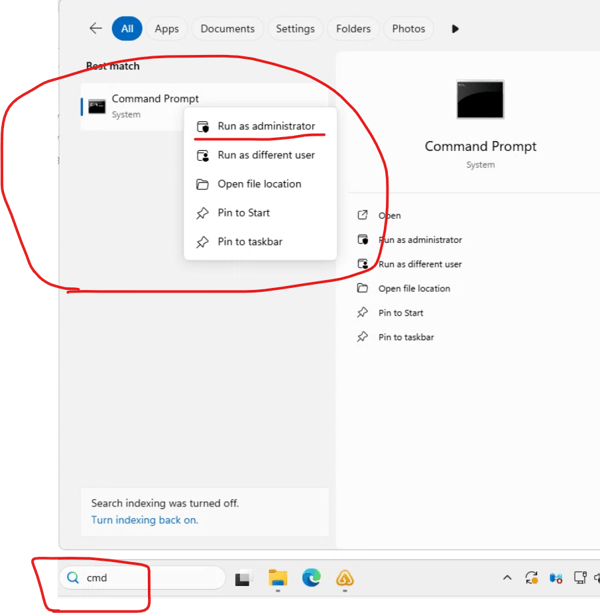
- From the Windows Desktop, access Start Menu
- Type: CMD
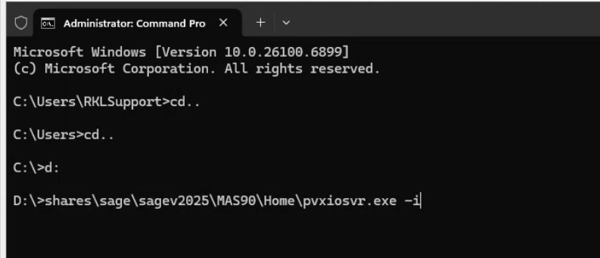
- Right click on the “command prompt” and run as administrator
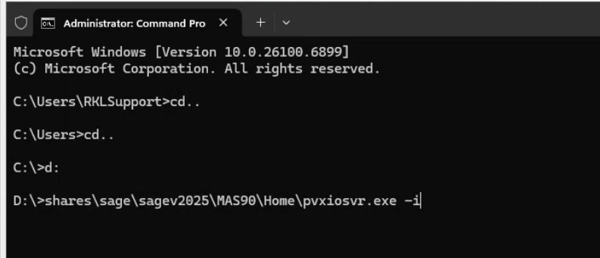
- Enter the local path topvxiosvr.exe file, followed by a parameter of -i (Example: "C:\Sage\MAS90\Home\pvxiosvr.exe" -i)
- A service should be created, with a description of "Sage 100 ERP Client Server ODBC Driver Service" (the Windows service name is PVXIOSVR).
Note: If another similar service (such as "Providex IO Service", the service name of the CS ODBC driver for earlier versions such as 4.50 OR an existing "Sage 100 ERP Client Server ODBC Driver Service" from another supported Sage 100 version) already exists, the service will not be created (no message or error appears). If the conflicting service is not needed, delete it using Windows SC Delete command.
Note: to uninstall the new "Sage 100 ERP Client Server ODBC Driver Service" (if necessary) , Enter the local path to pvxiosvr.exe file, followed by a parameter of -u (Example: "C:\Sage\MAS90\Home\pvxiosvr.exe" -u)
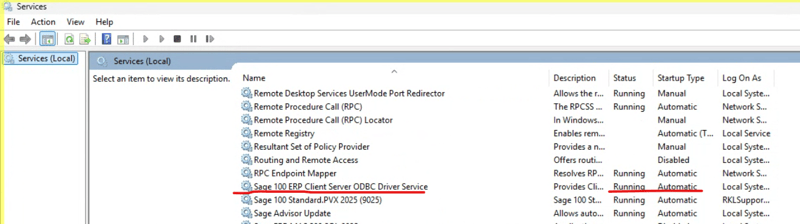
Configure the new service:
- Access the server where Sage 100 Advanced is installed
- From the Windows Desktop > Start > Control Panel > Administrative Tools > Services
- Verify the "Sage 100 Client Server ODBC Driver Service" exists
- Right-click the service, select Properties
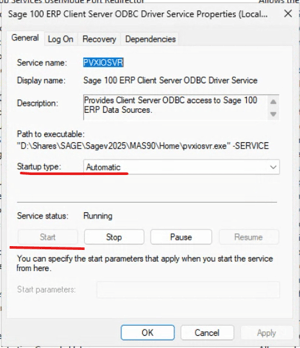
- On the General tab, select the Startup type "Automatic"
- On the Logon tab, enter the Login and Password for a Domain Administrator-level account rather than using the Local System account.
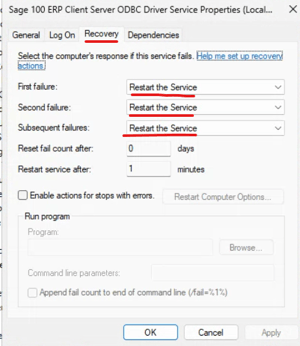
- On the Recovery tab, change the option for all three “failure” to “Restart the Service” and click Apply
- Click Start to start the service, then click OK to exit Properties.
- Verify the service is "Started" before existing the Services window
test on the server
- Exit and restart the SAGE 100 server.
- Log back in to Sage 100 and test by running a report with a small data set.
- Library Master > Reports > Company Listing is a good choice.
- Print or Preview and ensure it works as expected.
- Library Master > Reports > Company Listing is a good choice.
- Access and Test the ODBC Data Source
perform the following steps
- On the workstation where Sage 100 Advanced is installed:
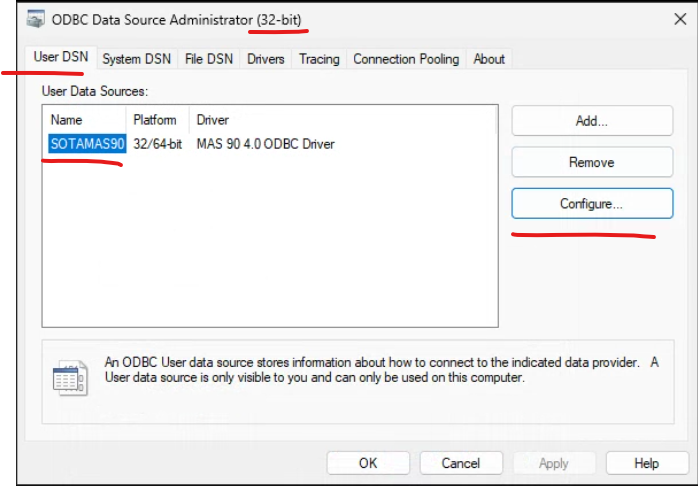
- Open Start > Control Panel > Administrative Tools > Data Sources (ODBC) (choose 32 bit or 64 bit, depending on what you are using
- In ODBC Data Source Administrator, User DSN tab, select SOTAMAS90 and click Configure
-
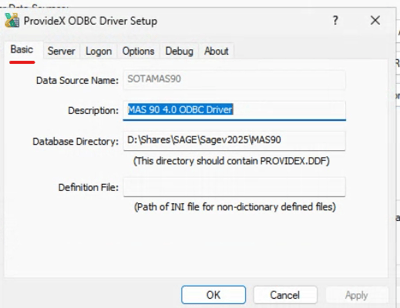
The following screen shots will show how it should have automatically set up during the Sage 100 workstation installation:
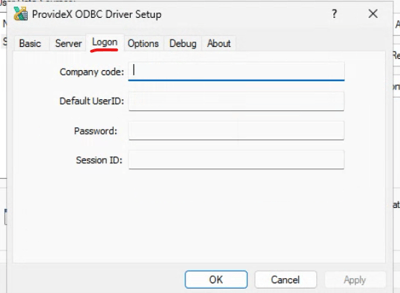
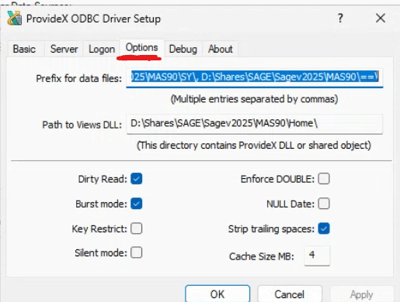
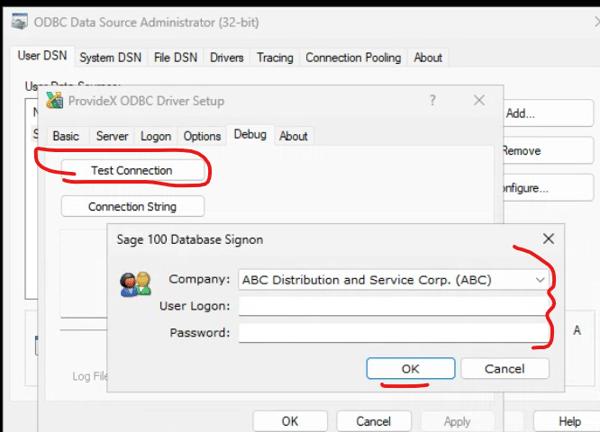
- In ProvideX ODBC Driver Setup, Debug tab, click Test Connection
- In Sage 100 Database Sign on, enter Sage 100 login credentials click OK
- If successful, you will the message "Connection succeeded"
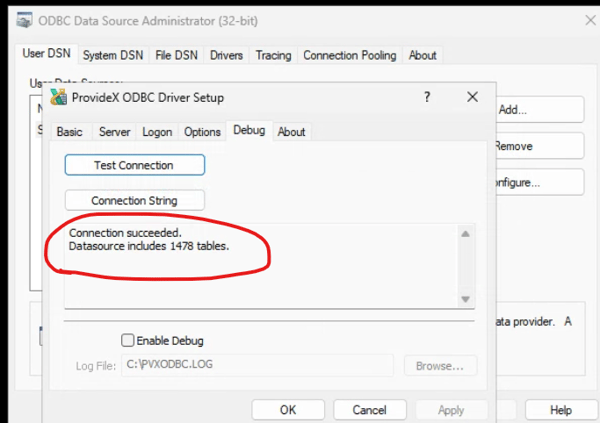
- Click OK to exit
Troubleshooting on the Server
- If the driver works on the server but remote locations cannot print or preview, the issue is likely a firewall blocking the 20222 port.
- If you receive an “ISAM” error when running the crystal report go to User Preferences and make sure ‘Enable C/S ODBC Driver is checked.
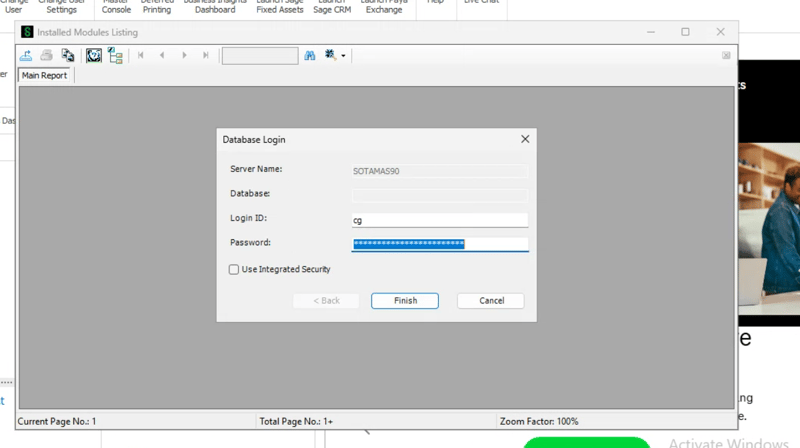
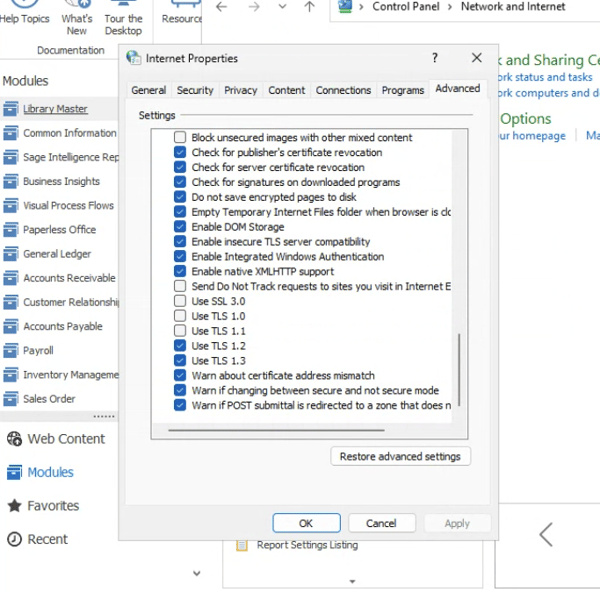
- If you try to Print or Preview and get the window below, then ensure that the Windows > Internet Properties > Advanced options has the TLS 1.0 -1.3 enabled. If you need to enable any of these by checking the box, then click Apply and OK. Then restart the server and test again.
For any additional questions about setting up client service ODBC driver and service for Sage 100 Advanced, please contact RKL eSolutions for additional assistance.
Want More Sage 100 Tips & Tricks?
Make sure to subscribe to our blog to stay up-to-date on the latest insights and trends. We're dedicated to providing valuable resources for businesses looking to optimize their financial management with Sage 100.
 Check out these blogs to help get you started!
How to Reverse a Cash Receipt
How to Reverse an Invoice Posted to the Wrong Month
Understanding the Purchases Clearing Report
How to Setup ACH Processing in Accounts Payable