
NOTICE: This article is provided for informational purposes only and cannot be construed as professional tax advice. Please consult your certified tax consultant to ensure compliance with all applicable laws.
We highly recommend that you setup in a test company first to ensure benefits are calculating like you are expecting.
Define Time Off Accrual in Payroll Options:
- Open Payroll > Setup > Payroll Options
- Click the Time Off tab, make the following selections for and click Accept:
- Time Off 1,2 and 3 Descriptions fields (example: Sick, Vacation, Holiday)
- Base Time Off Availability on = Accrual OR Limit
- Select Accrual to calculate the availability of employee time off based on the amount used subtracted from the accrual amount
- Select Limit to calculate the availability of employee time off based on the amount used subtracted from the annual limit
- Hours to use for Time Off Limit = Accrued Hours Only
- Reset Time Off Hours Based On= Calendar Year or Anniversary Date
- Select Calendar year to reset time off at the end of the calendar year.
- Select Anniversary date to reset time off on the anniversary of the time off eligibility date in Employee Maintenance.
- Accrual Report Display Option = Hours
Verify Employee Hire Date:
- Open Payroll > Main > Employee Maintenance
- Select Employee No from look up
- On the Main tab, verify a valid Hire Date is entered
- Repeat steps for each applicable employee
Verify Earnings Code(s) setup to accrue sick time
- Open Payroll > Setup > Earnings Code Maintenance
- Select an Earnings Code from lookup and verify the following:
- Time Off Type to Accrue= Sick
- Click Accept
- Repeat steps for each applicable earnings code
Define Time Off Maintenance Codes:
States differ on the annual limit of hours, accrual methods, waiting periods, carryover amounts and reporting requirements. This article is to provide information on the Time Off Accrual process and does not imply tax compliance for any State. Please consult your certified tax consultant to ensure compliance with all applicable laws.
EXAMPLE Limit Method Time Off Schedule:
- Open Payroll > Setup > Time Off Maintenance
- Create the necessary Time Off Maintenance code and enter a description
- Select Accrual method= fixed
- Enter the limit of Hours/year.
- See below for example. Configure using your own state’s requirements, not the example below.
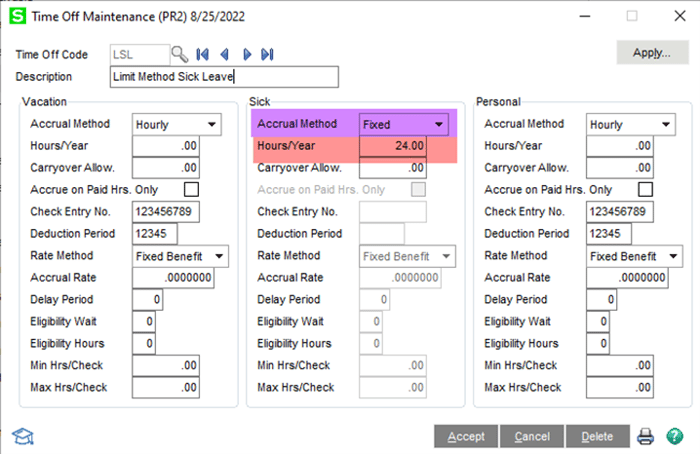
EXAMPLE Accrual Method Time Off Schedule:
- Open Payroll > Setup > Time Off Maintenance
- Create the necessary Time Off Maintenance code and enter a description
- Select Accrual Method= Hourly
- Enter the Hours/year
- Enter any applicable Carryover allowed
- Select the Rate Method= Fixed Benefit
- Enter the Accrual Rate.
- See below for example. Configure using your own state’s requirements, not the example below.
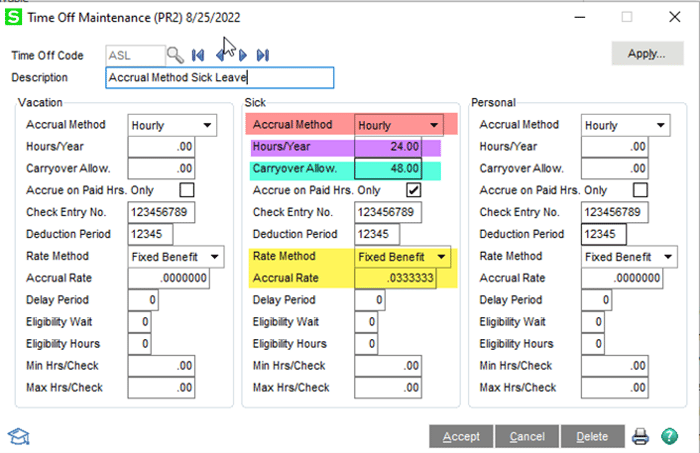
Assign benefit code to employees
- Open Payroll > Main Employee Maintenance
- Select Employee No from look up
- Click on Benefits Tab
- In the Time Off Code field, select appropriate Time Off Code from look up
- Click Accept
Modify Check and Direct Deposit Forms
Note: Customer Support cannot assist with creating custom Crystal forms . Consult your Sage Software business partner for hands-on assistance with customized Crystal Reports and forms. Crystal Reports Designer is included with Sage 100 ERP and must be installed in order to modify Crystal check forms and direct deposit stubs. See related article here, How to install Crystal Reports for Sage 100
- See related article here, How to print vacation, sick or PTO on Payroll Checks
- See related article here, How to add a pay period date prompt when printing payroll check form
Note about Sick Pay Rates:
- Sage 100 ERP does NOT automatically calculate a blended pay rate per hour when there is a difference in pay rates throughout the year or are paid by piece or commission. Here are examples on how to calculate the Sick Pay Rate:
- Employee is paid commission or piece rate, then divide total compensation for previous 90 calendar days by number of hours worked and pay this rate.
- Employee was paid a piece rate of $0.36 per square foot for 16,500 square feet during 400 hours of work in a 90 day period. He earned $5,940.
- His hourly rate for paid sick leave is $5,940 ÷ 400 hours = $14.85 per hour
- Employee is paid on commissions only. In a 90 day period, she worked 480 hours and earned $9,000.
- Her hourly rate for paid sick leave is $9000 ÷ 480 hours = $18.75 per hour
For more information about setting up state-paid sick leave in Sage 100 Payroll, contact RKL eSolutions.
Want More Sage 100 Features & Functions?
Make sure to subscribe to our blog to stay up-to-date on the latest insights and trends. We're dedicated to providing valuable resources for businesses looking to optimize their financial management with Sage 100.
 Check out these blogs to help get you started!
How to Reverse a Cash Receipt
Automate Your Accounts Receivable Workflow with Sage Connect
Leveraging Reports with Sage Business Intelligence
How to Improve Your Sales Order Entry Workflow