This is an outline for setting up advanced tax and corresponding details. Advanced tax is the native tax handling within Intacct. A client would turn this on to assist with their sales and use tax calculations for both company purchases and/or invoicing clients accurately, if applicable.
How to Setup Advanced Tax in Sage Intacct
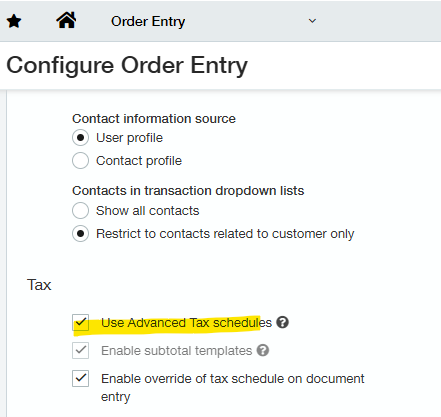
- Enable Advanced Tax schedules within Accounts Receivable, Purchasing and/or Order Entry. Find these selections under the Configuration of each module you would like to use advanced tax.
- Create Contact tax groups.
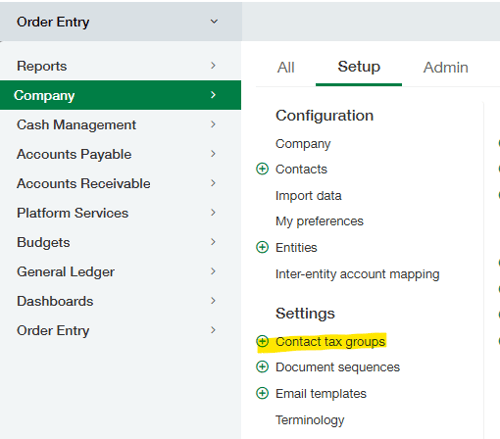
- Navigate to Company > Setup > Settings > Contact tax groups.
- Click add in top right corner.
- Enter name of group. This could be name of tax applicable to state or region. For example, you might have tax groups that represent different state, provincial, or local taxes. Suppose the Los Angeles sales tax is 8%, but the San Francisco tax is only 7%. Create two tax groups, one for Los Angeles and another for San Francisco. You can then apply one tax schedule to all customers in the San Francisco group, and another to the customers in the Los Angeles group.
- Click save.
- Create Item tax groups.
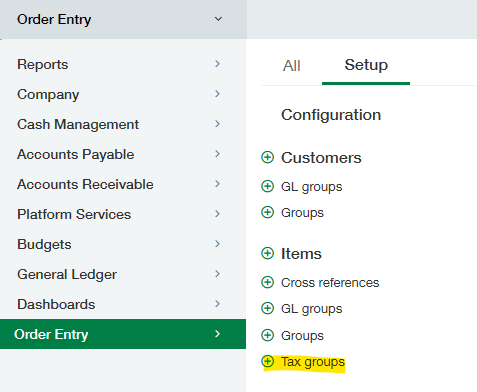
- Navigate to Order entry (or AR, Purchasing) > Setup > Items > Tax groups.
- Click add in top right corner.
- Enter name of group. This could be name of tax applicable to state or region. For example, if your company distributes a product that's considered a luxury item in one locale where luxury items have a separate tax of 3%, you could create an item tax group called 3% Lux Tax in the Item Tax group page so you can assign the appropriate items to that tax group. When the tax is applied, Intacct then knows to call the appropriate tax schedule.
- Click save.
- Create Tax authorities. Tax authorities are agencies for whom you collect sales tax or other taxes. Tax authorities are shared across Accounts Receivable, Order Entry, and Purchasing. You can associate tax details, tax schedules, and tax schedule maps with a tax authority for the purpose of capturing and reporting taxes.
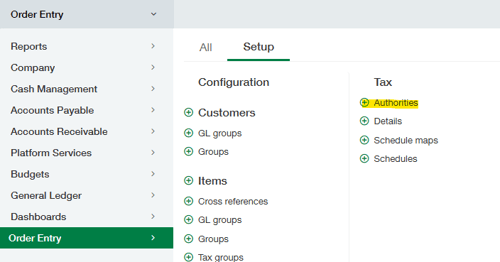
- Navigate to Order Entry (or AR, Purchasing) > Setup > Tax > Authorities.
- Click add in the top right corner.
- Enter the following:
- Name of authority
- Description (optional)
- Select a vendor whom you will pay the taxes you collect for this authority
- If this authority is a child of another authority, select the parent authority
- Click save.
- Create Tax details. The Accounts Receivable and Order Entry applications share the same set of tax details, but Purchasing does not. This means that tax details created in Accounts Receivable or Order Entry can be used in either application. Tax details created in Purchasing can only be used in Purchasing.
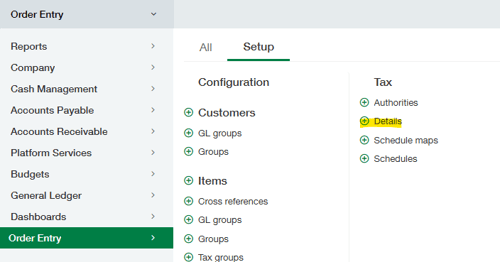
- Navigate to Order Entry (or AR, Purchasing) > Setup > Tax > Details.
- Click add in the top right corner.
- Enter the following:
- Detail ID
- Description (optional)
- Minimum and maximum taxable amount if there is a certain threshold
- Include in taxable amount options:
- Full amount: include the cost from zero up to the maximum taxable amount.
- Amount within range: include the amount between the minimum and maximum taxable amount.
- Percent applied to taxable amount
- Minimum or maximum tax applied
- GL account to code tax
- Tax authority where the tax belongs
- Create Tax schedule. The Accounts Receivable, Order Entry, and Purchasing applications do not share the same set of tax schedules. This means you need to create separate tax schedules in each application.
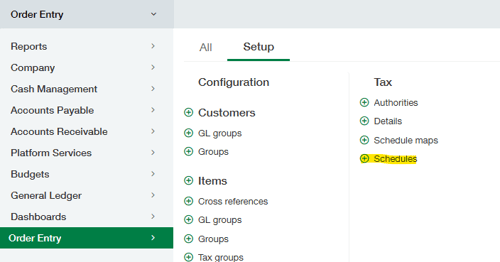
- Navigate to Order entry (or AR, Purchasing) > Setup > Tax > Schedules.
- Click add in the top right corner.
- Provide an ID and description (if desired).
- In the details section, select the tax details created in the previous step that are applicable. For example, you could create a schedule named "San Francisco - Local & State" where two tax details ("San Francisco Local" and "California State") are assigned. When this schedule is referenced, both tax details are applied.
- Click save.
- Create Tax schedule maps. Use tax schedule maps to associate tax schedules with one or more combinations of contact tax groups, account label tax groups, and item tax groups, depending on your subscriptions and usage. These maps drive the taxes that are applied to a line item.
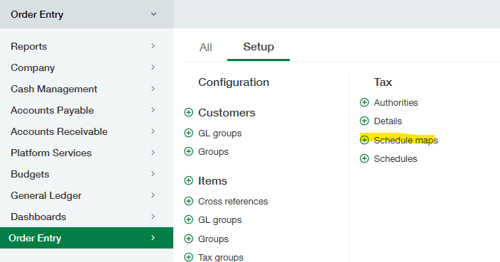
- Navigate to Order entry (or AR, Purchasing) > Setup > Tax > Schedule maps.
- Click add in the top right corner.
- Select the item tax group (if applicable)
- Select the Contact tax group (if applicable)
- Choose the Tax schedule created in the previous step
- Assign to a transaction definition. If you do not specify a transaction definition, the tax schedule map will apply to all transactions that meet the tax schedule map criteria.
- Click save.
- Flag customers and items as taxable.
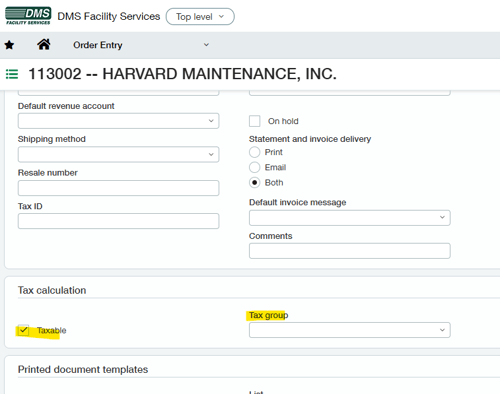
- Edit customers who are taxable and check the Taxable box and Tax contact group under the Additional information tab.
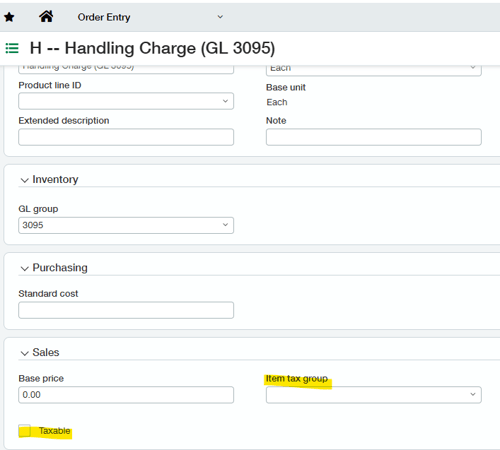
- Edit items that are taxable and check the Taxable box and Item tax group on the general tab.
- Edit customers who are taxable and check the Taxable box and Tax contact group under the Additional information tab.
- Ensure that your transaction definitions (purchasing and order entry) are set up for Sales tax under the transaction definitions.
- Navigate to Order entry (or Purchasing) > Setup > Transaction definitions.
- Click edit next to the transaction definition where you want to set up sales tax.
- Scroll down to the accounting section and check the Enable subtotals checkbox.
- Add a line for sales tax:

- Ensure that the type is accurate to the transaction definition and that the "Is tax" box is checked.
- Click save.
If you need additional assistance in setting up Advanced tax in Sage Intacct contact RKL eSolutions Support.
Looking for More on Sage Intacct?
For more helpful tips and tricks about Sage Intacct, subscribe to our blog and stay up-to-date with our latest tutorials. We're dedicated to providing valuable resources for businesses looking to optimize their financial management with Sage Intacct.
 Check out these blogs to help get you started!
Uploading Your Budgets Using Pre-Built Templates
How To Create Ad-Hoc Reports Using Views and Filters
Creating Expanded Columns and a Summary for Reports