
Updating multiple projects manually can be time-consuming, especially when the same changes need to be applied across several records. The new bulk update feature introduced in Intacct’s 2026 Release 1 streamlines this process by allowing you to modify fields for many projects in a single action. This reduces repetitive data entry, improves consistency across your project information, and frees up time for your team to focus on more meaningful tasks. With this enhancement, managing large volumes of projects becomes both faster and more accurate, supporting your workflow as your organization grows.
Updating Bulk Fields in Sage Intacct
Before you begin, make sure you have permission to use the new feature. Go to Company > Admin > Users, roles, and groups > Roles. Select Subscriptions and make sure Manage Projects is selected. Watch this short video or follow the directions below.
-
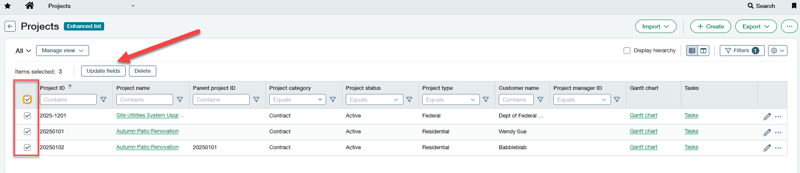
Navigate to Projects > Setup > Projects. Make sure you are using the “enhanced view” to see the new feature.
-
Select the projects you want to update, then the “Update fields” box will display.
-
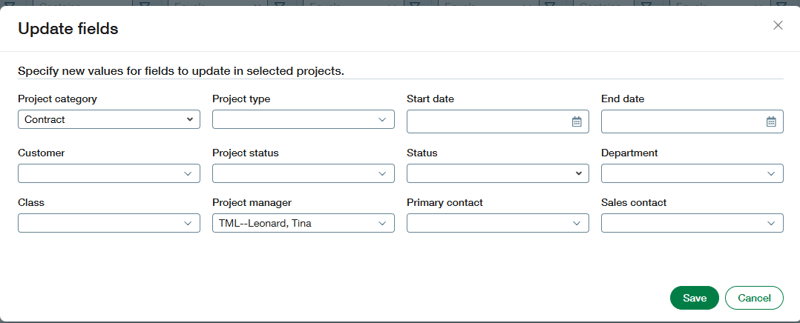
Once you click on Update fields, a new box will appear. In this area you can update the following fields.
- Project category
- Project type
- Start date
- End date
- Customer
- Project status
- Status
- Department
- Class
- Project manager
- Primary contact
- Sales contact
-
Click “Save” and an offline job notification appears at the top of the page.
-
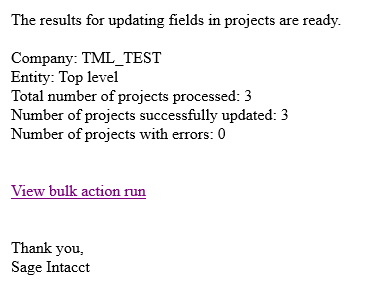
Once the offline job is complete, an email will be sent letting you know the status. Clicking on the link within the email will take you directly to Bulk Action report.
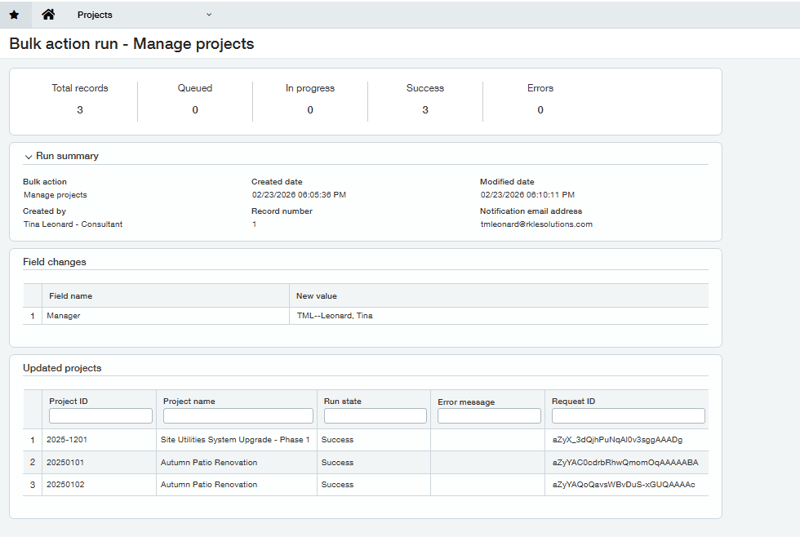
- You can also access the report by going to Projects > All - Bulk Action > Bulk Action runs.

For additional assistance in updating bulk fields in Sage Intacct, contact RKL eSolutions. Find out more 2026 R1 release features and enhancements here.
Looking for More on Sage Intacct?
For more helpful tips and tricks about Sage Intacct, subscribe to our blog and stay up-to-date with our latest tutorials. We're dedicated to providing valuable resources for businesses looking to optimize their financial management with Sage Intacct.
 Check out these blogs to help get you started!
Uploading Your Budgets Using Pre-Built Templates
How To Create Ad-Hoc Reports Using Views and Filters
Creating Expanded Columns and a Summary for Reports