If you’re tracking allocations in a spreadsheet, then Sage Intacct Dynamic Allocations is the perfect solution for you. Dynamic Allocations allows you to pull balances from existing GL accounts and distribute them across dimensions. Because Dynamic Allocations has access to real time data in your Sage environment, you don’t need to extract data and calculate in Excel. *You must have the Sage Intacct Dynamic Allocations subscription to use this tool.*
Key Features of Dynamic Allocations
- Automatically pull source balances and distribute them across dimensions based on a custom basis you choose.
- Module uses a template to generate routine allocations eliminating the need to redefine the calculations or manage them externally.
- Provides audit trail allowing users to dill down and see how the allocation calculations were derived.
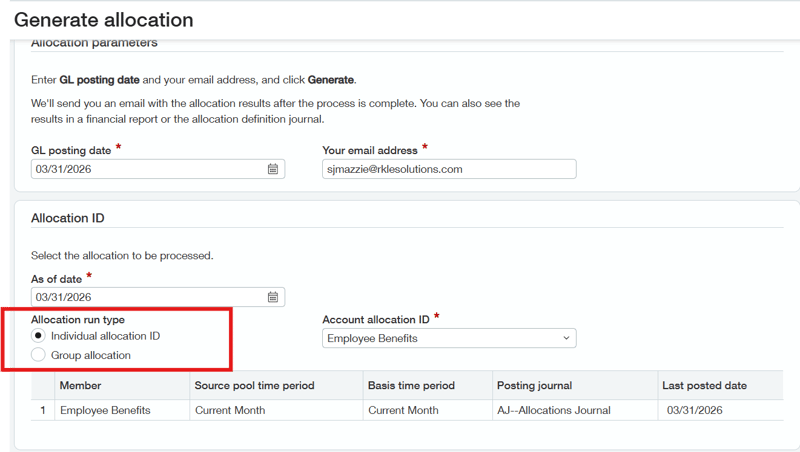
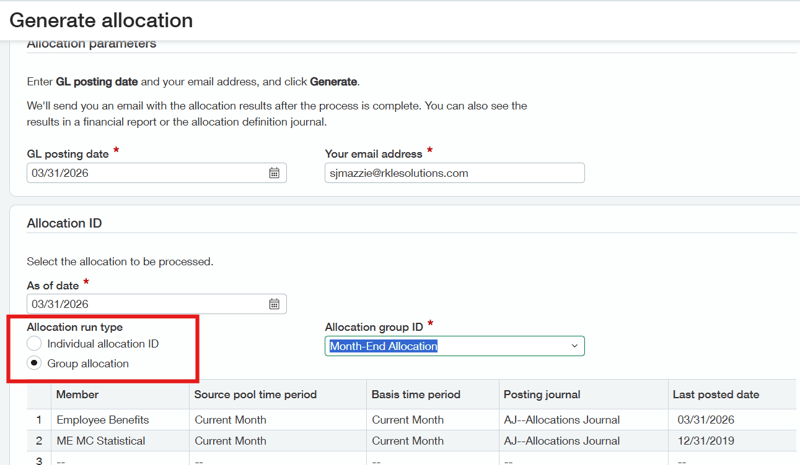
- Users can run allocations individually or as a group with a custom sequence defined.
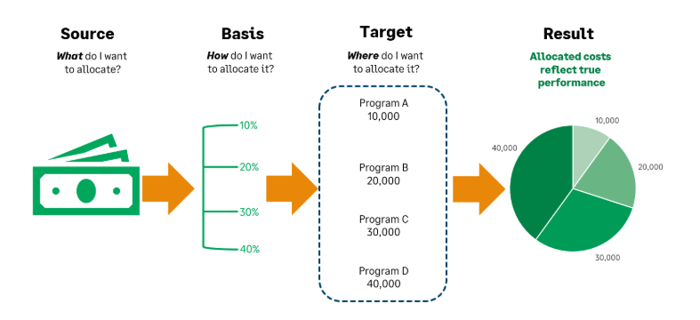
Setting Up an Allocation Definition
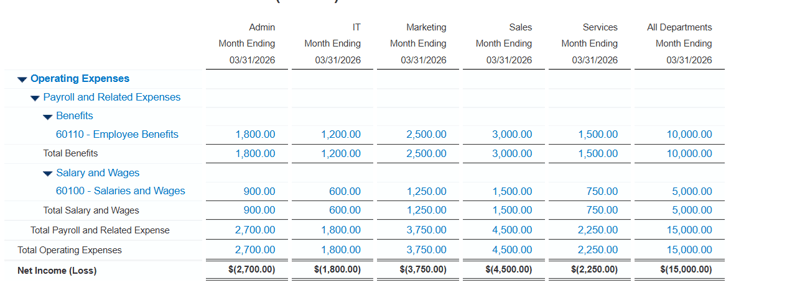
Scenario: Employee benefit expenses have come into Intacct coded to one department (Admin). You need to allocate these expenses based on the salaries for each department.
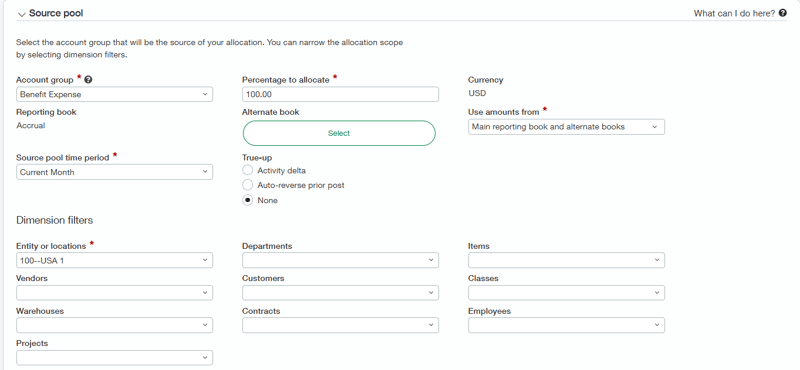
First you will set up the pool and dimension treatment. In this scenario, we are using the account group employee benefits, the pool period is current month, and we are allocating 100% of the employee benefits.
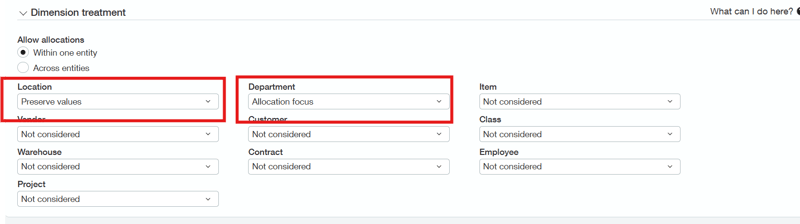
Dimension Treatment
The dimension treatment section allows users to control how Intacct treats dimensions in the posting that is generated. In our scenario, we are keeping the same location and using the department as our allocation focus.
Pool
The source pool is driven by account groups. Users can also select a percentage to allocation from this pool.
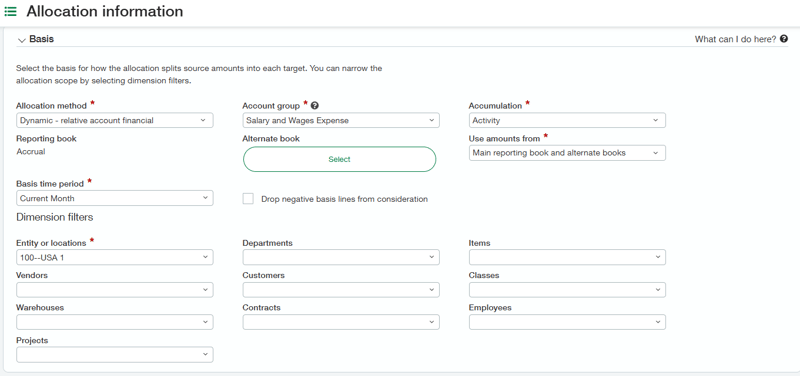
basis
The next step is to set up the basis. In this scenario, we want to reallocate the employee benefits based on the salaries for the month.
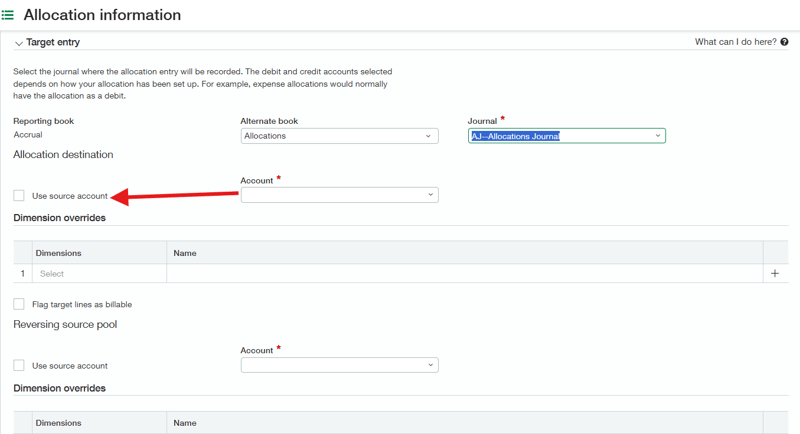
setting up the target
The last step is to set up the target. In this scenario, we are using the source account and posting it to the allocations book we have set up.
Generating the allocation
Profit and Loss Pre-Allocation
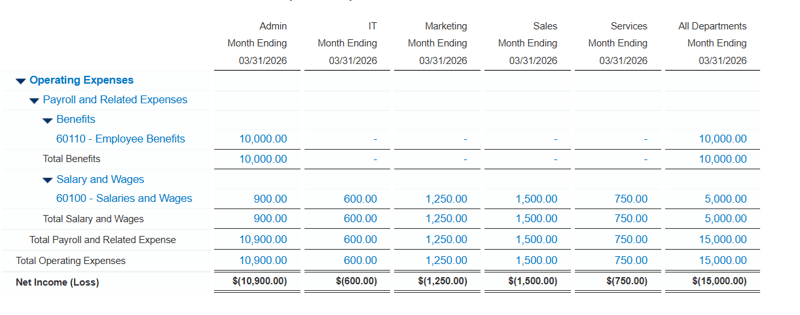
Profit and Loss Post Allocation
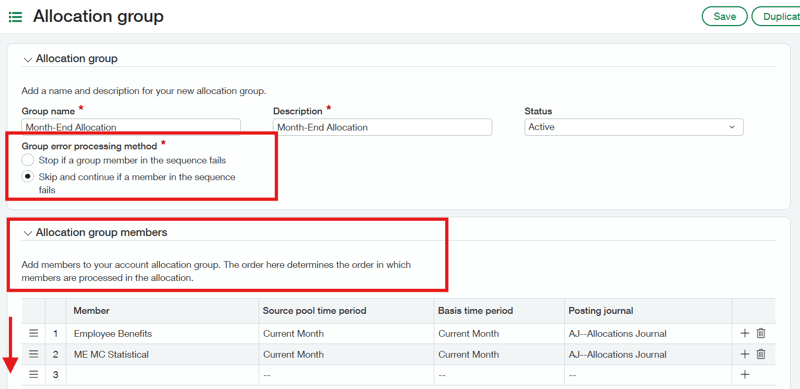
Allocation groups
If you’re managing a group of allocations, you can set them up to run sequentially. You can also define how Intacct treats errors within the allocation workflow.
If you currently subscribe to Sage Intacct Dynamic Allocations and have questions, or if you’re interested in starting a subscription to use this tool, please contact your Customer Success Manager or RKL eSolutions Support.
Looking for More on Sage Intacct?
For more helpful tips and tricks about Sage Intacct, subscribe to our blog and stay up-to-date with our latest tutorials. We're dedicated to providing valuable resources for businesses looking to optimize their financial management with Sage Intacct.
 Check out these blogs to help get you started!
Uploading Your Budgets Using Pre-Built Templates
How To Create Ad-Hoc Reports Using Views and Filters
Creating Expanded Columns and a Summary for Reports