Managing miscellaneous receipts in Sage X3 can sometimes be frustrating, especially for stock personnel trying to locate or verify the right cost information during entry. Without proper configuration, it’s easy for costs to be missed or misapplied, leading to inaccurate inventory valuation and potential headaches at period-end.
Fortunately, Sage X3 allows you to automatically assign different cost types to miscellaneous receipts through a simple settings change, ensuring your inventory data stays reliable and compliant.
Setting Up Automatic Cost Types for Miscellaneous Receipts:
- Navigate to Setup > Stock > Valuation Methods (Function: GESTCM).

- Once you select one of the valuation methods for your products, find the "Primary method" field and click on the magnifying glass for "Non-Standard Setup".

-
Here is where you can set up an exception rule for the movement type Miscellaneous Receipt. You have the same options for the primary and alternate sources for costing: Standard cost, Revised standard, Last cost, Cumulative AUC, Lot AUC, Order cost, and Last purchase price.


-
In the example below, I've entered the following:
- Valuation Source = Lot AUC
- Valuation Alternate = Lot AUC
- Receipt source = Order cost
- Receipt alternate = Order cost
- Negative quantity variance = Lot AUC
- Negative alternate = Lot AUC
- Positive quantity variance = Cumulative AUC
- Positive alternate = Cumulative AUC
- Adjust receipt cost = checked
- Movement type = Miscellaneous receipt
- Valuation source = Last purchase price
- Valuation alternate = Cumulative AUC
- Cost adjustment = Yes
- Allow null cost = No

-
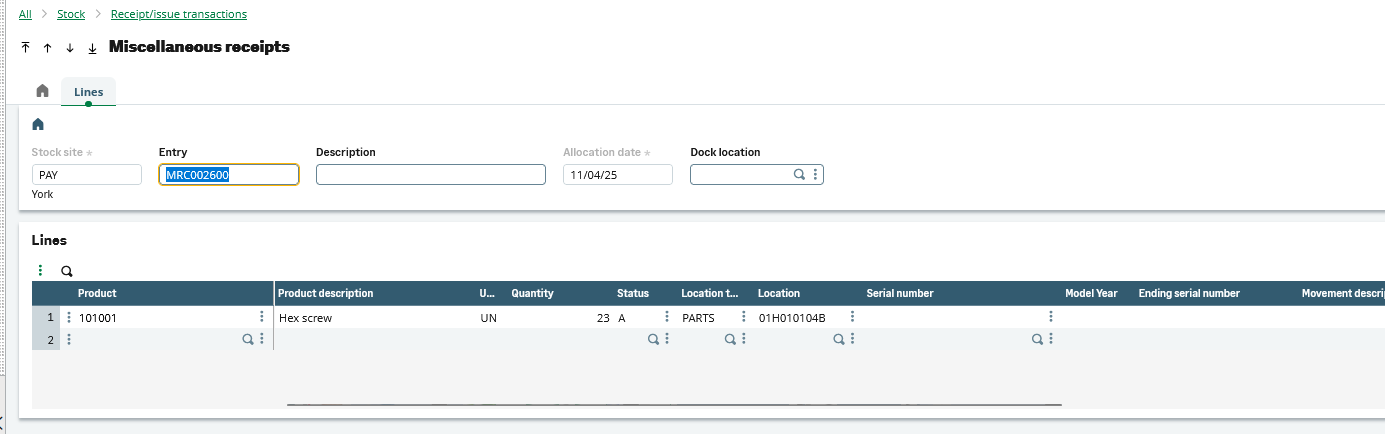
On the Miscellaneous Receipts screen, you may wish to hide the price and order price fields. They will NOT show the costing that will be used. Rather, they will remain blank, which can be confusing to see.


- When you examine the stock transactions, you can see the cost used for the miscellaneous receipts.


Want More Sage X3 Features & Functions?
For videos on Sage X3, visit our YouTube page and subscribe to stay up-to-date with the latest insights and tutorials. Our channel is dedicated to providing valuable resources for businesses looking to optimize their financial management with Sage X3.
 Check out these blogs to help get you started!
4 Functions to Use in the Preventive Maintenance Solution
How to Process a Purchase Return
How to Create a Complementary Invoice
How to Record a Write-off and an Overpayment