You may have heard Microsoft is phasing out Basic Authentication (the traditional username and password method) for third-party apps and services that use SMTP to send email. Microsoft Exchange Online will permanently remove support for basic authentication with Client Submission (SMTP AUTH) gradually beginning with a small percentage of submission rejections for all tenants on March 1, 2026 and reaching 100% rejections on April 30, 2026, (previously September 2025).
After this, applications and devices will no longer be able to use basic auth as an authentication method and must use OAuth when using SMTP AUTH to send email. If you’re using SMTP AUTH to send emails from Sage 100, you will need to upgrade Sage 100 to a version that supports it (i.e. 2021 or higher).
Connect Sage 100 to Gmail Using OAuth 2.0
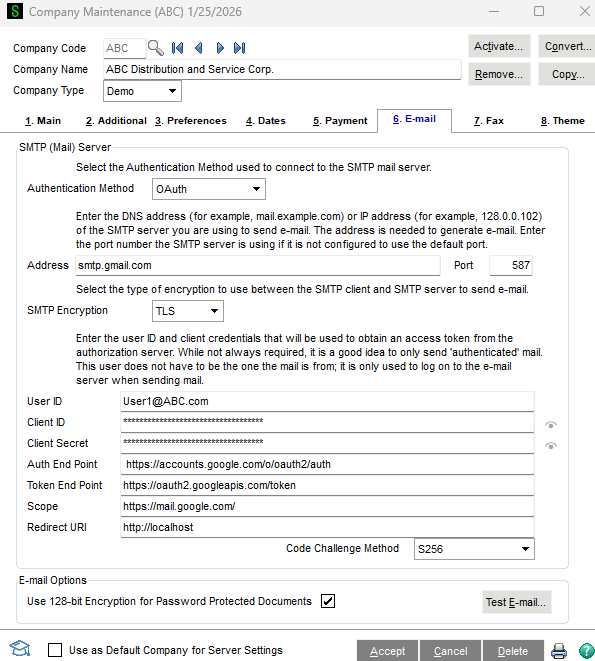
- Open Sage 100 and then go to Library Master > Company Maintenance > Email tab.
- Insert the below details in their corresponding values. Screenshot shown below.
- Address = smtp.gmail.com
- Port = 587
- SMTP Encryption = TLS
- User ID = User's Gmail address or email address set up to send through Gmail
- Client ID = Client ID obtained from Google Cloud Platform
- Client Secret = Client Secret obtained from Google Cloud Platform
- Auth End Point = https://accounts.google.com/o/oauth2/auth
- Token End Point = https://oauth2.googleapis.com/token
- Scope = https://mail.google.com/
- Redirect URL = http://localhost
- Code Challenge Method = S256
- Check the "Use 128-bit Encryption for Password Protected Documents" box if you desire 128-bit encryption when password-protected documents are e-mailed
Connect Sage 100 to Microsoft 365
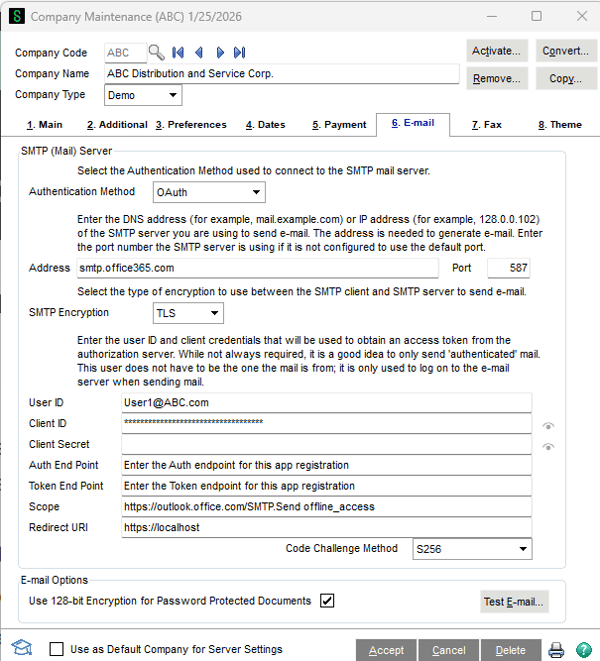
- Open Sage 100 and then go to Library Master > Company Maintenance > Email tab.
- Insert the below details in their corresponding values. Screenshot shown below.
- Enter the Address: smtp.office365.com
- Keep the default value Port: 587
- Keep the default SMTP Encryption: TLS
- Enter your User ID: the email or Admin user used to create the App Registration
- Enter the Client ID for this app registration
- Microsoft 365 doesn't require the Client Secret: nothing needed here
- Enter the Auth endpoint for this app registration
- Enter the Token endpoint for this app registration
- Enter the Scope: https://outlook.office.com/SMTP.Send offline_access
- Enter the Redirect URL used above: https://localhost
- Keep the default Code Challenge Method: S265
- Click "Accept" to save the company record and then click "Test E-mail" to initiate the authentication process
If you need additional assistance in configuring Sage 100 to use OAuth Authentication please reach out to our support desk. An RKL Sage 100 consultant will aid you in setting this up.
Want More Sage 100 Tips & Tricks?
Make sure to subscribe to our blog to stay up-to-date on the latest insights and trends. We're dedicated to providing valuable resources for businesses looking to optimize their financial management with Sage 100.
 Check out these blogs to help get you started!
How to Reverse a Cash Receipt
How to Reverse an Invoice Posted to the Wrong Month
Understanding the Purchases Clearing Report
How to Setup ACH Processing in Accounts Payable