

Sage 100 allows users to process goods receipts for multiple purchase orders on a single receipt as long as the purchase orders contain the terms, codes, shipping instructions, and tax schedules. Here is a step-by-step process for receiving goods for multiple purchase orders on a single receipt in Sage 100, including how to apply and review individual purchase orders, manage invoice records, and handle backorder scenarios.
7 Steps for Receiving Goods for Multiple POs
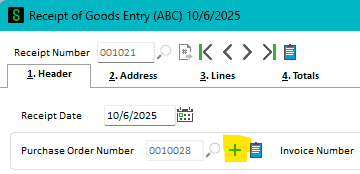
- In Receipt of Goods Entry, enter a PO Number to receive, then look for the green plus sign next to the Purchase Order Number and click on it.
- This will display all other POs for the same vendor that use the same Terms, Codes, Ship Via, and Tax Schedule as your initial PO, allowing you to select them to receive on the same Receipt. Click the checkboxes under the Apply column to select them.

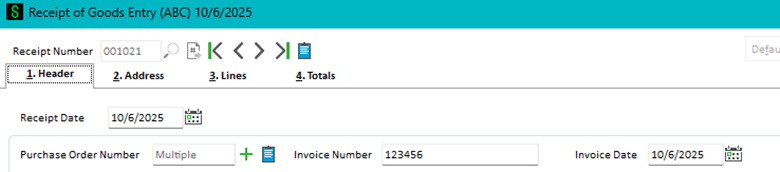
- This will change the Receipt to show ‘Multiple’ as the PO Number. You can also create one invoice number for multiple POs.
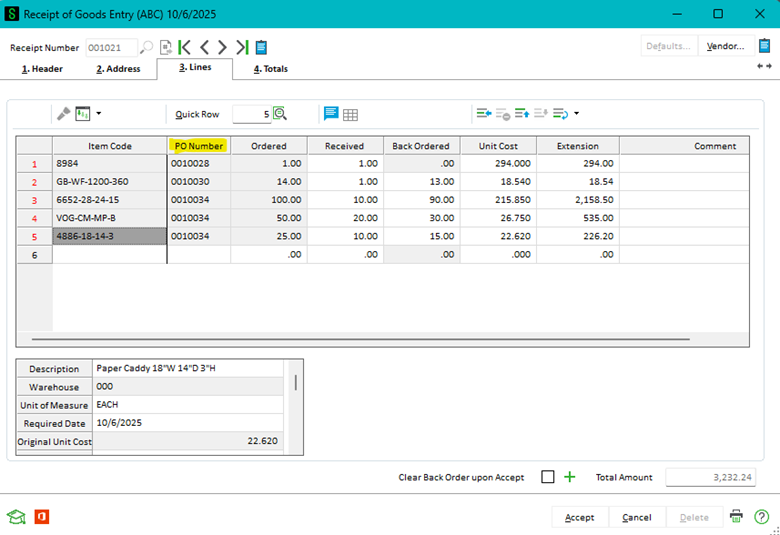
- Go to Lines and enter the quantity received for each line. You can see the PO Number for each line. There is a check box to ‘Clear Back Order upon Accept’. Select this option if you want the backorder amount to be zeroed out, and you will not receive any additional items on the PO. Right next to it, there is the green plus mark where you can apply more Purchase Orders to the Receipt.
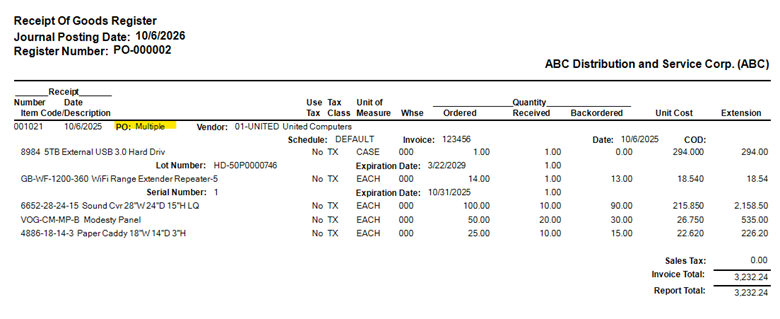
- The receipt of goods journal shows Multiple for the PO Number.
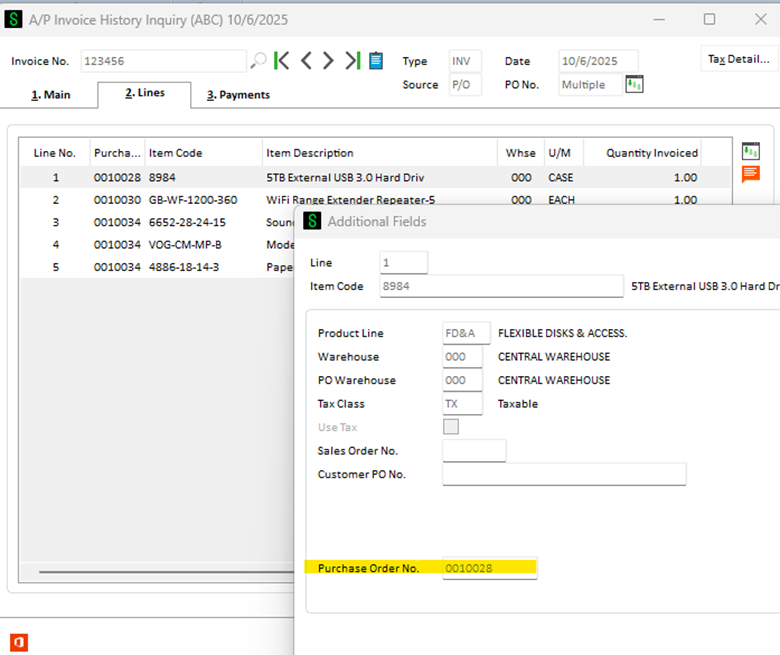
- In the AP Invoice History, the invoice displays 'Multiple' for the PO number.

- Drill down on the lines to see the original Purchase Order number.
Want More Sage 100 Tips & Tricks?
Make sure to subscribe to our blog to stay up-to-date on the latest insights and trends. We're dedicated to providing valuable resources for businesses looking to optimize their financial management with Sage 100.
 Check out these blogs to help get you started!
How to Reverse a Cash Receipt
How to Reverse an Invoice Posted to the Wrong Month
Understanding the Purchases Clearing Report
How to Improve Your Sales Order Entry Workflow