
First, you’ll need to enable your permission and anyone else’s to have access to this feature. This impacts business users, project manager users and Construction Manager users. Note that users must have access to the projects their updating.
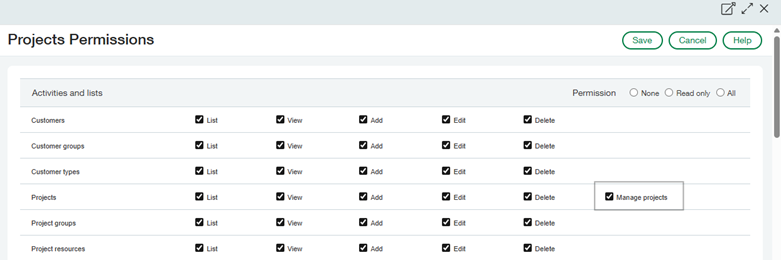
Once enabled, you can now update any number of records across your projects in one simple screen.
Here you can:
- Filter projects by specific fields, including status, category, or date
- Select multiple projects and apply bulk edits intuitively using an interactive interface
- Execute updates as offline jobs with detailed logs for completion and error reporting
- Implement permission controls and validation checks to ensure optimum security
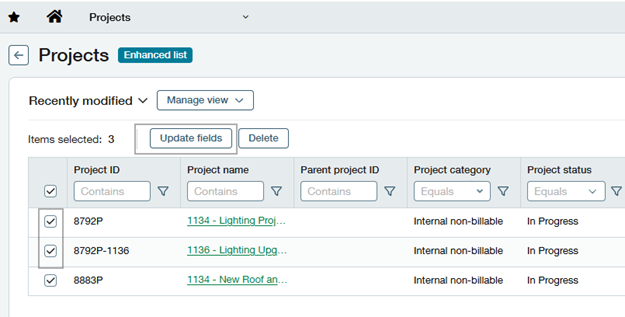
When you click more than one project, the “Update Fields” becomes available. Once clicked, it opens a box that lets you update all the listed fields for the selected projects, or any fields for those projects with the new value.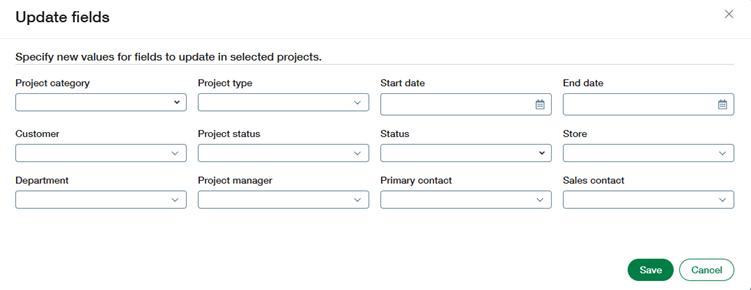
If a Project Manager for a group of projects needs to be changed due to a change in headcount, this would be a simple update for all projects that previously had person A and now have person C. The same would be true for any projects that need to be updated to closed or another project status at end of year. This will process offline and take an update immediately afterward.
Your user will also receive an email notifying you of how many records were updated:
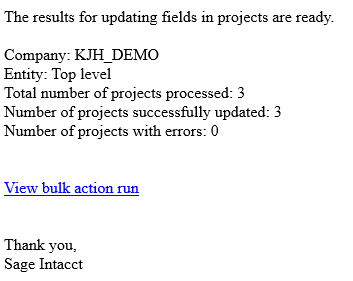
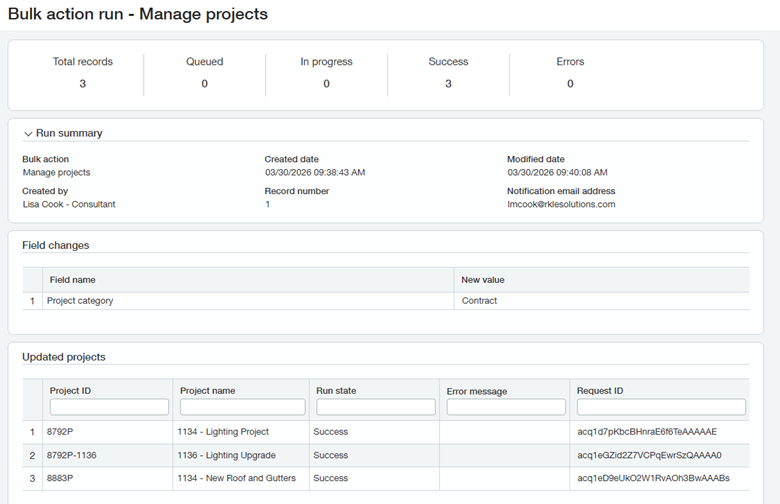
You can now see the bulk action run to see all records:
Looking for More on Sage Intacct?
For more helpful tips and tricks about Sage Intacct, subscribe to our blog and stay up-to-date with our latest tutorials. We're dedicated to providing valuable resources for businesses looking to optimize their financial management with Sage Intacct.
 Check out these blogs to help get you started!
Sage Intacct R2 2026: What You Need to Know about the Latest Release
How to Create Work Orders in Sage Intacct Construction Work Order Management
How to Leverage Vendor Compliance in Sage Intacct Construction