Each user can create their own Dashboard, or dashboards can be shared by many users based on permissions. A Dashboard is a place to put the data and reports that are most important. Learn how to create user dashboards to allow visibility among teammates.
Creating User Dashboards in Sage Intacct
- Go to Intacct > Dashboards > Click on “Dashboards”
.png?width=500&height=203&name=Video%20Thumbnails%20(14).png)
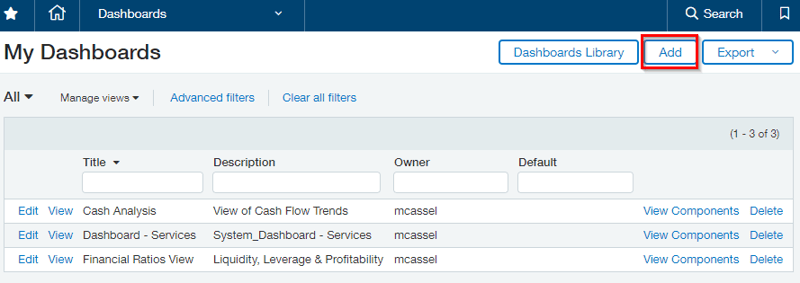
- Click on "Add" to create a New Dashboard
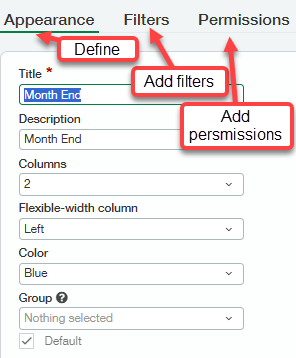
- Go through each tab on Dashboard Setup.
- Appearance: Recommend 2 columns with width set to Left
- Filters: Recommend filters for Date & Entity
- Permissions: Defaults to Dashboard Owner only, so add other users if appropriate.
- Save Dashboard and then click on "View Components."
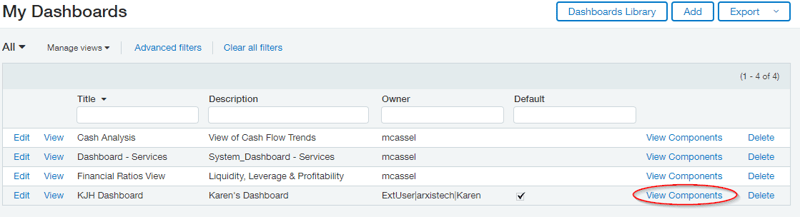
- Click on + to add components.

- Select Component Type to Add.
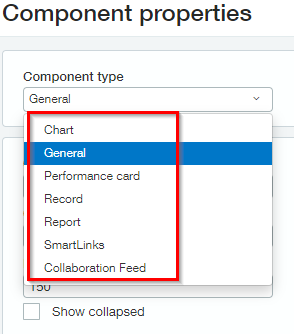
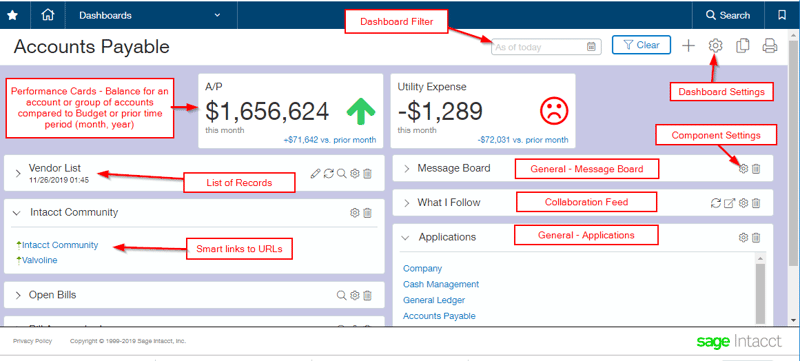
- Chart – Report in Chart format
- General – Applications, Message boards, Calendar
- Performance card – Account balances (Setup Account Group of one or more accounts)
- Record – List of records, Views such as list of Bills or list of GJs to be approved
- User Views must be predefined in order to select here
- If no user Views exist, then select fields to be displayed by clicking on List
- Report – Financial report or Memorized report
- Smart Links – Links to websites/URLs
- Collaboration Feed – Link to Collaborate Messages
- After components are added:
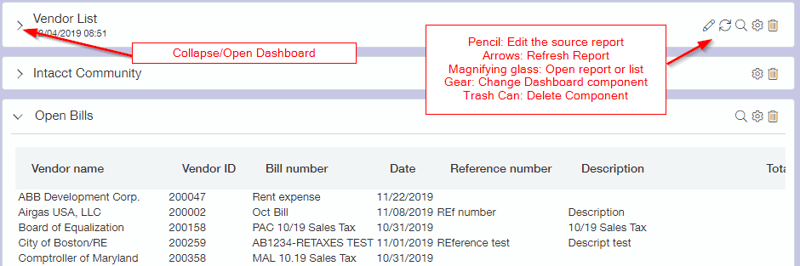
- Drag them on screen to change the order.
- Delete a component by clicking on Trash can icon.
- Modify a component by clicking on the Gear Icon
- Open the component using the magnifying glass
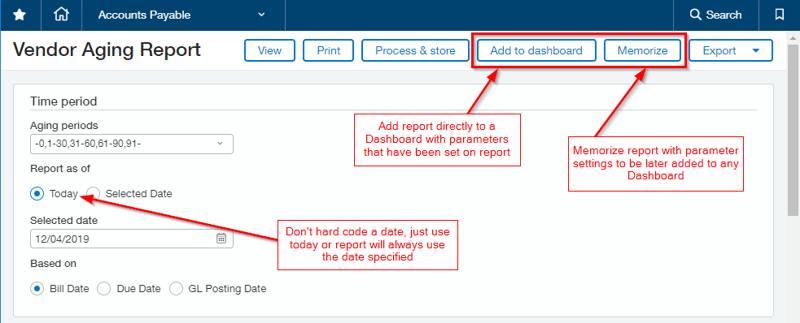
- Create a Memorized report or add directly to Dashboard. Enter any filter criteria on report (do not hard-code a date), then add directly to dashboard or memorize report to be added to any dashboard.
- Go to "My Preferences" to make your Dashboard your default when you launch Intacct.
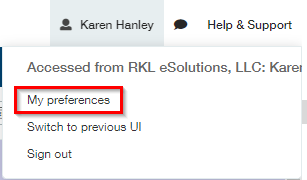
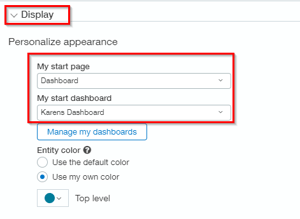
- Make your Dashboard a Favorite so you can easily get back to it from your Favorites drop down list.
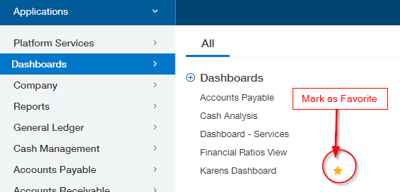
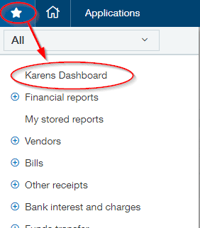
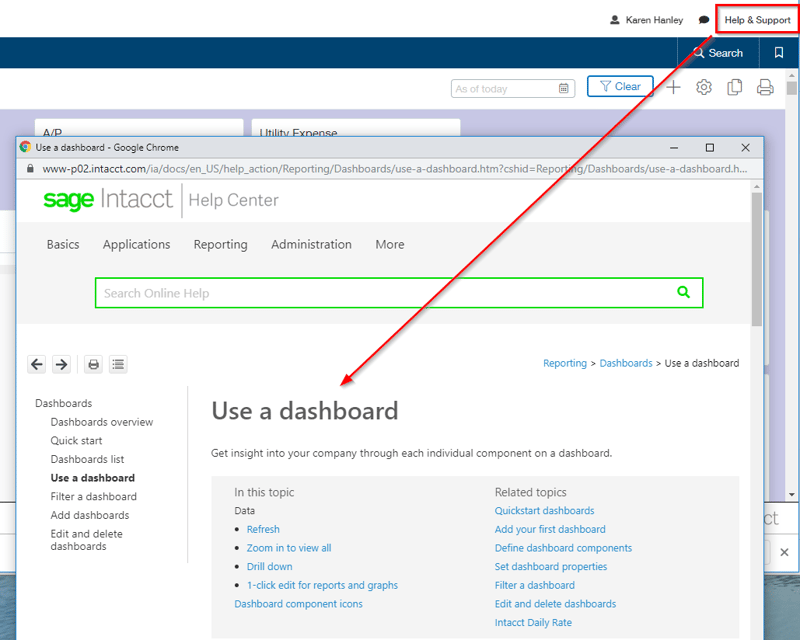
- For additional help, click on “Help & Support” from the dashboard and select “Help on this page."
helpful hints
- Dashboard Filters only filter GL data not subledger data.
- Enter a link to AR & AP Aging reports instead of putting reports directly on dashboard since the filter can not be used for as of date. You could put directly on dashboard if you plan to reconcile daily; that may be helpful on an AR or AP dashboard.
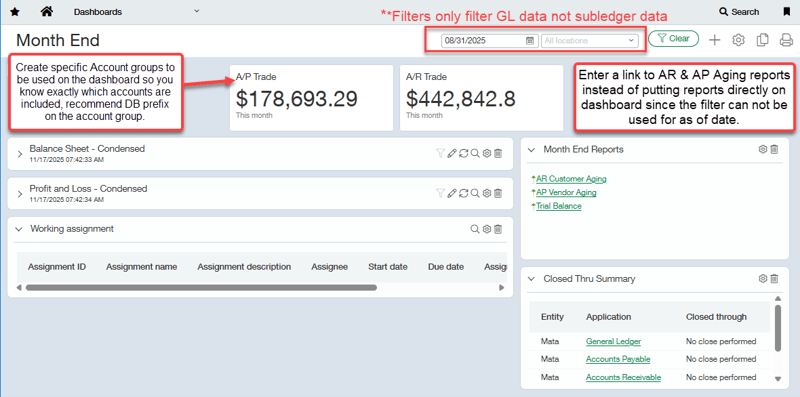
- Performance cards - Create specific Account groups to be used on the dashboard so you know exactly which accounts are included, recommend DB prefix on the account group. If you select the account group “Accounts Payable” from the standard list it will pick up any GL account that is categorized in the “Accounts Payable” group which may not tie to your aging report.
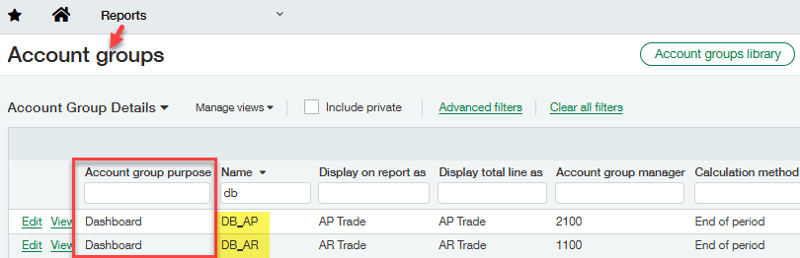
examples:
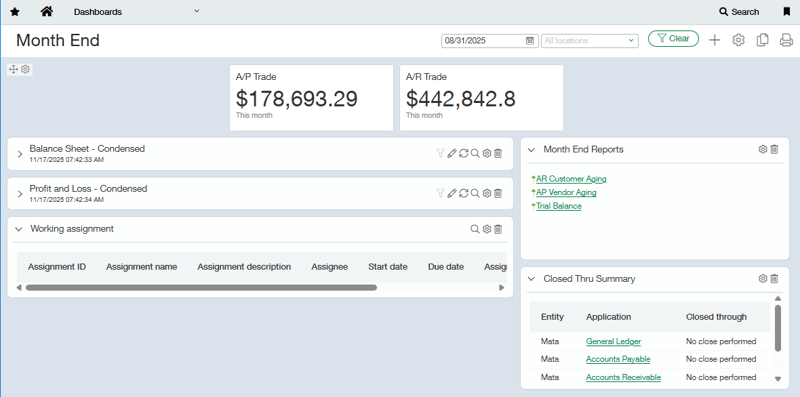
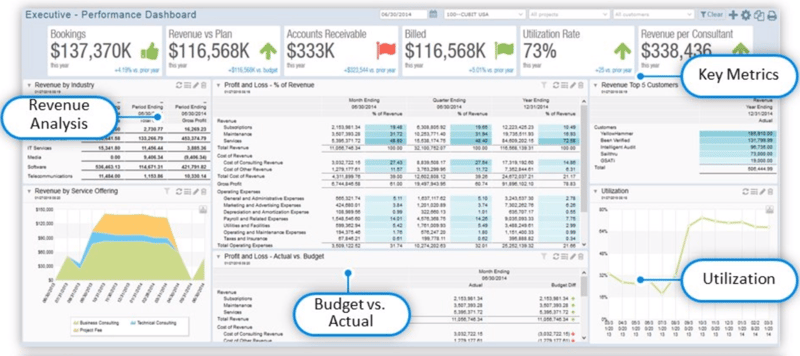
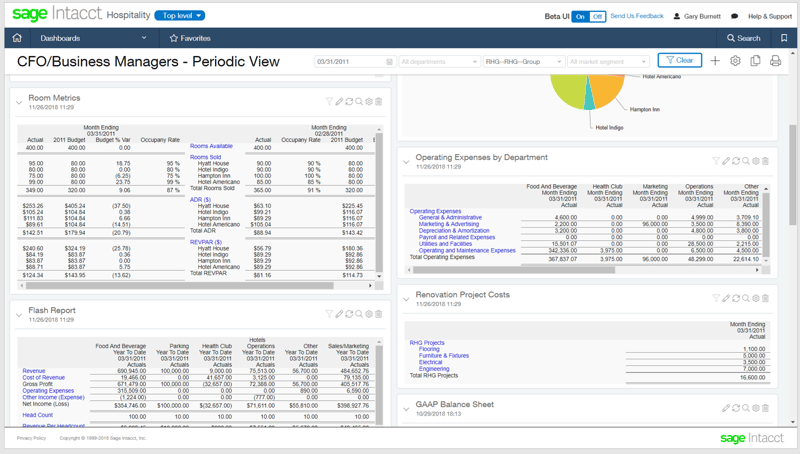
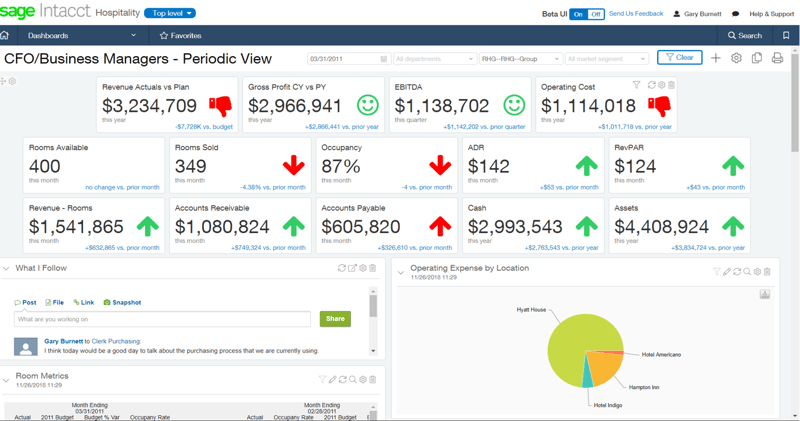
For additional resources to configure user dashboards, please contact RKL eSolutions if you have any questions.
Looking for More on Sage Intacct?
For more helpful tips and tricks about Sage Intacct, subscribe to our blog and stay up-to-date with our latest tutorials. We're dedicated to providing valuable resources for businesses looking to optimize their financial management with Sage Intacct.
 Check out these blogs to help get you started!
Uploading Your Budgets Using Pre-Built Templates
How To Create Ad-Hoc Reports Using Views and Filters
Creating Expanded Columns and a Summary for Reports